The following steps illustrates how to compile Strategy Mobile SDK 9.x on iPhone / iPad simulator.
Prerequisites:
Correct version of Xcode and SDK must be installed prior compilation. Refer to the Readme documents for each release to find the list of certified IDE and SDKs for Strategy Mobile customization.
Readme documents is installed under the following location by default in Windows environment:
C:\Program Files (x86)\Common Files\Strategy\readme.htm
1. Copy the Strategy Mobile SDK.dmg file from the Strategy installation location: \Strategy\SDK\DevelopmentKits\MobileSDK, and put this file on the Mac Machine where the Xcode and SDK are installed previously.
2. From the Mac Machine, double click on Strategy Mobile SDK.dmg file. Drag and drop all the content to a different folder (user will see compilation errors if they compile the project within DMG file foler)
3. To compile for iPad: open Strategy iPad Shell folder inside iPad folder, double click on iPad-Rebrandable.xcodeproj file
To compile for iPhone: open MSTRMobile-Shell folder inside iPhone folder, double click on MSTRMobile.xcodeproj file
4. Xcode will open with the iPad / iPhone project displayed.
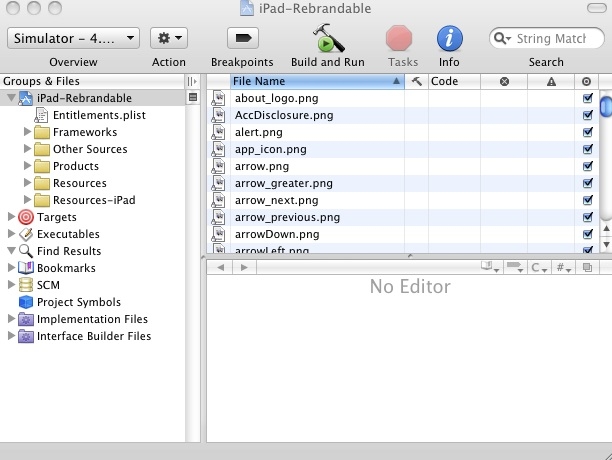
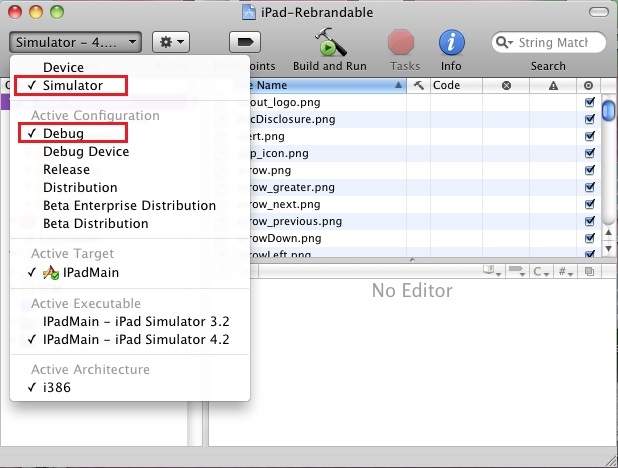
5. By default, Simulator and Debug compilation mode are selected. If not, make sure both Simulator and Debug modes are both selected.
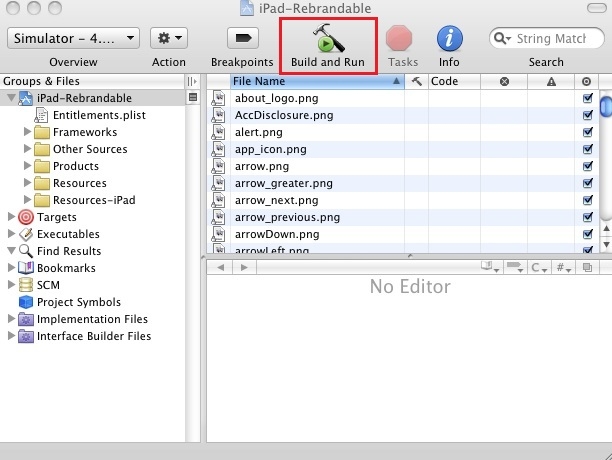
6. Click on Build and Run button to build and run the Strategy Mobile App.
7. The iPad/iPhone simulator will open automatically with Strategy Mobile app installed once the compilation is finished.
