EducationSoftwareStrategy.com
StrategyCommunity

Knowledge Base

Product

Community

Knowledge Base

TopicsBrowse ArticlesDeveloper Zone

Product

Download SoftwareProduct DocumentationSecurity Hub

Education

Tutorial VideosSolution GalleryEducation courses

Community

GuidelinesGrandmastersEvents
x_social-icon_white.svglinkedin_social-icon_white.svg
Strategy logoCommunity

© Strategy Inc. All Rights Reserved.

LegalTerms of UsePrivacy Policy
  1. Home
  2. Topics

KB37127: Using Custom Fonts in MicroStrategy Web


Community Admin

Placeholder •


Additional fonts can be added to the out of the box list of fonts provided in MicroStrategy Web Documents and Dossiers.

Starting with the release of Strategy ONE (March 2024), dossiers are also known as dashboards.
Additional fonts can be added to the out of the box list of fonts provided in Strategy Web Documents & Dossiers.
NOTE: The plugins should normally be created using the Web Customization Editor to remove any room for error in the plugin definition. However, as this plugin has limited content, the second approach will  is a demonstration on how you can create the same plugin without WCE. Two approaches will be therefore shown within the article:

  • Creating the plugin through the WCE
  • Manually changing a preconfigured, provided plugin to include the font requested by the user.


If any issues are seen after following the manual approach, it is recommended to try creating it using WCE instead to reduce the risk of plugin issues.

Approach 1 - using the WCE

The following steps create the example plugin provided below, designed to add “Annabel Antique Script” to the fonts dropdown in Strategy Web.
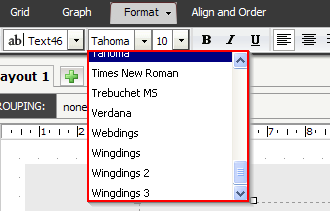
Before Customization - font not available in the drop-down:
 

ka0PW0000001JmKYAU_0EM440000002Gm9.gif

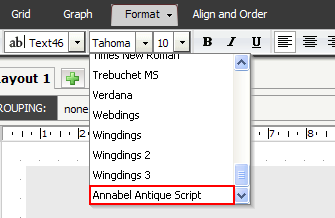
After Customization - font visible in the drop-down:
ka0PW0000001JmKYAU_0EM440000002GmG.gif

1. Installing the 3rd party font on the client machine
Prior to creating the Plugin, save the custom font in the Fonts folder on the Client machine.  For a Windows machine, by default, the fonts will be in the ..\WINDOWS\Fonts folder.
This customization makes a new font selectable from the interface in Strategy Web, although the font itself still needs to be installed on each client machine where this font will be viewed. This limitation can be addressed by following KB235107 after completing the steps in this article.
2. Using the Web Customization Editor to create a plug-in
Strategy SDK provides a Web Customization Editor that can be used to create a customization plug-in. The following steps guide you in creating the plug-in and deploying it.

  1. Launch the Web Customization Editor
  2. Expand Strategy Web Configuration inside the Application Settings view.
  3. Navigate to & expand System Pickers, then select fontPicker.
  4. Right-mouse click on fontPicker and select New Shortcut.
  5. Using the exact name of the font, enter a name for the new shortcut prefixed with "pkr". For example, if the font is named "AnnabelAntiqueScript" the shortcut name should be "pkrAnnabelAntiqueScript".
  6. The new shortcut editor should open and should be on the Basic Properties tab.
  7. Enter a Descriptor for the font; this is what the users will see in the dropdown.  For the example above, Descriptor = Annabel Antique Script.
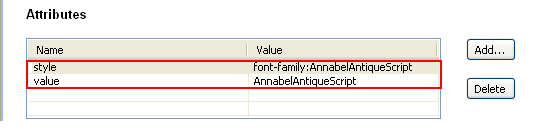
  8. On the Advanced Properties tab, add the following two attributes and their values:   

Name: style, Value: font-family:AnnabelAntiqueScript
Name: value, Value: AnnabelAntiqueScript                                                                                                          
ka0PW0000001JmKYAU_0EM440000002GmA.gif

NOTE:  The font names and font family are very specific values that must correspond to what is defined inside the font itself. A mismatch here may prevent the font from displaying correctly.

  1. Save your changes.
  2. Restart the Web Server.

Troubleshooting tips:

  • If the fonts are not showing, in step 8 during plugin creation add !important at the end of each value
  • If uses cannot see the System Pickers tab, they have to enable it by going to the Window tab in the top part of the Web Customization Editor -> Preferences -> Strategy -> Click "Show Advanced Options" -> Click System Pickers and "Apply". Thus, they will see the System Pickers tab under Application Settings.

Approach 2 - Modify the Sample Plugin Directly

2.1 Deploying the Sample Font Plugin

Note: it is typically not recommended to manually create plugins without the Web Customization Editor (WCE) as there is a higher risk for error. However, as this plugin has a relatively simple structure, for educational purposes the following approach demonstrates the plugin creation process without using WCE.
After downloading the following sample plugin, the same customization can be completed by following strict manual modifications of the files within the plugin.
As mentioned in the note above, you can use the plugin without creating it within the WCE. Manual alterations to the plugin given below should be enough to set your plugin as fully operational. You will first have to implement the plugin within the environment, and later change specific details in regards to the plugin you want to use within your system. 

  1. Download the FontPlugin .
  2. Extract the plugin and move it to the Strategy Web installation directory’s plugin folder.
  3. Restart your application server. 


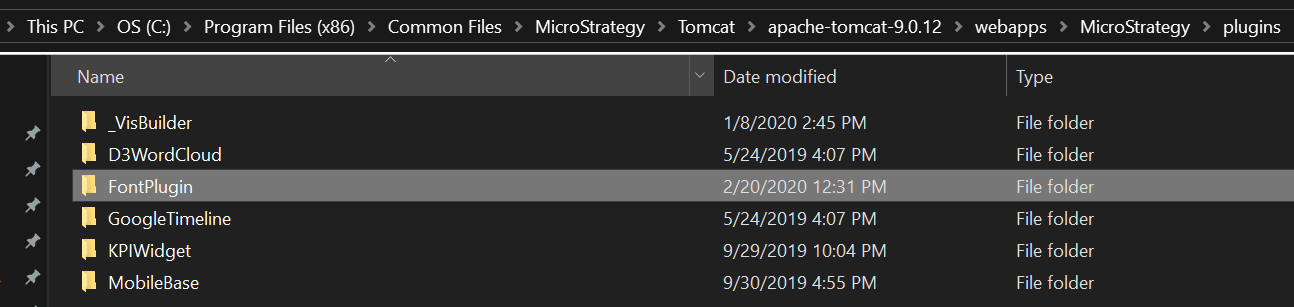
The example shows a plugin within a folder structure for Web JSP on Windows: C:\Program Files (x86)\Common Files\Strategy\Tomcat\apache-tomcat-9.0.63\webapps\Strategy\plugins\FontPlugin

ka0PW0000001JmKYAU_0EM2R0000019LAT.jpeg

The sample plugin is designed to add “Zapfino” to the dropdown in Strategy Web. If the “Zapfino” font is already installed on your machine, the font should be fully functional without further modifications of this plugin. If you wish to make the font work without having it installed - the steps that have to be performed for such functionality are mentioned in KB235107.
2.1 Deploying the Sample Font Plugin
The following steps modify this plugin to add a different font to the fonts dropdown in Strategy Web. Additional fonts can be added by introducing additional “shortcut-list” fontPicker child entries (shortcut tags).
Example in pseudo code:


<shortcut-list name="fontPicker">
  <shortcut desc="ExampleFont1" name="pkrExampleFont1">
    ... first new font, see below for full structure
  </shortcut>
  <shortcut desc="ExampleFont2" name="pkrExampleFont2">
    ... second new font, see below for full structure
  </shortcut>
</shortcut-list>

NOTE: The elements of the picker directly resemble those mentioned within the first part of the tutorial - pkr, DESC and font:family/value. The steps below illustrate how to use a sample custom font, called Gauge-Regular, which is not supported in MSTR Web by default.

  1. Expand FontPlugin and navigate to WEB-INF/xml/config. Open fontNamesPicker.xml and modify the font by changing the instances of "Zapfino" to "Gauge" as shown below in bold.
  2. Save your changes.
  3. Restart the web server.

Before customization:


<shortcut-list name="fontPicker">
  <shortcut desc="Zapfino" name="pkrZapfino">
    <attributes>
      <attribute name="style" source="const" value="font-family:Zapfino"/>
      <attribute name="value" source="const" value="Zapfino"/>
    </attributes>
  </shortcut>
</shortcut-list>

After customization:

<shortcut-list name="fontPicker">
  <shortcut desc="Gauge" name="pkrGauge">
    <attributes>
      <attribute name="style" source="const" value="font-family:Gauge"/>
      <attribute name="value" source="const" value="Gauge"/>
    </attributes>
  </shortcut>
</shortcut-list>

After following these steps the new font “Gauge” should be available in both documents and Dossiers within Strategy Web, via the fonts drop-down menus. 
USEFUL LINKS:
A collection of articles on custom fonts in PDF export - KB441194
Fonts in Mobile SDK - Using Custom Fonts in iOS SDK
ADDITIONAL INFORMATION:
The Strategy SDK allows you to customize the standard Strategy Web interface, and extend and integrate the Strategy business intelligence functionality into other applications. However, before changing the way Strategy Web products look or behave, it is helpful to understand how the application is built. For more information regarding the Strategy Web architecture or the process of customizing Strategy Web, please refer to MicroStrategy Developer Zone .
To access the Strategy Developer Zone, you must have access to the Strategy Knowledge Base, you must have purchased the Strategy SDK, and you must be current on your Strategy maintenance agreement. If you are a US-based business and believe that you satisfy all three of these conditions but you do not have access to the Strategy Developer Zone, please contact Strategy Technical Support at support@microstrategy.com or at (703) 848-8700. If you are an international business, please contact Strategy Technical Support at the appropriate email address or phone number found at Support Contacts page.
CUSTOMIZATION WARNING:
This customization is provided as a convenience to Strategy users and is only directly applicable to the version stated. While this code may apply to other releases directly, Strategy Technical Support makes no guarantees that the code provided will apply to any future or previous builds. In the event of a code change in future builds, Strategy Technical Support makes no guarantee that an updated version of this particular customization will be provided. In the event of a code change in future builds, Strategy may not be able to provide additional code on this matter even though this customization is provided at this time for this specific build. For enhancements to this customization or to incorporate similar functionality into other versions, contact your Account Executive to inquire about Strategy Consulting assistance.


Comment

0 comments

Details

Knowledge Article

Published:

May 22, 2017

Last Updated:

March 21, 2024