The server definition is a set of settings stored in the metadata which contain information about configuration locations, governing settings, and other system and project specific settings. Server definitions can be listed, created, and set for use with a Strategy Intelligence Server using the Strategy Configuration Wizard. This technical note will explain six methods for determining which server definition is currently being used:
DSSErrors.log (All OS):
The DSSErrors.log will log the server definition name at startup:
Sample Code/Error
2011-07-27 18:07:29.801-05:00 PrintServerDef: General Info - ServerDef Name: ANALYTICS_METADATA, Max jobs per project: 10000, Max connections per project: 320
In the above log the name is "ANALYTICS_METADATA".
Strategy Configuration Wizard (Windows, GUI UNIX/Linux):
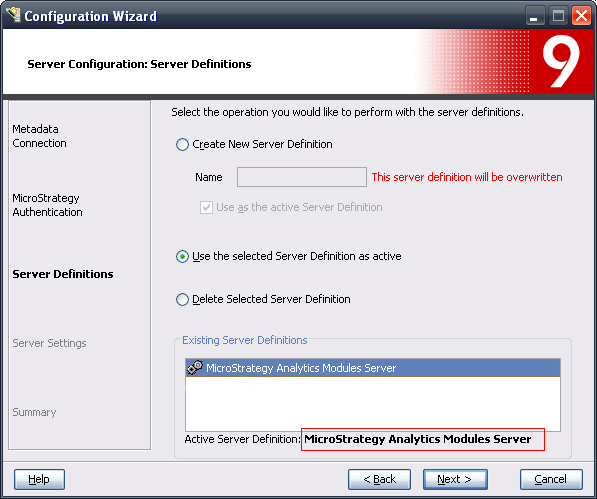
After opening the Configuration Wizard GUI, select the second option for "Configure Intelligence Server." Select the DSN for the metadata that the Intelligence Server is using, then enter the Strategy Administrator username and password. After this, the server definition page will show all of the existing definitions, and whether an existing server definition exists. The active server definition is displayed on the bottom of the page:
Strategy Developer (Windows Only):
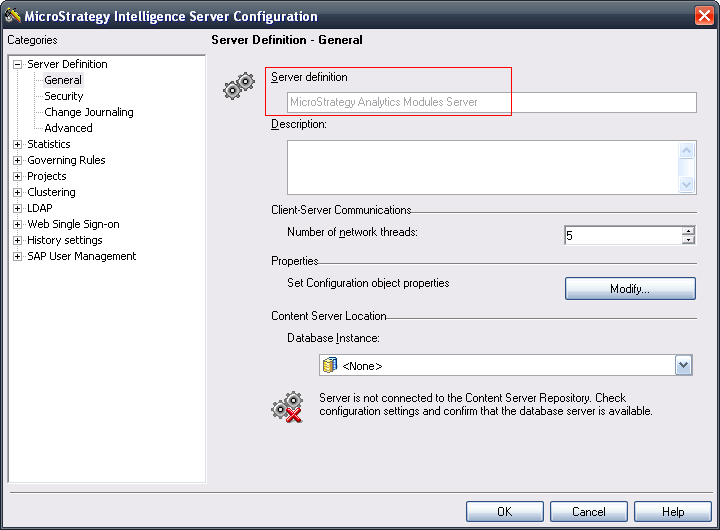
Open Strategy Developer and connect to a 3-tier Project Source pointing to the desired Intelligence Server. Right click on the Project Source and select "Configure Strategy Intelligence Server." The initial default screen under "Server Definition" > "General" lists the currently used server definition name:
Intelligence Service Manager (Windows, GUI UNIX/Linux):
This option must be performed on the Strategy Intelligence Server machine. Run the Strategy Service Manager utility, on Windows there is generally an icon,

located in the system tray which shows this tool already running. This utility can also be run from Program Files > Strategy > Tools > Service Manager in Windows; and by running ./mstrsvcmgr in the bin folder in Linux/Unix.
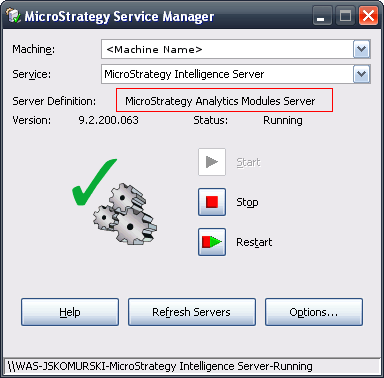
The tool has a section which shows the currently used Server Definition:
Windows Registry (Windows Only):
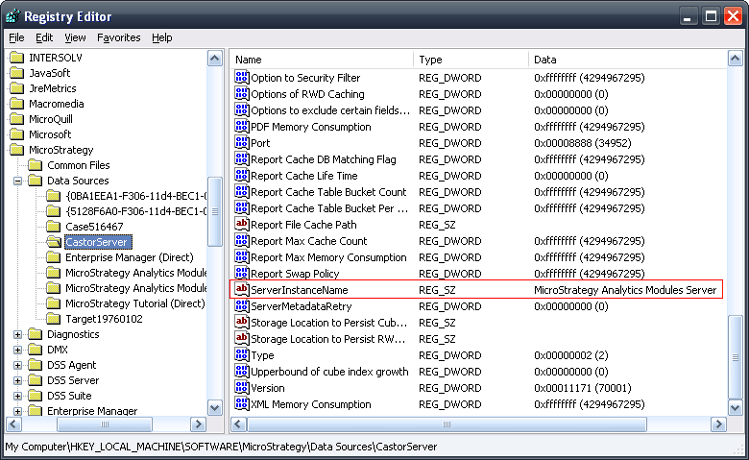
Open the Windows Registry (regedit.exe) on the Strategy Intelligence Server machine. Navigate to the registry location . Locate the 'ServerInstanceName' string value, the data stored here is the name of the server definition currently configured:
MSIReg.reg File (UNIX/Linux):
Since UNIX/Linux systems do not have a registry like windows, a flat file named "MSIReg.reg", is used to simulate it. As with the Windows registry the currently configured Server Definition name is stored as the "ServerInstanceName". This file is located in the Strategy home folder on the system. Open the file in a text editor and search for the string. Alternatively, use grep as shown below:
Sample Code/Error
$ grep ServerInstanceName MSIReg.reg
"ServerInstanceName"="Strategy Analytics Modules Server"
Strategy Control Utility (All OS - Command Line)
Strategy provides a command line utility that can be used to retrieve Intelligence Server related information and manipulate Intelligence Server instances from command line. This utility is called "mstrctl" and it can be leveraged to gather the Server Definition name. For more information regarding the mstrctl utility refer to the following Strategy Knowledge Base technical note:
KB10941: "What is the MSTRCtl utility and how is it used in MicroStrategy Intelligence Server 9.x?"
On Windows, the Control Utility is located under under <Installation Drive>/Program Files/Common Files/MicroStrategy/MSTRCTL.exe. For UNIX/Linux systems it is in the bin directory contained in the Strategy Home folder.
Once in the correct location, run the following command from the command line to "get server instance configuration":
Sample Code/Error
mstrctl -s IntelligenceServer gsic
The resulting output will provide the full server instance configuration details:
Sample Code/Error
<?xml version="1.0"?>
<configuration n="CastorServer">
<metadata>
<odbc dsn="Analytics_Metadata"/>
</metadata>
<svrd n="Strategy Analytics Modules"/>
......
The field that contains the name of the Server Definition is "svrd". On UNIX/Linux machines, the output can be passed to grep for easier searching:
Sample Code/Error
$ ./mstrctl -s IntelligenceServer gsic | grep svrd
<svrd n="Strategy Analytics Modules"/>
