EducationSoftwareStrategy.com
StrategyCommunity

Knowledge Base

Product

Community

Knowledge Base

TopicsBrowse ArticlesDeveloper Zone

Product

Download SoftwareProduct DocumentationSecurity Hub

Education

Tutorial VideosSolution GalleryEducation courses

Community

GuidelinesGrandmastersEvents
x_social-icon_white.svglinkedin_social-icon_white.svg
Strategy logoCommunity

© Strategy Inc. All Rights Reserved.

LegalTerms of UsePrivacy Policy
  1. Home
  2. Topics

KB37305: "ADD/ALTER ACE" command does not affect existing children objects in MicroStrategy Command Manager 9.x


Stefan Zepeda

Salesforce Solutions Architect • Strategy


"ADD/ALTER ACE" command does not affect existing children objects in MicroStrategy Command Manager 9.x

SYMPTOM:
 
In Strategy Command Manager 9.x, executing the below outlines does not change the ACL of existing children objects in the folder specified.
 
Sample Code/Error
ADD ACE FOR FOLDER "<folder_name>" IN FOLDER "<location_path>" USER | GROUP "<user_logins_or_group_name>" ACCESSRIGHTS XXXXXX CHILDRENACCESSRIGHTS XXXXXX FOR PROJECT "<project_name>";
 
ALTER ACE FOR FOLDER "<folder_name>" IN FOLDER "<location_path>" USER | GROUP "<user_logins_or_group_name>" ACCESSRIGHTS XXXXXX CHILDRENACCESSRIGHTS XXXXXX FOR PROJECT "<project_name>";
 
 
STEPS TO REPRODUCE:
 
Follow the below steps to reproduce this issue in Strategy Tutorial project 9.x.
  • Execute the below outline in Strategy Command Manager:
     

    Sample Code/Error
    ADD ACE FOR FOLDER "Reports" IN FOLDER "\Public Objects" GROUP "Managers" ACCESSRIGHTS FULLCONTROL CHILDRENACCESSRIGHTS FULLCONTROL FOR PROJECT "Strategy Tutorial";

     
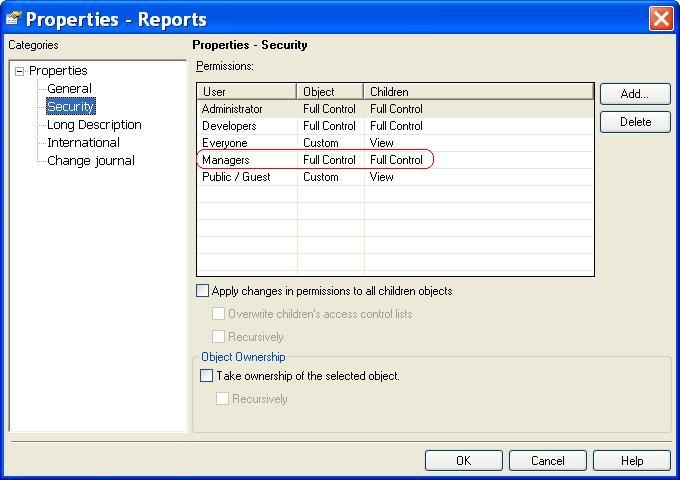
  • Log in Strategy Tutorial project in Desktop and check the Security properties of folder "Reports" in \Public Objects. Note that the ACL has been changed as expected, as shown below:
     
ka02R000000kX0CQAU_0EM440000002Dbx.jpeg
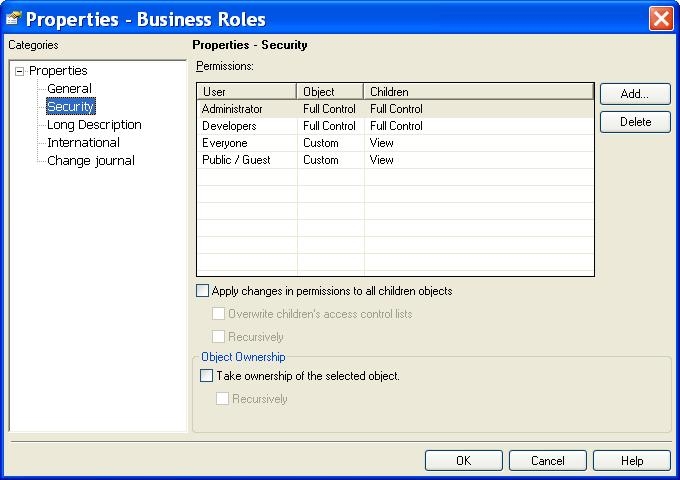
  • Open the folder "Reports" and check the Security properties of any object in the folder: the ACL remains unchanged, as shown below:
     
ka02R000000kX0CQAU_0EM440000002Dbw.jpeg
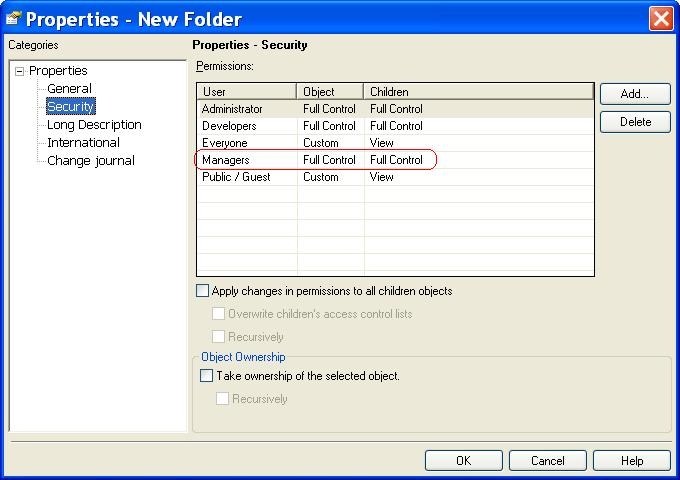
  • Create a new object in "\Public Objects\Reports" folder and check its Security properties. Note that the ACL is as the same as the parent folder, as shown below:
     
ka02R000000kX0CQAU_0EM440000002Dby.jpeg

CAUSE:
 
This is working as designed. In Strategy Developer, when ACL of a folder is changed, before saving the changes, there is an option to apply changes in permissions to all children objects in the folder, as shown below:
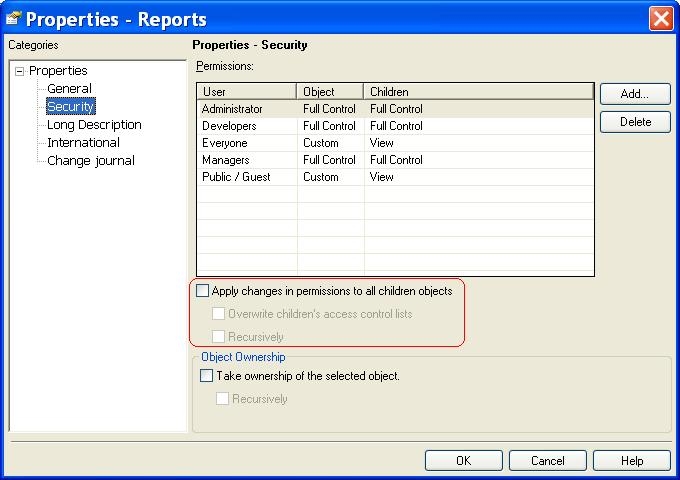
 

ka02R000000kX0CQAU_0EM440000002DcC.jpeg

 
In Strategy Command Manager, the above option is performed by a separate command:
 
Sample Code/Error
ALTER ACL FOR FOLDER "<folder_name>" IN FOLDER "<location_path>" FOR PROJECT "<project_name>";
 
 
ACTION:
 
In order to apply the parent ACL changes to existing children objects, the below two outlines should be used together:
 
Sample Code/Error
ADD ACE FOR FOLDER "<folder_name>" IN FOLDER "<location_path>" USER | GROUP "<user_logins_or_group_name>" ACCESSRIGHTS XXXXXX CHILDRENACCESSRIGHTS XXXXXX FOR PROJECT "<project_name>";
 
ALTER ACL FOR FOLDER "<folder_name>" IN FOLDER "<location_path>" FOR PROJECT "<project_name>";


Comment

0 comments

Details

Knowledge Article

Published:

April 12, 2017

Last Updated:

April 12, 2017