EducationSoftwareStrategy.com
StrategyCommunity

Knowledge Base

Product

Community

Knowledge Base

TopicsBrowse ArticlesDeveloper Zone

Product

Download SoftwareProduct DocumentationSecurity Hub

Education

Tutorial VideosSolution GalleryEducation courses

Community

GuidelinesGrandmastersEvents
x_social-icon_white.svglinkedin_social-icon_white.svg
Strategy logoCommunity

© Strategy Inc. All Rights Reserved.

LegalTerms of UsePrivacy Policy
  1. Home
  2. Topics

KB37420: "Illegal argument" error occurs when removing an attribute from grid in a report in MicroStrategy Web 9.0.x


Community Admin

• Strategy


"Illegal argument" error occurs when removing an attribute from grid in a report in MicroStrategy Web 9.0.x

SYMPTOM:
 
In Strategy Web 9.0.x, the following error occurs when removing an attribute from grid in a report:

 

ka04W000000OgaQQAS_0EM4400000027XO.jpeg

 
Sample Code/Error
Error in report results
Your request could not be processed due to a server error.
Please try again. If the problem persists, contact the server Administrator.
Illegal argument
 
STEPS TO REPRODUCE:
Follow the steps below to reproduce the issue with Strategy Tutorial project:
  • Create a report like the following:
     
    Row: Region attribute, Cost, Cost Growth, Revenue and Units Sold metrics.
    Column: Month attribute
    Report object: Day attribute
     
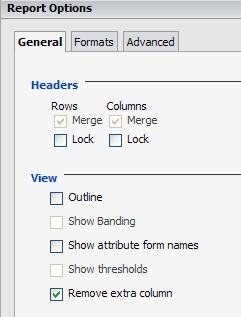
  • Enable 'Remove extra column' option in "Report Options", as shown below:
     
ka04W000000OgaQQAS_0EM4400000027Xb.jpeg
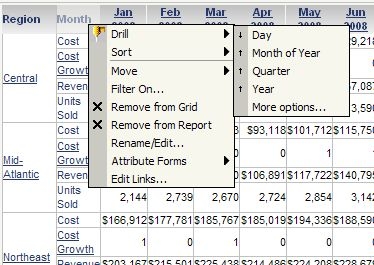
  • Run the report, drill down from Month to Day attribute, as shown below:
     
ka04W000000OgaQQAS_0EM4400000027XP.jpeg
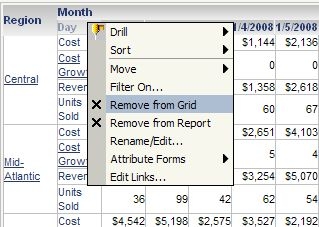
  • Remove Day attribute from grid , as shown below:
     
ka04W000000OgaQQAS_0EM4400000027XY.jpeg
  • Note that the error occurs.

CAUSE:
 
This is a known issue with Strategy Web 9.0.x.
 
ACTION:
 
This issue has been addressed in Strategy Web 9.3.0 Upgrade to this version to take advantage of the fix.
 
WORKAROUND:
 
Follow the steps below to work around the issue in Strategy Web:
  • Uncheck ‘Remove extra column' option in 'Report Options'.
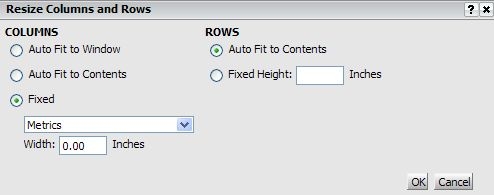
  • Go to ‘Resize Columns and Rows’ in Strategy Web.
  • Set the size of metric column to 0, as shown below:
     
ka04W000000OgaQQAS_0EM4400000027Xc.jpeg


Comment

0 comments

Details

Knowledge Article

Published:

June 13, 2017

Last Updated:

June 13, 2017