EducationSoftwareStrategy.com
StrategyCommunity

Knowledge Base

Product

Community

Knowledge Base

TopicsBrowse ArticlesDeveloper Zone

Product

Download SoftwareProduct DocumentationSecurity Hub

Education

Tutorial VideosSolution GalleryEducation courses

Community

GuidelinesGrandmastersEvents
x_social-icon_white.svglinkedin_social-icon_white.svg
Strategy logoCommunity

© Strategy Inc. All Rights Reserved.

LegalTerms of UsePrivacy Policy
  1. Home
  2. Topics

KB37523: How to implement page breaks between graphs relating to different elements of an attribute in the Grouping section in Report Services documents executed in PowerPoint via MicroStrategy Office.


Community Admin

• Strategy


How to display different elements of an attribute incorporated within the Grouping section of a Report Services document on separate pages in MicroStrategy Office?

When using Strategy Office integration with Power Point, a user may wish to specify that graphs relating to different elements of an attribute incorporated within the Grouping section of a Report Services document should be displayed on separate pages. How can this be achieved?
 
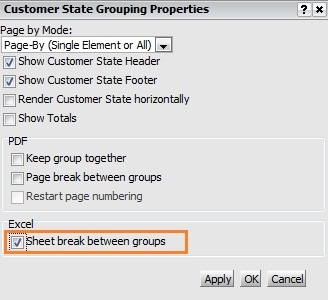
It is possible to govern the placement of page-breaks by enabling the 'Sheet break between groups' setting in the 'Grouping properties' of the Report Services document in the Web interface.
 
This behavior can be demonstrated in the Tutorial project by taking the steps as indicated below:
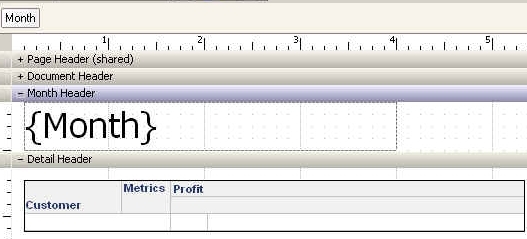
  • In the Tutorial project, create a report with Customer and Profit, with Month in the page-by and a Report Limit to limit data to 'Profit in top 15', with a break-by on Month.
  • Display the data as a graph
  • Convert the report to a document:

ka04W000000OdRBQA0_0EM4400000027TY.jpeg
  • Execute in PowerPoint using Strategy Office and note that there is no break-by available for the graphs generated for each group of customers.  This results in numerous graphs being displayed on the same page:

ka04W000000OdRBQA0_0EM4400000027Td.jpeg
  • Enable the 'Sheet break between groups' setting in the 'Grouping properties' of the Report Services document in the Web interface:

ka04W000000OdRBQA0_0EM4400000027Tf.jpeg
  • The graphs related to each individual element of the attribute included within the Grouping will then be displayed on separate pages.

Please note that the same procedure can be followed to add page-breaks also in Microsoft Excel and Word.
 
Third Party Software Installation:
WARNING:
The third-party product(s) discussed in this technical note is manufactured by vendors independent of Strategy. Strategy makes no warranty, express, implied or otherwise, regarding this product, including its performance or reliability.


Comment

0 comments

Details

Knowledge Article

Published:

June 22, 2017

Last Updated:

June 22, 2017