SYMPTOM:
When using an attribute selector on a report that contains a derived metric and a view filter, some selector options can cause the report to display incorrect results.
STEPS TO REPRODUCE:
Follow the steps below to reproduce this issue in Strategy Tutorial 9.x
1. Create a report in Strategy Developer with two attributes: Region in the rows and Year in the columns.
2. Add 3 metrics: Profit, Cost and Revenue.
3. Save and Close the report. Then create a new document or dashboard using the saved report as a dataset.
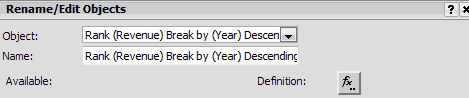
4. Add a derived metric that ranks on Revenue and breaks by Year as shown in the image below.
5. Add a view filter on the derived metric that filters out results less than 5.
6. Add a selector with “Select attribute element” as its Action type and Year as its Source as below.

When a year is selected, the data for that year, including the rank, is displayed correctly as noted in the image below.
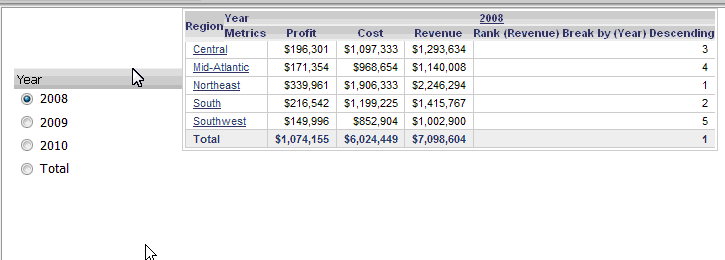
When Total is selected, the ranking ignores the filter and returns incorrect values.

CAUSE:
This behavior is by design. The selector data is calculated in the analytical engine, as is the view filter. The calculation will function correctly on all the years, but the derived Rank metric has its Break-by set to Year. Since total is not a year, this causes the derived Rank metric to ignore the view filter and display and rank everything.
ACTION:
There is currently an enhancement request to allow derived metrics to retain their settings and deliver results based on what is present on the grid. Contact Strategy Support for an update on the status of this request.
