EducationSoftwareStrategy.com
StrategyCommunity

Knowledge Base

Product

Community

Knowledge Base

TopicsBrowse ArticlesDeveloper Zone

Product

Download SoftwareProduct DocumentationSecurity Hub

Education

Tutorial VideosSolution GalleryEducation courses

Community

GuidelinesGrandmastersEvents
x_social-icon_white.svglinkedin_social-icon_white.svg
Strategy logoCommunity

© Strategy Inc. All Rights Reserved.

LegalTerms of UsePrivacy Policy
  1. Home
  2. Topics

KB38017: How to use Fiddler Web Debugger to troubleshoot iPad and iPhone connectivity issues ?


Community Admin

• Strategy


This article explains how to use fiddler to troubleshoot e.g. connectivity issues with iOS Mobile devices.

Fiddler is a Web Debugging Proxy which logs all HTTP(S) traffic between client machine and Web server - in this scenario between the iPad or iPhone and the Strategy Mobile Server. It can be used to monitor incoming or outgoing data and inspect the HTTP traffic. iPad and iPhone can be configured to connect through the Fiddler proxy server by following the steps outlined below.
 
How to configure Fiddler to accept the connection from iPad or iPhone?
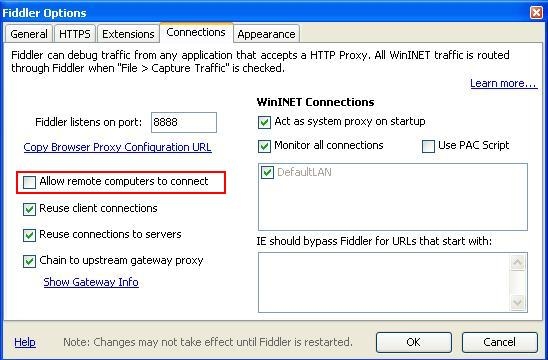
 

  • By default Fiddler does not accept connections from remote machines. It is therefore necessary to enable this option in the first step. For this purpose in the main menu navigate to:  Tools -> Fiddler Options -> Connections tab and check the option "Allow remote computers to connect" as on the screenshot below.

    Please note that Fiddler listens on a particular port and by default it is 8888. This port has to be available and cannot be blocked by firewalls or any other software.  
ka04W000000rZPqQAM_0EM440000002HQe.jpeg
  • Restart Fiddler to apply the changes. 

 
How to configure iPad or iPhone to connect through the Fiddler proxy ?
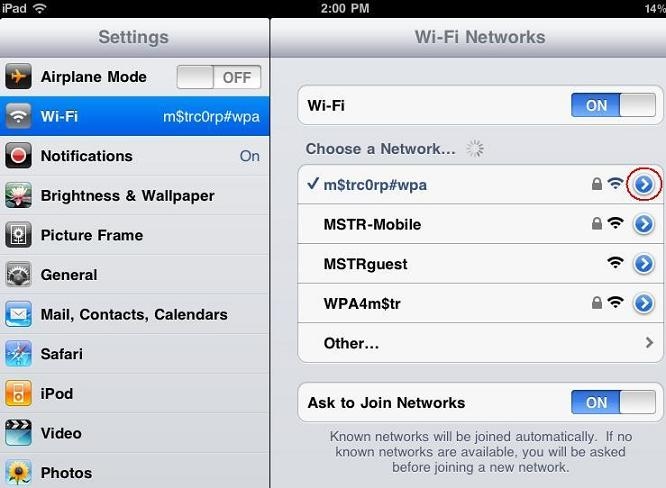
 

  • In the Main Menu navigate to Settings -> Wi-Fi -> next to the Wireless network name you are connecting to, tap on the rounded blue button:

ka04W000000rZPqQAM_0EM440000002HQc.jpeg
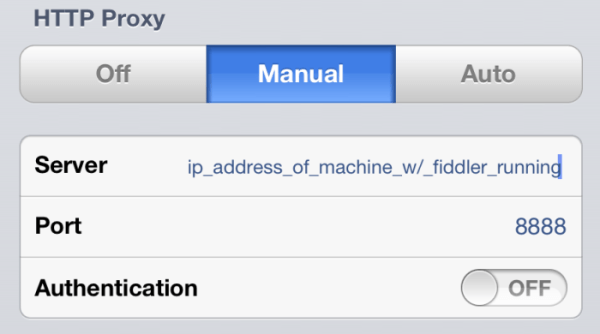
  • Switch HTTP Proxy configuration to Manual.

ka04W000000rZPqQAM_0EM440000002HQd.png
  • In the Server field specify the IP address of machine on which you have Fiddler running
  • Port must match the port on which Fiddler is listening  and authentication should be off. 

Now Fiddler will start capturing the traffic once any HTTP(S) activity from iPad or iPhone is detected.
 
NOTE: Even when Fiddler is configured on a separate machine from the server, such as in the case of a UNIX server, traffic will still go through the fiddler when communicating from/to the mobile device.


Comment

0 comments

Details

Knowledge Article

Published:

April 29, 2017

Last Updated:

April 29, 2017