EducationSoftwareStrategy.com
StrategyCommunity

Knowledge Base

Product

Community

Knowledge Base

TopicsBrowse ArticlesDeveloper Zone

Product

Download SoftwareProduct DocumentationSecurity Hub

Education

Tutorial VideosSolution GalleryEducation courses

Community

GuidelinesGrandmastersEvents
x_social-icon_white.svglinkedin_social-icon_white.svg
Strategy logoCommunity

© Strategy Inc. All Rights Reserved.

LegalTerms of UsePrivacy Policy
  1. Home
  2. Topics

KB38216: What are the available locations to change PDF export options in MicroStrategy Developer and Web 9.4.x-10.x?


Stefan Zepeda

Salesforce Solutions Architect • Strategy


When a report is exported to PDF, its export options can be modified on several levels in MicroStrategy Developer and Web.  This is best illustrated with the export options for custom headers and footers, and the following is a list of various locations in which the header and footer information can be specifie

When a report is exported to PDF, its export options can be modified on several levels in Strategy Developer and Web.  This is best illustrated with the export options for custom headers and footers, and the following is a list of various locations in which the header and footer information can be specified.
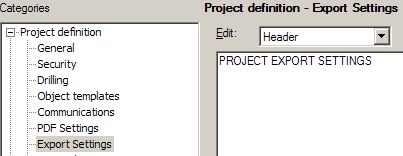
  • Developer Project Export Settings : Developer -> Project Configuration. This information displays for every export, regardless of what is set on the lower levels
ka02R000000kaR5QAI_0EM440000002DUG.jpeg
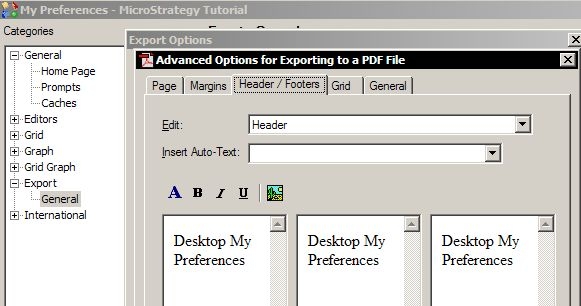
  • Developer My Preferences : This displays header and footer information on the user level, as each user can change their preferences.
ka02R000000kaR5QAI_0EM440000002DU9.jpeg
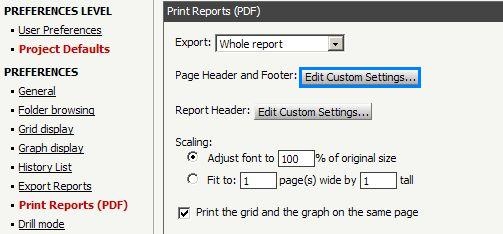
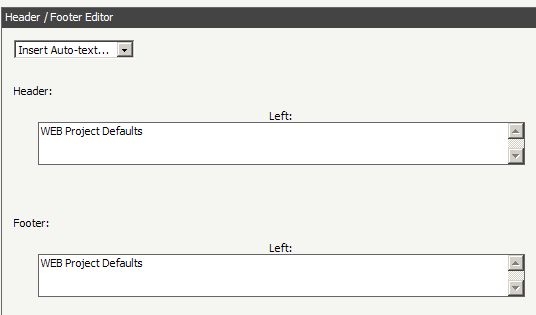
  • Web Project Defaults: Web Preferences -> Project Defaults.  This will apply to any report exported to PDF from a particular project, or to all projects if specified.
ka02R000000kaR5QAI_0EM440000002DUK.jpeg
ka02R000000kaR5QAI_0EM440000002DUJ.jpeg
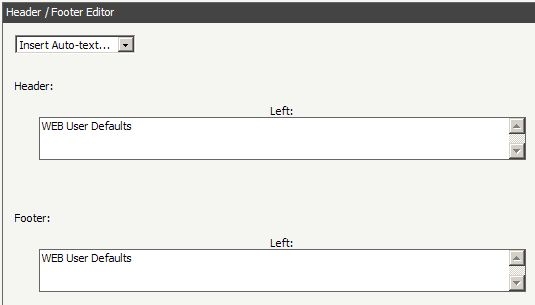
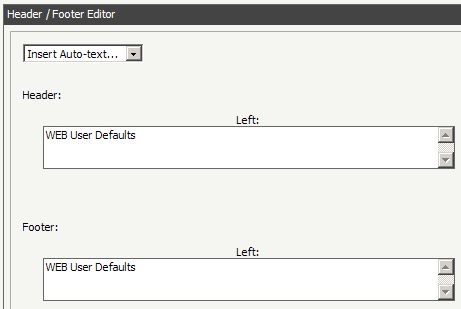
  • Web User Defaults : The same as Project Defaults, but at the User Preferences level.  Note: If the Web User defaults are changed, they will override any Project Defaults headers and take precedence.
     
ka02R000000kaR5QAI_0EM440000002DUC.jpeg
  • Report Level: WARNING: If export to PDF settings are saved on the report level, it will overide all other export settings.

    In Strategy Developer the settings are located at the following:

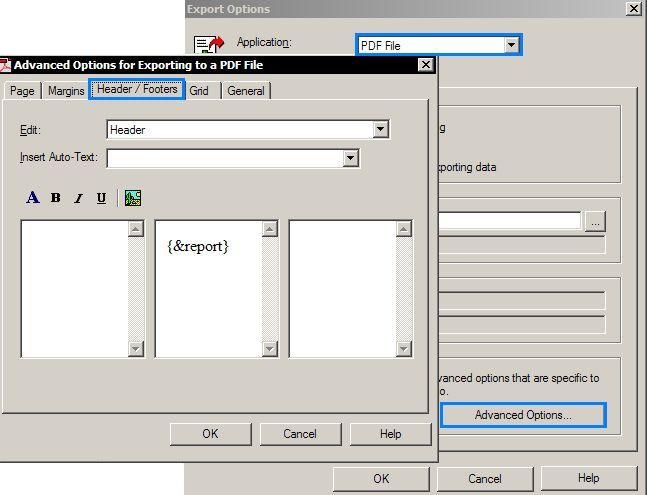
    1. Open the report editor -> Data > Export Options
    2. In the new window, change the dropdown selection to PDF File and then select Advanced Options > Header / Footers.

ka02R000000kaR5QAI_0EM440000002DUT.jpeg
  • To change the same settings in Strategy Web:

    1. Execute a report.
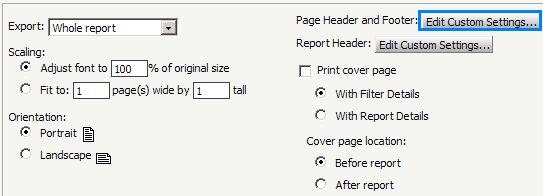
    2. Click on the Home dropdown menu > Export > PDF.
    3. Click on Page Header and footer: Custom Settings.

ka02R000000kaR5QAI_0EM440000002DUE.jpeg
ka02R000000kaR5QAI_0EM440000002DUM.jpeg
  • 4. Modify the settings as required and then save the report.


Comment

0 comments

Details

Knowledge Article

Published:

April 24, 2017

Last Updated:

April 24, 2017