EducationSoftwareStrategy.com
StrategyCommunity

Knowledge Base

Product

Community

Knowledge Base

TopicsBrowse ArticlesDeveloper Zone

Product

Download SoftwareProduct DocumentationSecurity Hub

Education

Tutorial VideosSolution GalleryEducation courses

Community

GuidelinesGrandmastersEvents
x_social-icon_white.svglinkedin_social-icon_white.svg
Strategy logoCommunity

© Strategy Inc. All Rights Reserved.

LegalTerms of UsePrivacy Policy
  1. Home
  2. Topics

KB38298: How to create a link to the setting page on a document for use on an iPad or iPhone in MicroStrategy 9.x


Community Admin

• Strategy


When a dashboard or document is set as the home page for an iPad or iPhone configuration a user cannot get to the settings page without backing out of the dashboard or document. The setting button does not appear in the top right when viewing a dashboard. A link to the settings page can be created using an image or text to simulate the settings page.

SUMMARY:
When a dashboard or document is set as the home page for an iPad or iPhone configuration a user cannot get to the settings page without backing out of the dashboard or document. The setting button does not appear in the top right when viewing a dashboard. A link to the settings page can be created using an image or text to simulate the settings page.
ACTION:
To create a link to the setting page on a document for use on an iPad or iPhone in Strategy 9.x follow the below steps:

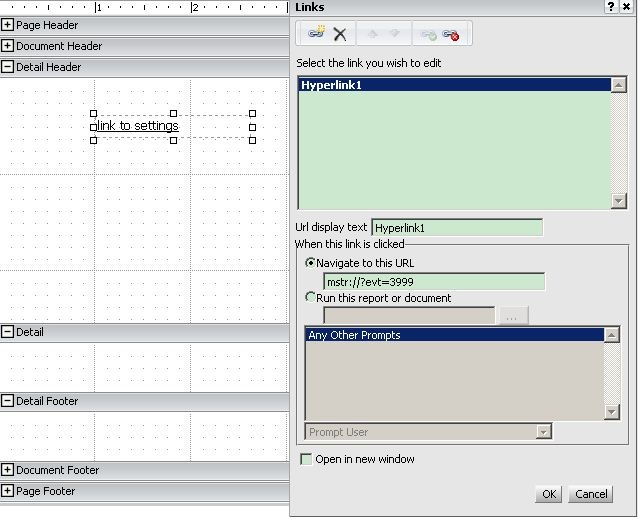
  1. Input text or an image, for example 'link to settings'
  2. Right click on the text, to select 'edit link'
  3. Enable 'Navigate to this URL' and input the URL API address:  mstr://?evt=3999
  4. Once the document is executed on iPad, tap on the text 'link to settings', then the app will go to settings page.

The below screenshot is of the 'Links' editing page where the URL API is specified for a text field:
 

ka04W000000Oh7OQAS_0EM4400000027Mb.jpeg


Comment

0 comments

Details

Knowledge Article

Published:

June 1, 2017

Last Updated:

June 1, 2017