EducationSoftwareStrategy.com
StrategyCommunity

Knowledge Base

Product

Community

Knowledge Base

TopicsBrowse ArticlesDeveloper Zone

Product

Download SoftwareProduct DocumentationSecurity Hub

Education

Tutorial VideosSolution GalleryEducation courses

Community

GuidelinesGrandmastersEvents
x_social-icon_white.svglinkedin_social-icon_white.svg
Strategy logoCommunity

© Strategy Inc. All Rights Reserved.

LegalTerms of UsePrivacy Policy
  1. Home
  2. Topics

KB38308: How to connect to Salesforce using XQuery reports in MicroStrategy 9.2.x and above


Community Admin

• Strategy


Starting with MicroStrategy 9.2.x, user can use XQuery reports to connect to Salesforce. This article explain the steps to create aXQuery report.

Starting with Strategy 9.2.x, user can use XQuery reports to connect to Salesforce. Follow the steps below to create the XQuery report:
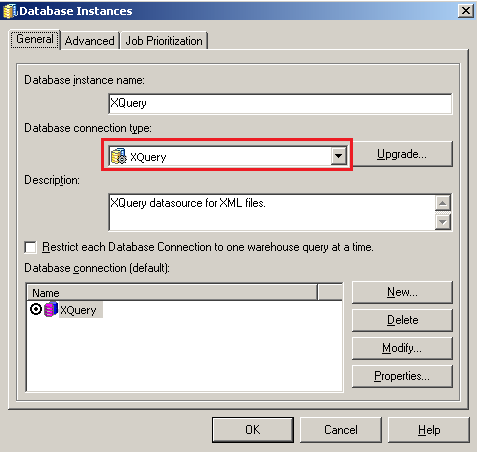
 

  • Create a new database instance, set the "Database connection type" to "XQuery", as shown below:    
     
ka04W000000Oaj5QAC_0EM440000002HQI.png
  • Create a new database connection.
     
  • Create a new Database Login, specify the username and password.
     
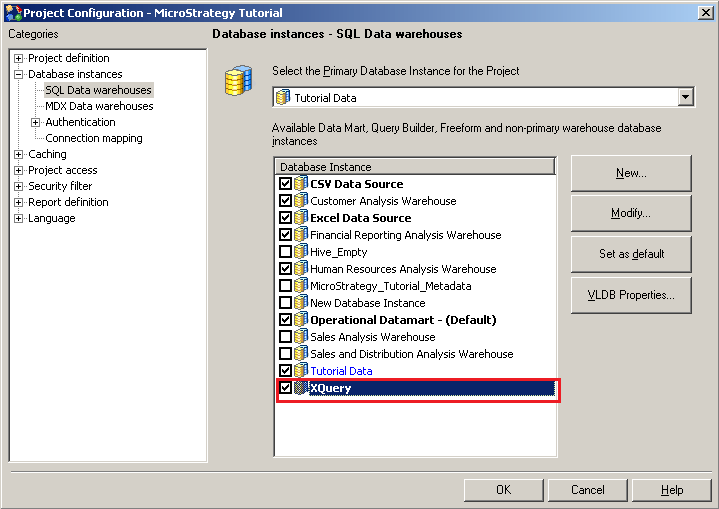
  • Enable the newly created database instance for Freeform XQuery reports creation. Under Project Configuration > Database instances > SQL Data warehouses, check the database instance created at earlier steps, as shown below:
     
ka04W000000Oaj5QAC_0EM440000002HQD.png
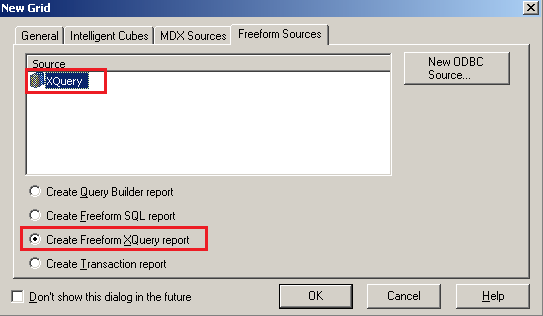
  • Use this newly created database instance to define a Freeform XQuery report, as shown below:
     
ka04W000000Oaj5QAC_0EM440000002HQK.png
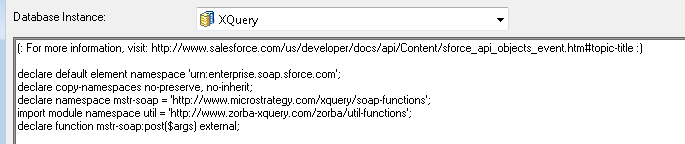
  • Declare function and namespace, as shown below:
     
ka04W000000Oaj5QAC_0EM440000002HPn.png
  • Log into Salesforce.
     
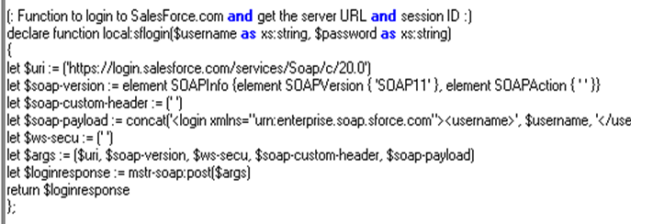
    i) Create the declaration and definition of the Salesforce login function.
     
ka04W000000Oaj5QAC_0EM440000002HQ9.png
  •  
    ii) Set up the user name and password.
     
ka04W000000Oaj5QAC_0EM440000002HQ7.png
  •  
    NOTE: The password is a concatenation of password and security token. User could also "white-list" the IP addresses of Strategy Intelligence Server(s) which connect to Salesforce.com via an external application. For more details, refer to the following page:
     
    http://www.quotewerks.com/kbase/showArticle.asp?id=6544
     
    iii) Call the login function with the user name and password and get a session.
     
ka04W000000Oaj5QAC_0EM440000002HQB.png
  • Set up the SOAP (Simple Object Access Protocol) request.
     
    i) Specify SOAP version.
     
ka04W000000Oaj5QAC_0EM440000002HPq.png
  •  
    ii) Specify SOAP Header.
     
ka04W000000Oaj5QAC_0EM440000002HQ3.png
  •  
    iii) Specify SOAP Payload. The SOQL (Salesforce Object Query Language) query String goes here:
     
ka04W000000Oaj5QAC_0EM440000002HQG.png
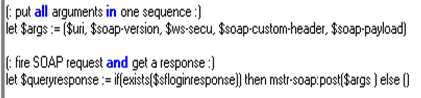
  • Fire the request and capture the response.
     
ka04W000000Oaj5QAC_0EM440000002HPo.png
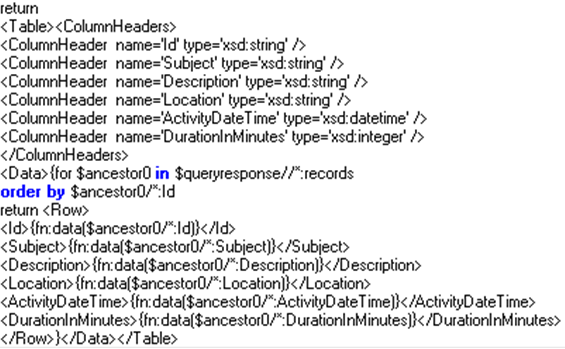
  • Parse the response XML to return data in a table XML format.
     
ka04W000000Oaj5QAC_0EM440000002HPp.png

NOTE: Salesforce recommend to log out instead of relying on the session to expire. For details on the logout call, refer to the following link:
http://www.salesforce.com/us/developer/docs/api/Content/sforce_api_calls_logout.htm 


KB38308


Comment

0 comments

Details

Knowledge Article

Published:

April 16, 2017

Last Updated:

December 31, 2018