EducationSoftwareStrategy.com
StrategyCommunity

Knowledge Base

Product

Community

Knowledge Base

TopicsBrowse ArticlesDeveloper Zone

Product

Download SoftwareProduct DocumentationSecurity Hub

Education

Tutorial VideosSolution GalleryEducation courses

Community

GuidelinesGrandmastersEvents
x_social-icon_white.svglinkedin_social-icon_white.svg
Strategy logoCommunity

© Strategy Inc. All Rights Reserved.

LegalTerms of UsePrivacy Policy
  1. Home
  2. Topics

KB38404: How to change the column and row behaviors when exporting a report into an Excel file from MicroStrategy Developer 9.x and 10.x


Stefan Zepeda

Salesforce Solutions Architect • Strategy


KB38404: How to change the column and row behaviors when exporting a report into an Excel file from MicroStrategy Developer 9.x and 10.x

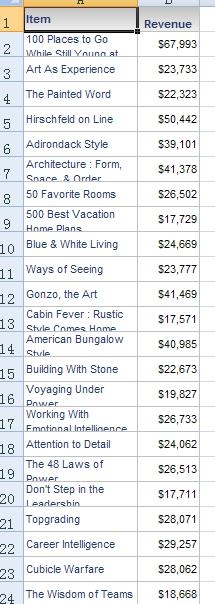
In some scenarios, the formatting problems can be encountered when exporting a report into an Excel file from Strategy Developer 9.x and 10.x, as shown below:
 

ka02R000000kY3CQAU_0EM440000002DRP.jpeg

 
Note: The width of the columns does not fit the item name length and some of the text is overlapped by the adjacent cell which caused by the WordWarp and the fixed column height.
 
The above issue can be reproduced with the steps below in Tutorial project 9.x and 10.x

  1. Create a report with "Item" attribute and "Revenue" metric
  2. Navigate to the "Export Option" setting under "Data"
  3. Click on "Advanced Options" and set "Columns" and "Rows" which are in "Formatting" box into "Retain report column widths" and "Retain report row height"
  4. Open "Grid Options" under "Grid"; Choose "Columns" and "Rows" and set "Columns" fixed at 100 pixels and "Rows" fixed at 25 pixels.
  5. The exported the report into an Excel file 

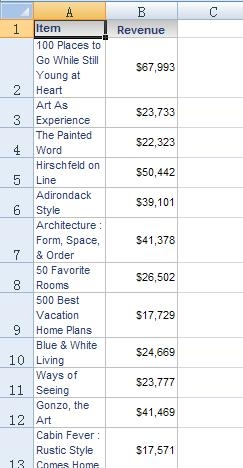
If changing the values in step 3 into "Default" for columns, the export result is shown as below:
 

ka02R000000kY3CQAU_0EM440000002DRR.jpeg

 
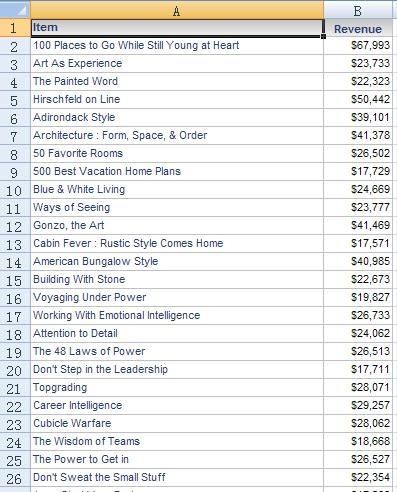
If the wordwarp is not needed, change the value into "AutoFit" and the export result is shown as below:
 

ka02R000000kY3CQAU_0EM440000002DRV.jpeg

 
As a conclusion, if the width of the columns in grid is fixed, change the format settings in the "Export Option" to get the expected format.


Comment

0 comments

Details

Knowledge Article

Published:

June 12, 2017

Last Updated:

June 12, 2017