Pre-requisites for SAP BW connectivity
Strategy does not enforce the use of particular version of connector files. SAP BW certifies which connector files are supported for each SAP BW Server version.
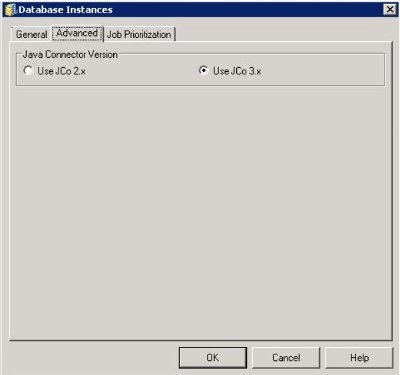
If users wish to use JCo 3.x connector files, the following jar and dll files should be available on the Strategy Intelligence Server 9.0.2 - 9.4.x. machine:
These files are not distributed by Strategy and should be obtained directly from SAP.
For Strategy Intelligence Server running on 64-bit operating systems, the connector libraries should be 64-bit.
For Strategy Intelligence Server running on 32-bit operating systems, the connector libraries should be 32-bit.
The SAP JCo 3.x connector files have a dependency on the Microsoft Visual C++ 2005 Service Pack 1 redistributable component. The installation of the Strategy 9.x - 10.x suite also includes this component, so it would not be necessary to install it manually.
Note:
Strategy uses an additional Java executable, JCO.jar, as the bridge between the Strategy database connection process and SAP's Java Connector. JCO.jar is installed as part of the normal Strategy installation under Program Files\Common Files\Strategy or Program Files(x86)\Common Files\Strategy.
Configuration of the Strategy system environment
1. Make sure that the location to JCO.jar in the Windows registry is correct. This is set by the installer (depending on the install path chosen) and is not necessary for users to modify it. The 'Common Class Path' entry has paths to additional jar files. Users should not modify these paths/entries and it is sufficient to ensure that the correct path to JCO.jar is seen here.
On Windows 64-bit operating systems, the path to JCO.jar is specified in the following location:
Sample Code/Error
HKEY_LOCAL_MACHINE\SOFTWARE\Wow6432Node\MicroStrategy\JNI Bridge\Config for DataServices
Common ClassPath= C:\Program Files (x86)\Common Files\MicroStrategy\jco.jar
On Windows 32-bit operating systems, the path to JCO.jar is specified in the following location:
HKEY_LOCAL_MACHINE\SOFTWARE\MicroStrategy\JNI Bridge\Config for DataServices
Common ClassPath= C:\Program Files\Common Files\MicroStrategy\JCO.jar
2. Make sure that the path to the jvm is specified correctly in the Windows registry. This path is also specified in the registry during installation.
For Windows 64-bit operating systems, the following location is used:
Sample Code/Error
HKEY_LOCAL_MACHINE\SOFTWARE\Wow6432Node\MicroStrategy\JNI Bridge\Config for DataServices\64-bit JVM
JavaVM Path= C:\Program Files (x86)\Common Files\MicroStrategy\JRE\160_07\Win64\bin\server\jvm.dll

For Windows 32-bit operating systems, the following location is used:
Sample Code/Error
HKEY_LOCAL_MACHINE\SOFTWARE\MicroStrategy\JNI Bridge\Config for DataServices\32-bit JVM
JavaVM Path= C:\Program Files\Common Files\Strategy \JRE\jre1.6.0_07\ bin\client\jvm.dll
Note: Normally there should be no need to modify this path; however, if the system administrator prefers to use another JVM version, the location may be configured here.
3. Set the HeapMaxSize.
For Windows 64-bit operating systems, set the value to 1200M in the following Windows registry location:
Sample Code/Error
HKEY_LOCAL_MACHINE\SOFTWARE\Wow6432Node\MicroStrategy\JNI Bridge\Config for DataServices\64-bit JVM
HeapMaxSize=1200M
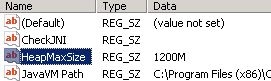
For Windows 32-bit operating systems, set the value to 600M in the following Windows registry location:
Sample Code/Error
HKEY_LOCAL_MACHINE\SOFTWARE\MicroStrategy\JNI Bridge\Config for DataServices\32-bit JVM
HeapMaxSize=600M
4. Specify the JCo 3.x classpath.
For Windows 64-bit operating systems, the following Windows registry location is used:
Sample Code/Error
HKEY_LOCAL_MACHINE\SOFTWARE\Wow6432Node\MicroStrategy\JNI Bridge\Config for DataServices\JCO Ver.3
AdditionalClassPath= <location of sapjco3.jar file>\sapjco3.jar

For Windows 32-bit operating systems, the following Windows registry location is used:
Sample Code/Error
HKEY_LOCAL_MACHINE\SOFTWARE\MicroStrategy\JNI Bridge\Config for DataServices\JCO Ver.3
Additional Classpath=C:\Program Files\Common Files\MicroStrategy\sapjco3.jar
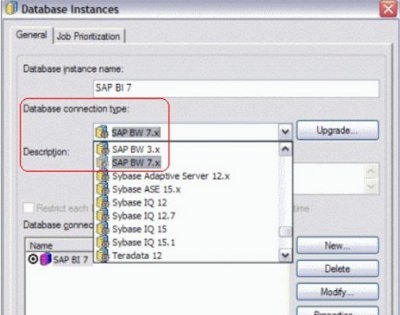
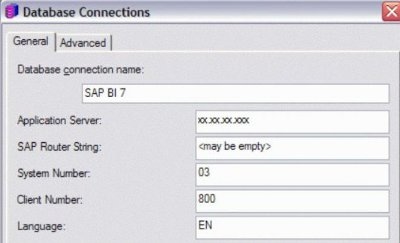
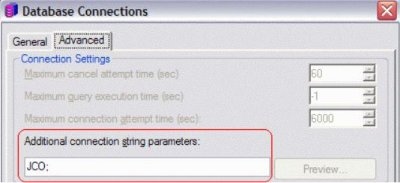
Database instance configuration for SAP BW
This is comparable to the Database Instance definition for SQL databases.