This technical note explains how to capture "hang" mode process dumps of the Strategy 2021 Intelligence Server process using three different programs. All of the following programs will produce a core file that captures the current state of the Strategy server process that can be used to analyze hanging or similar stability issues. After the completion of creating a dump file, zip all the following dump files and include the following to Strategy Technical Support: DSSErrors.log and DSSErrors.log.bak00, and mstr.hist.
NOTE: Hang mode process dumps are not the same as "crash" mode dumps.
In general, hang mode dumps can be considered snapshots of the process at the time that the utility / action to create the dump is invoked, whereas crash mode dumps require attaching the ADPlus utility invasively to the Intelligence Server process and capturing a dump when the process hits a failure point.
Option a) Adplus in "hang" mode
1. Download the Microsoft Debugging Tools for Windows package (32-bit or 64-bit depending on the Strategy version) from the following links to Microsoft.
https://docs.microsoft.com/en-us/windows-hardware/drivers/debugger/index
Download Native x64 for 64bit machines, NOT Windows Native Itanium.
2. After downloading the package, install it on the machine on which the Strategy Intelligence Server process to be monitored resides. Choose the default install.
3. Open a command prompt and navigate to the directory in which the Debugging Tools package was installed. This should be "<installdrive>\Program Files\Debugging Tools for Windows (x86)" for 32bit or "<installdrive>\Program Files\Debugging Tools for Windows (x64)" for 64bit.
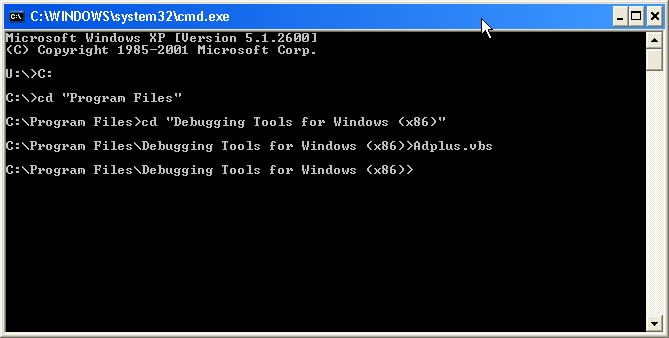
Run "Adplus.vbs" at the command prompt. You may be prompted to change your default script interpreter from Wscript.exe to Cscript.exe. From Microsoft Knowledge Base Article 286350, Microsoft strongly recommends allowing ADPlus to configure CSCript as the default script interpreter.

After this, a list of options and command line parameters is displayed.
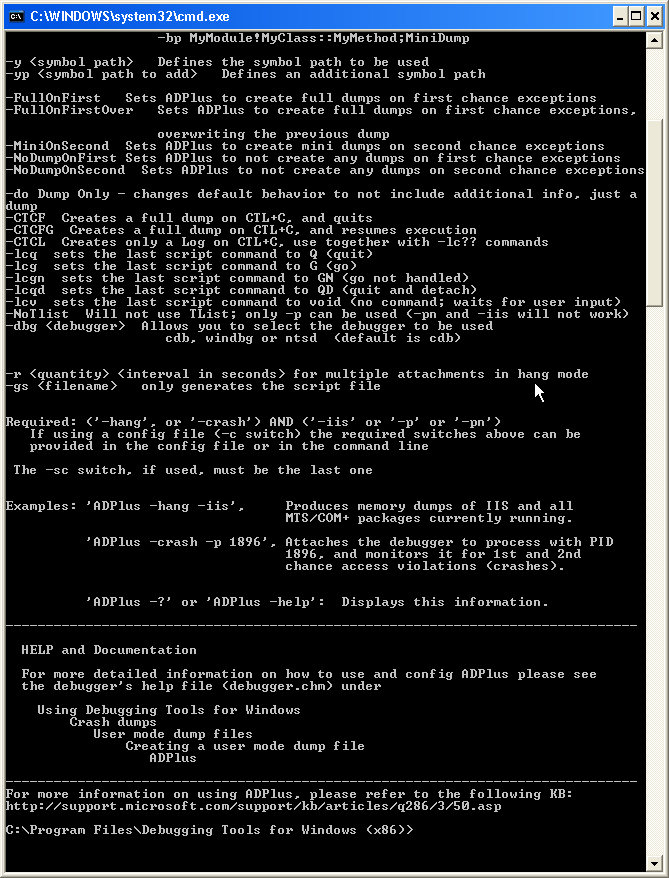
4. While Strategy Intelligence Server is running, execute the command below. The command instructs ADPlus to monitor the MSTRSVR.exe (32-bit) or MSTRSVR2_64.exe (64-bit) process in hang mode and sets the output directory to D:\temp. Here are the examples for 32bit and 64 machines:
32bit process: ADPlus.vbs -hang -pn MSTRSVR.exe -o D:\Temp -quiet
64bit process: ADPlus.vbs -hang -pn MSTRSVR2_64.exe -o D:\Temp -quiet

Note that "D:\Temp" is the location where the dump files are created, so make sure there is enough room available on these drives.
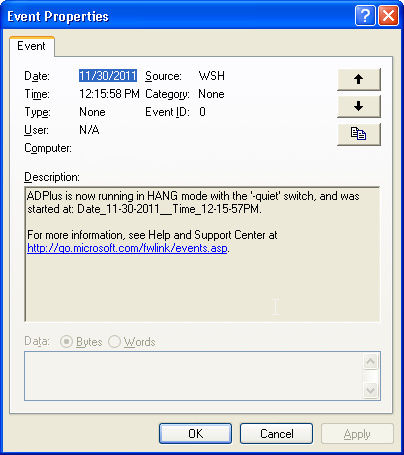
5.Confirm that ADPlus is active via the Microsoft Event log under Applications. Look for the message such as the following:
"ADPlus is now running in HANG mode with the '-quiet' switch, and was started at: Date_11-30-2011__Time_12-15-57PM.
For more information, see Help and Support Center at http://go.microsoft.com/fwlink/events.asp."
Confirm that the folder exists in the location stated in the Adplus command that was run. In this example, the location is D:/Temp.
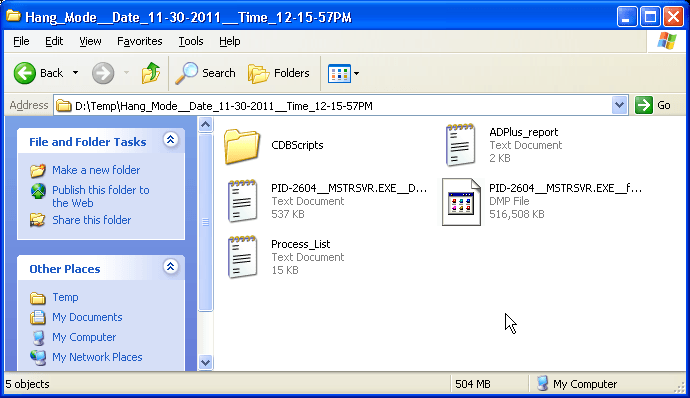
5) Please create multiple hang dumps in 3 minute intervals. Creating 3 dumps is sufficient for analysis.
Option b) Task Manager (only available on Windows Server 2008, Windows 7, and Windows Vista)
1. Open Task Manager (Control + Alt + Delete)
2. Right click on Strategy Intelligence Server process MSTRSVR.exe for 32bit, and MSTRSVR2_64.exe for 64bit and select "Create Dump File"
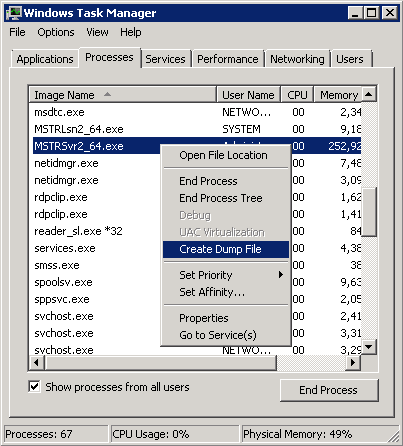
The dump file will now be created and it will state where the dump files are located.
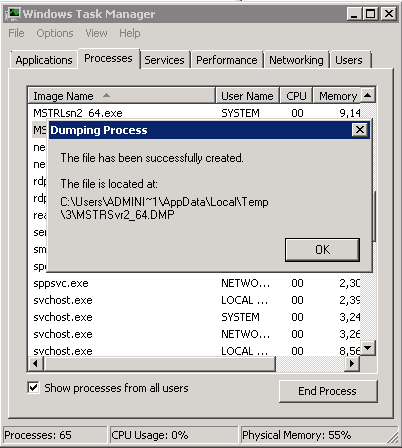
Please create at least 3 hang dumps in 3 minute intervals.
Option c) Process Explorer
Process explorer is a useful GUI program that can perform a variety of functions including process dumps.
1. Download Process Explorer from the Microsoft site:
http://technet.microsoft.com/en-us/sysinternals/bb896653
2. Open Process Explorer and select the Intelligence Server process (MSTRSVR.exe or MSTRSVR2_64.exe) and right select to "Create Dump" > "Full Dump".
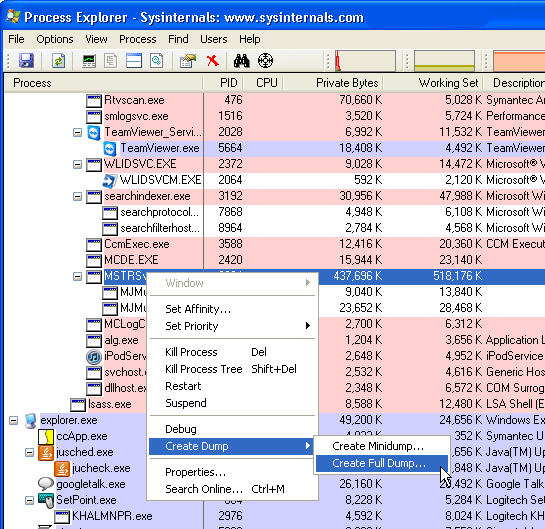
3) Please create at least three dump files taken in 3 minute intervals.
