SYMPTOM:
Consider a many-to-many relationship between the attributes Catalog and Item in a project. Users create a metric with an Absolute dimensionality to the Catalog level and include the attribute Item in the template. The metric displays the results at the Item level. In other words, the metric dimensionality is being ignored.
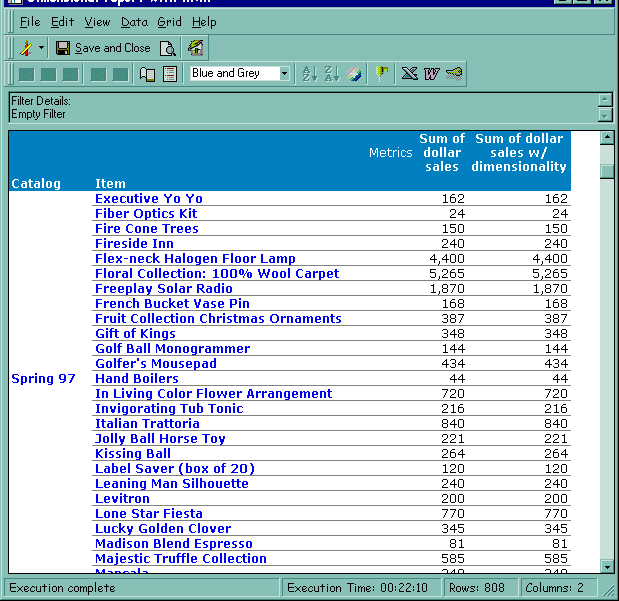
The following SQL is grouping by Catalog and Item instead of just grouping by Catalog:
insert into ZZTKJ00HQPBMD01
select	a22.[ITEM_ID] AS ITEM_ID,
	a22.[CAT_ID] AS CAT_ID,
	sum((a21.[QTY_SOLD] * (a21.[UNIT_PRICE] - a21.[DISCOUNT]))) as SUMOFDOLLA
from	[ORDER_DETAIL]	a21,
	[REL_CAT_ITEM]	a22
where	a21.[ITEM_ID] = a22.[ITEM_ID]
group by	a22.[ITEM_ID],
	a22.[CAT_ID]
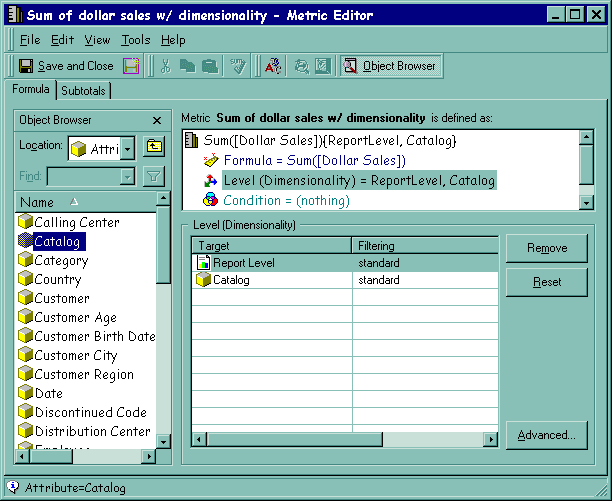
The Report Level setting is overriding the Catalog dimensionality. This occurs when there is a many-to-many relationship between the attributes in the template and the dimensionality of the metric.
WORKAROUND:
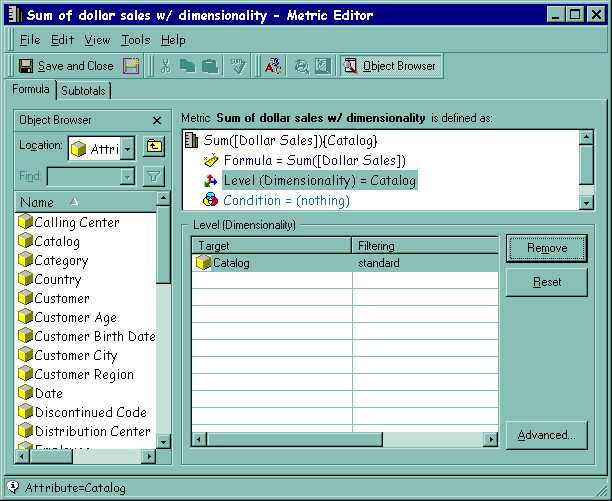
Remove the report level dimensionality in the Metric editor window. In the previous example, the metric should appear similar to the following screenshot:
The SQL in this case is as follows:
insert into ZZTKJ00HQUHMD01
select	a22.[CAT_ID] AS CAT_ID,
	sum((a21.[QTY_SOLD] * (a21.[UNIT_PRICE] - a21.[DISCOUNT]))) as SUMOFDOLLA
from	[ORDER_DETAIL]	a21,
	[REL_CAT_ITEM]	a22
where	a21.[ITEM_ID] = a22.[ITEM_ID]
group by	a22.[CAT_ID]
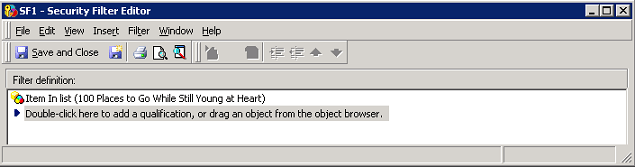
2. Assign security filter SF1 to Administrator as shown below:
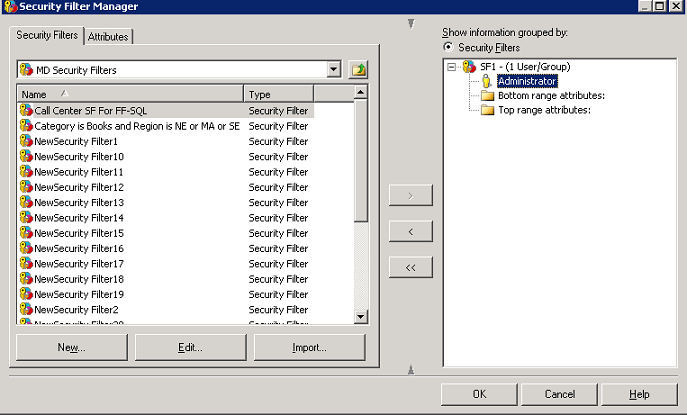
3. Log off and log on Strategy Developer to make the security filter take effect.
4. Create a new metric called M1 with the definition of Sum(Units Sold) with level set to Catalog (Absolute Standard) as shown below:
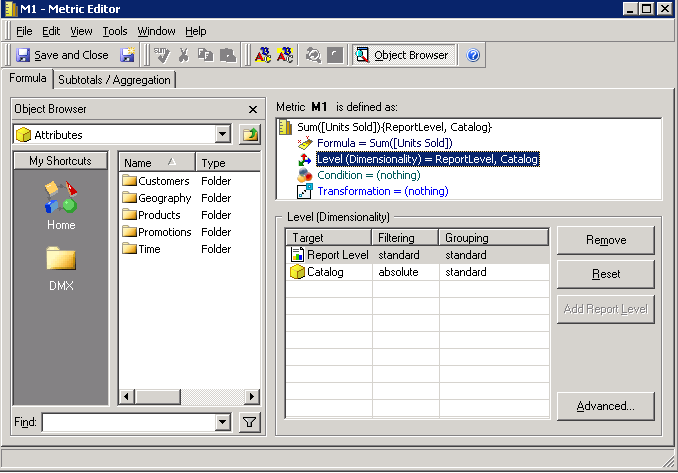
5. Create a report called R1 with attribute Catalog, Item in row and metric M1 in column
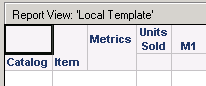
6. Run report and notice in the SQL view, the dimensionality of Catalog is ignored as shown below:
insert into ZZMD00
select a11.[ITEM_ID] AS ITEM_ID,
a12.[CAT_ID] AS CAT_ID,
sum(a11.[TOT_UNIT_SALES]) AS WJXBFS1
from [ITEM_MNTH_SLS] a11,
[REL_CAT_ITEM] a12
where a11.[ITEM_ID] = a12.[ITEM_ID]
and a11.[ITEM_ID] in (1)
group by a11.[ITEM_ID],
a12.[CAT_ID]
7. Create another metric call M2 with the definition of Sum(Units Sold) with level set to Catalog (Absolute Standard), but remove the report level as shown below:
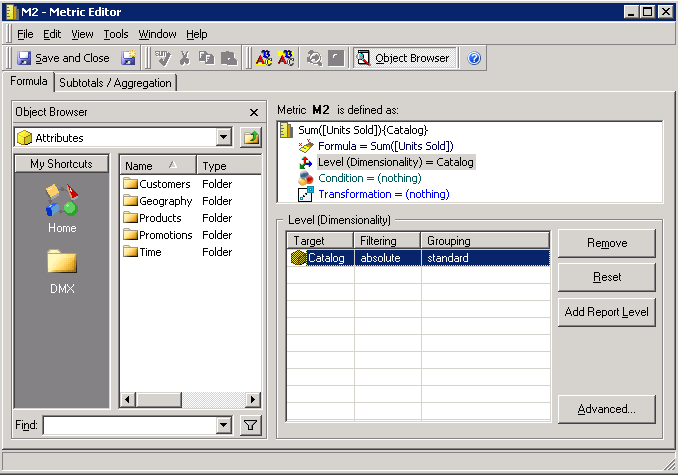
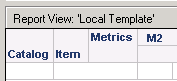
8. Create a report called R2 with attribute Catalog, Item in row and metric M2 in column. Execute the report notice the report never returns data for more than that single Item as shown below:
a12.[CAT_ID] AS CAT_ID,
sum(a11.[TOT_UNIT_SALES]) AS WJXBFS1
from [ITEM_MNTH_SLS] a11,
[REL_CAT_ITEM] a12
where a11.[ITEM_ID] = a12.[ITEM_ID]
and a11.[ITEM_ID] in (1)
group by a11.[CAT_ID]
