EducationSoftwareStrategy.com
StrategyCommunity

Knowledge Base

Product

Community

Knowledge Base

TopicsBrowse ArticlesDeveloper Zone

Product

Download SoftwareProduct DocumentationSecurity Hub

Education

Tutorial VideosSolution GalleryEducation courses

Community

GuidelinesGrandmastersEvents
x_social-icon_white.svglinkedin_social-icon_white.svg
Strategy logoCommunity

© Strategy Inc. All Rights Reserved.

LegalTerms of UsePrivacy Policy
  1. Home
  2. Topics

KB38707: How to create a link to the mobile settings page on a document in MicroStrategy Web 9.x


Community Admin

• Strategy


How to create a link to the mobile settings page on a document in MicroStrategy Web 9.x

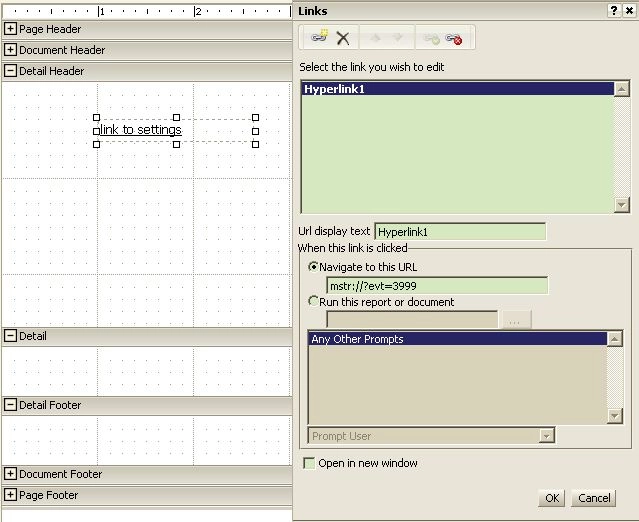
If a document or dashboard is being used as the default home page when a user logs into Strategy Mobile, it might be useful to put a link to the settings page on the document so that it is one click away. The below example explains how to create a link using text by the same steps can be applied to a picture.
 Steps:

  1. Navigate to document being used as home page
  2. Input text, for example 'link to settings'
  3. Right click on the text, to select 'edit link'
  4. Enable 'Navigate to this URL' and input the URL API address  


    mstr://?evt=3999


  5. Click 'OK'
  6. Once the document is executed on an iPad/iPhone, tap on the text 'link to settings', then the app will go to settings page.

 This screenshot displays the finished product of the above steps:
ka04W000000OdnuQAC_0EM4400000027LI.jpeg

Comment

0 comments

Details

Knowledge Article

Published:

June 15, 2017

Last Updated:

June 15, 2017