EducationSoftwareStrategy.com
StrategyCommunity

Knowledge Base

Product

Community

Knowledge Base

TopicsBrowse ArticlesDeveloper Zone

Product

Download SoftwareProduct DocumentationSecurity Hub

Education

Tutorial VideosSolution GalleryEducation courses

Community

GuidelinesGrandmastersEvents
x_social-icon_white.svglinkedin_social-icon_white.svg
Strategy logoCommunity

© Strategy Inc. All Rights Reserved.

LegalTerms of UsePrivacy Policy
  1. Home
  2. Topics

KB38795: "The configuration of your Master Health Agent encountered errors." or "Could not connect to Machine:Port" error message appears when trying to configure or connect to MicroStrategy Health Center after changing the login password.


Community Admin

• Strategy


"The configuration of your Master Health Agent encountered errors." or "Could not connect to Machine:Port" error message appears when trying to configure or connect to MicroStrategy Health Center after changing the login password.

 
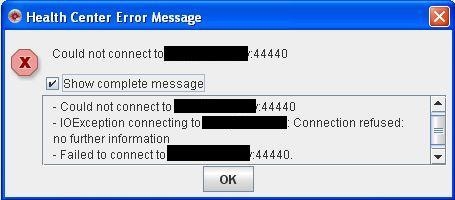
After changing the login password to the machine running Strategy Health Center on it, an error might occur as shown in the image below.
ka04W00000148XpQAI_0EM4400000029vy.jpeg


Could not connect to Machine:44440
- Could not connect to Machine:44440
- IOException connection to Machine: Connection refused: no further information
- Failed to connect to Machine:44440. 
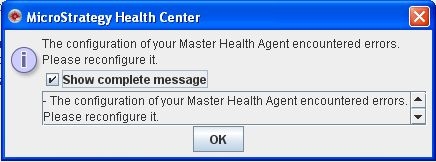
 
When an attempt is made to reconfigure the Master Health Agent, an error might also occur as shown below:

ka04W00000148XpQAI_0EM4400000029w1.jpeg

 
Sample Code/Error
The configuration of your Master Health Agent encountered errors. Please reconfigure it.
-The configuration of your Master Health Agent encountered errors. Please Reconfigure it.
 
  
CAUSE:
 
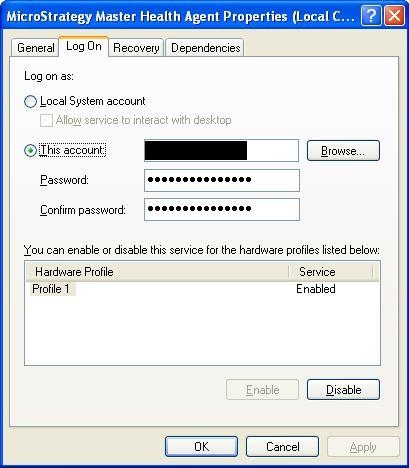
The MSTRExec.exe service is running as the user that the password was changed for.
 
ACTION:
 
Reconfigure Strategy Master Health Agent Service and update the password as shown in the image below.
ka04W00000148XpQAI_0EM4400000029vz.jpeg


Comment

0 comments

Details

Knowledge Article

Published:

June 5, 2017

Last Updated:

March 31, 2018