SYMPTOM
When "All" is selected in a selector which has "Apply selections as a filter" enabled, the targeted dynamic text field that contains a hyperlink, passes the first attribute element to the linked report as the prompt answer. The desired behavior is not passing any specific answer so data for all elements of that specific attribute are returned.
For example, the following document in Tutorial contains a selector on Quarter which has "Apply selections as a filter" enabled and targets two panels (Text panel and Month panel), the Month panel contains another selector on Month, which also has "Apply selections as a filter" enabled and targets the Text panel as well.
ACTION
Following steps describe the workaround to pass ALL as selector answer to a prompt child report. Users need to read and follow the 3 important notes as condition to workaround.
On Parent Document, see image below, there is a text box containing a hyperlink to pass selector answers (Month and Quarter) to a Child Report with Value Prompt (Month, Quarter)
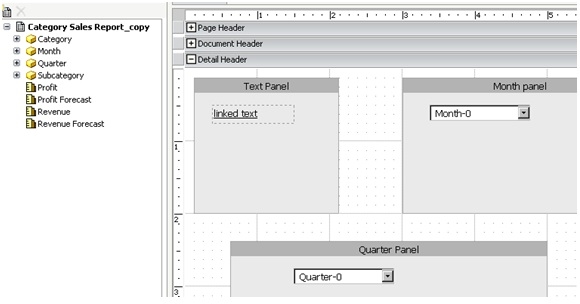
To define the hyperlink on "Linked Text", user can go to Properties and Formatting-->is Hyperlink and insert the following sample:
(The syntax is different in Strategy Web 9.2.1 from Strategy Web 9.0.1)
Java
./Main.aspx?evt=4001&src=Main.aspx.4001&reportID=98D048574FA9E3E35B7D418A5E5168A1&valuePromptAnswers={&CurrentSelectionID:K68&}^{&CurrentSelectionID:K63&}&promptAnswerMode=2
Note there are ID K68 and K63 included in the macro.
Note:
1) This workaround only applies if parent document does NOT contain prompt, but child report contains a value prompt. If parent document is also prompted, this workaround does not work.
2) The example in this technote uses URL API for child report, therefore the syntax is evt=4001. User can change URL API to the syntax that matches Report Services Document if the child object is a document containing value prompt.
3) Edit Link function cannot be enabled if this workaround applies. If Edit Link function is also enabled in either Web or Desktop for the same text box, hyperlink for this workaround does not work.
Steps for finding the node key:
There are 3 ways to find the node key:
1. With Internet Explorer:
a.Run the document in browser (DHTML mode)
b.go to View>Source in menu bar
c. In HTML source, search for the default element name and find <SPAN> node for the selector and find the Key
For example:
<span id="K59" ty="obj" rl="16" name="K59" class="K59" sty="111">
<div id="K59_Ctl" style="width:100%;height:100%;overflow:visible;" scriptclass="mstrRWControlImpl" name="K59_Ctl">
<select id="K59_Sl" name="K59_Sl" size="1">
<option selected="1" dummy="1"><Quarter></option>
<option value="u;">(All)</option>
<option value="h20081;8D679D4A11D3E4981000E787EC6DE8A4">2008 Q1</option>
<option value="h20082;8D679D4A11D3E4981000E787EC6DE8A4">2008 Q2</option>
<option value="h20083;8D679D4A11D3E4981000E787EC6DE8A4">2008 Q3</option>
<option value="h20084;8D679D4A11D3E4981000E787EC6DE8A4">2008 Q4</option>
<option value="h20091;8D679D4A11D3E4981000E787EC6DE8A4">2009 Q1</option>
<option value="h20092;8D679D4A11D3E4981000E787EC6DE8A4">2009 Q2</option>.
<option value="h20093;8D679D4A11D3E4981000E787EC6DE8A4">2009 Q3</option>
<option value="h20094;8D679D4A11D3E4981000E787EC6DE8A4">2009 Q4</option>
</select></div></span>
In this example, the node key is K59.
2. With Firefox/Chrome
a.Run the document in browser (DHTML mode)
b. View>Page Source in menu bar. In HTML source, search for the default element name and find <SPAN> node for the selector and find the Key
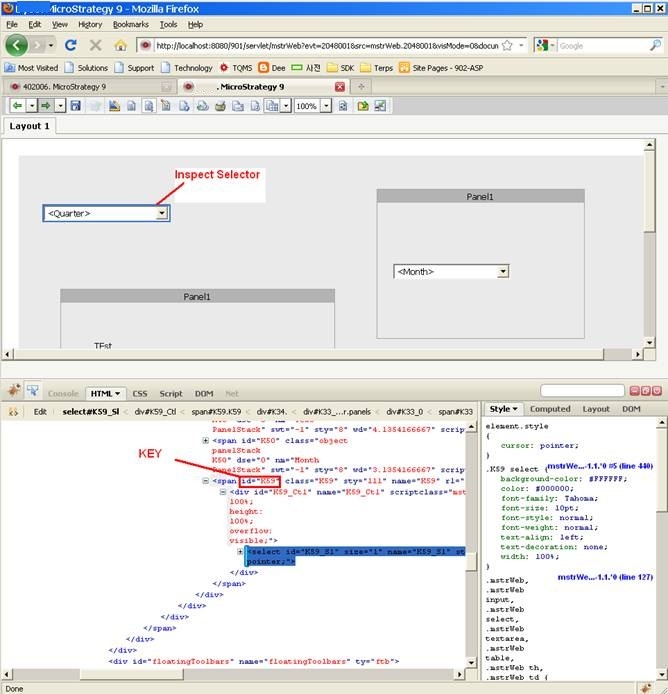
3. With Firefox (Firebug)/Chrome(Developer tool bar)
KB38841
