To have different email addresses as the sender address follow the steps below:
1. In Strategy Desktop, expand the project source -> Administration -> Delivery Managers -> Transmitters
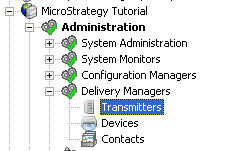
2. A new email transmitter needs to be created either by
a) Duplicating an existing email transmitter and editing it:
i. To duplicate an existing email transmitter, right click on it and click duplicate
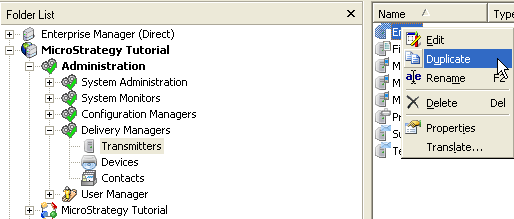
ii. A copy of the email transmitter will automatically be created as shown below

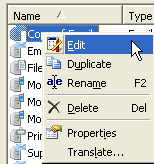
iii. Right-Click on the new copy, click edit to modify the email transmitter, input the desired "from" and "reply-to" email address and desired name then click OK.
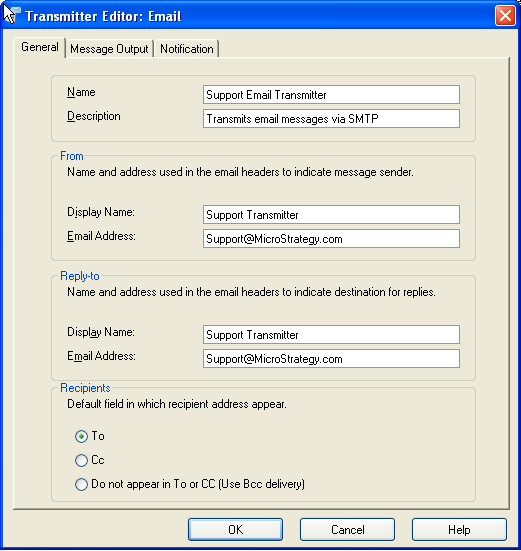
b) Create new email transmitter
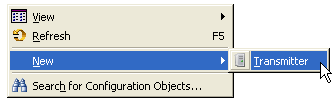
i. To create a new transmitter, right-click in the white space where the transmitters are listed and select New -> Transmitter as shown below
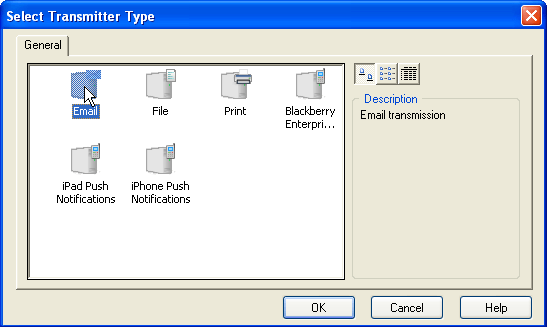
ii. Select Email from the Select Transmitter Type menu and click OK
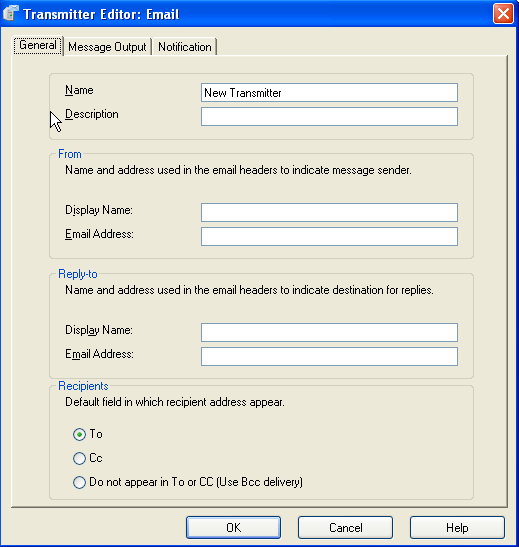
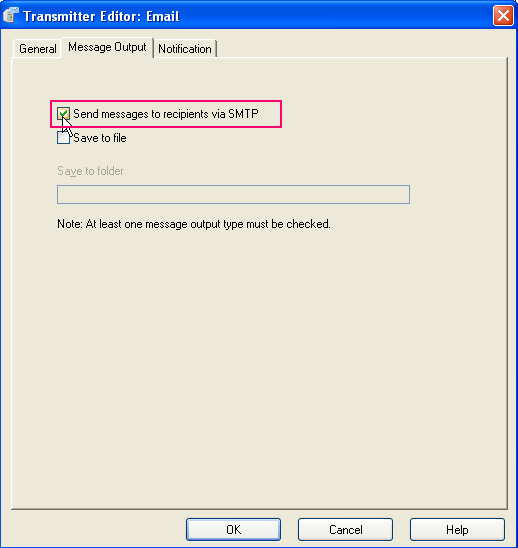
iii. In the Transmitter Editor fill in the desired information on the general tab then select the Message Output tab
iv. On the Message Output tab, select Send message to recipients via SMTP and click OK:
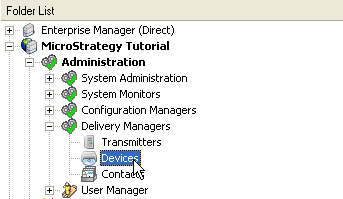
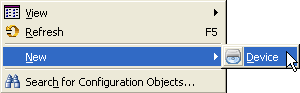
3. After creating the new email transmitter, a new device needs to be created by going to Devices under Delivery Manager and right-clicking on the white space in the right pane where the devices are listed
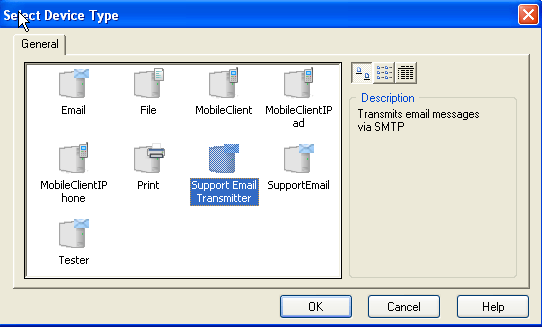
i. Select the newly created transmitter from the list as shown below and click OK
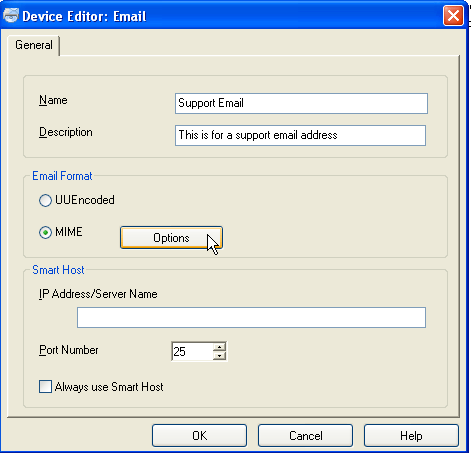
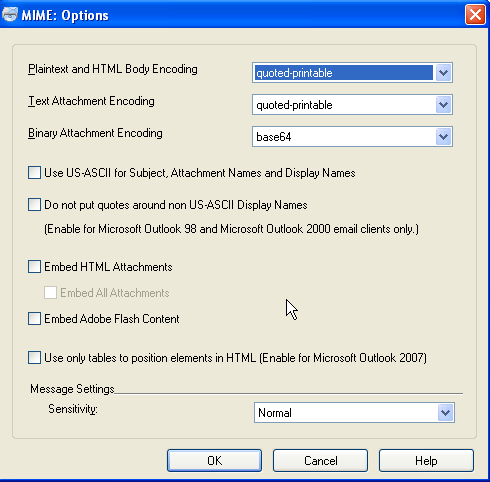
ii. Fill in the Name and Description for the device in the Device Editor and click on MIME Options to set desired settings before clicking OK.
4. Go to Contacts under Delivery Manager and edit the user that sends out the subscriptions by double clicking on them or right-clicking and selecting Edit.
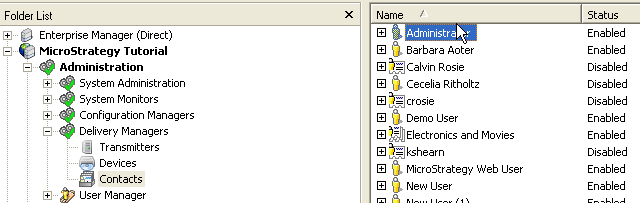
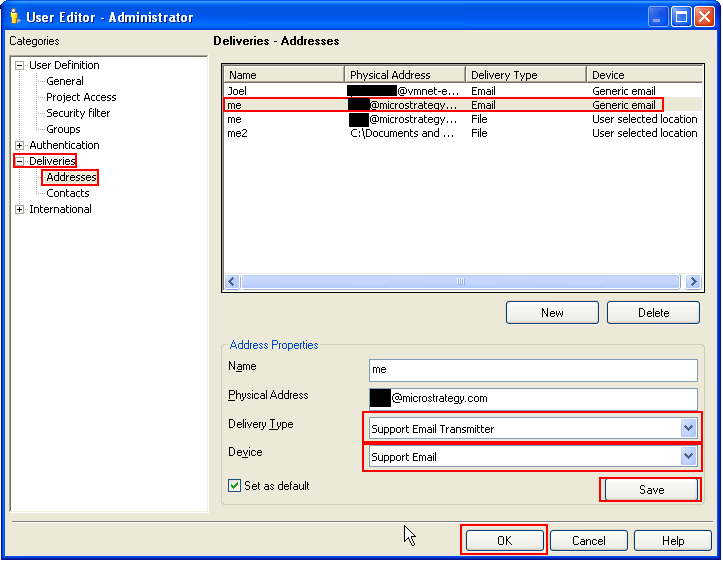
In the User Editor, go to Deliveries-> Addresses and select the individual contact on the right and edit the Delivery Type to the desired Transmitter with the sender address that is desired. The Device section should automatically populate with the Device information if the device was created correctly in the previous section. Click Save and OK and subscriptions assigned to that contact from this user should show the new email address in the from section.
NOTE: this only applies to the individual contacts that are changed, not to all of the contacts under that user.