EducationSoftwareStrategy.com
StrategyCommunity

Knowledge Base

Product

Community

Knowledge Base

TopicsBrowse ArticlesDeveloper Zone

Product

Download SoftwareProduct DocumentationSecurity Hub

Education

Tutorial VideosSolution GalleryEducation courses

Community

GuidelinesGrandmastersEvents
x_social-icon_white.svglinkedin_social-icon_white.svg
Strategy logoCommunity

© Strategy Inc. All Rights Reserved.

LegalTerms of UsePrivacy Policy
  1. Home
  2. Topics

KB38872: Labels are overlapped when executing a vertical line graph report with the similar metrics values in MicroStrategy Developer 9.4.x-10.x


Stefan Zepeda

Salesforce Solutions Architect • Strategy


Labels are overlapped when executing a vertical line graph report with the similar value metrics in MicroStrategy Developer 9.4.x-10.x.

SYMPTOM:
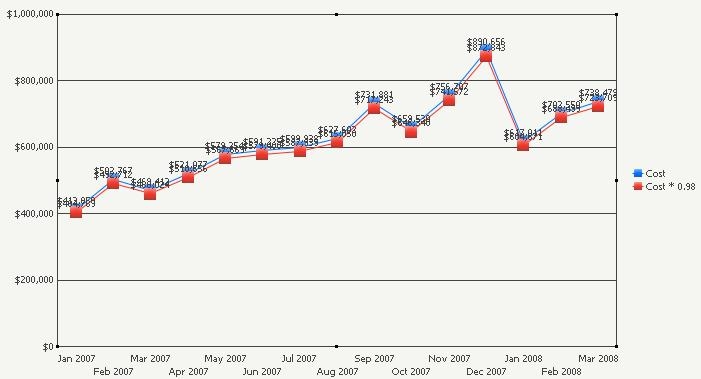
Labels are overlapped when executing a vertical line graph report with the similar value metrics in Strategy Developer 9.4.x-10.x.
 
STEPS TO REPRODUCE: 
Follow the steps below to reproduce the issue with Strategy Tutorial project:
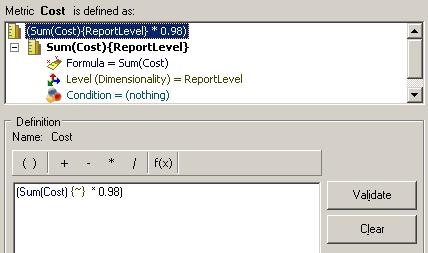
  • In Strategy Developer, create a compound metric "Cost * 0.98" with the definition (Sum(Cost) {~}  * 0.98), as shown below:
ka02R000000kcOaQAI_0EM440000002DPk.jpeg
  • Create a report with attribute "Month" in the row, metrics "Cost" and "Cost * 0.98" in the column.
  • Run the report in vertical line graph view, note that labels are overlapped, as shown below:
ka02R000000kcOaQAI_0EM440000002DPt.jpeg

 
CAUSE:
This behavior is by design. 
 
ACTION:
Users who would like Strategy to change this behaviour in future releases should post to the Ideas Exchange.
 
WORKAROUND:
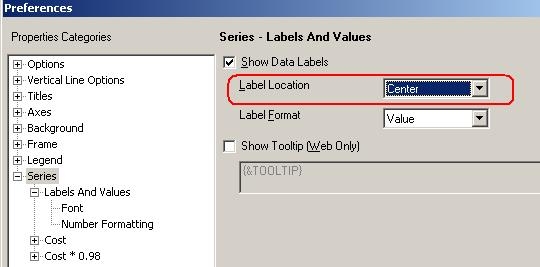
  • In Strategy Developer, go to graph report  menu > Preferences > Series > Labels and Values, change label location to "Center", as shown below:
ka02R000000kcOaQAI_0EM440000002DPo.jpeg
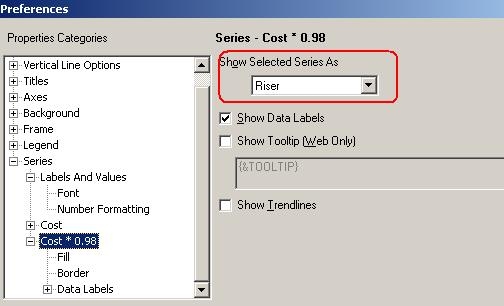
  • Go to Preferences > Series > Cost * 0.98, change the option Show Selected Series As to "Riser", as shown below:
ka02R000000kcOaQAI_0EM440000002DPl.jpeg
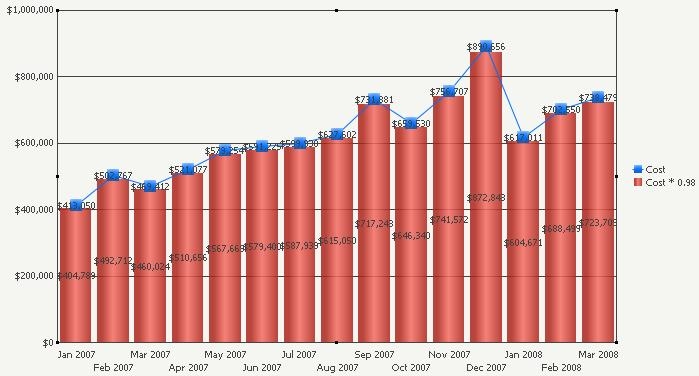
  • Run the graph report, note that labels are not overlapped, as shown below:
ka02R000000kcOaQAI_0EM440000002DPr.jpeg

Comment

0 comments

Details

Knowledge Article

Published:

April 28, 2017

Last Updated:

April 28, 2017