SYMPTOM:
In Strategy Developer 9.x and 10.x running on a Windows 64bit 2008 machine, launching “MDX Cube catalog” via “Schema” menu gets following error in a 3-Tier Project:
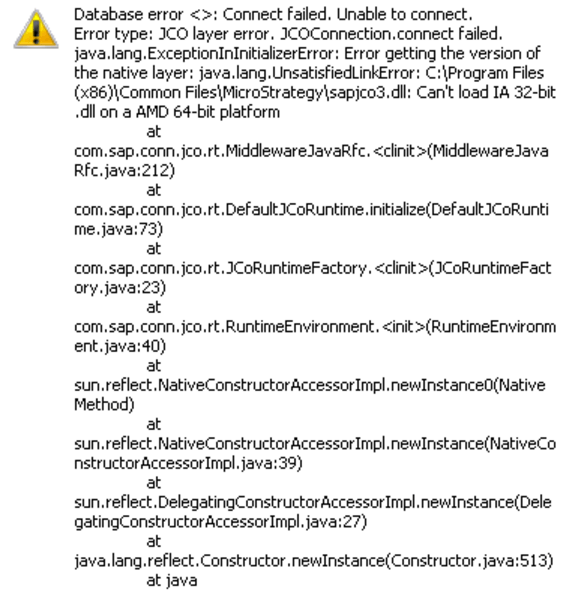
Sample Code/Error
Database error <>: Connect failed. Unable to connect.
Error type: JCO layer error. JCOConnection.connect failed.
Java.lang.ExceptionInitializerError: Error getting the version of the native layer: java.lang.UnsatisfiedLinkError: C:\Program Files
(x86)\Common Files\MicroStrategy\sapjco3.dll: Can’t load IA 32-bit
.dll on a AMD 64-bit platform
Following entry is caught in DSSErrors.log:
Sample Code/Error
Database error <>: Connect failed. Unable to connect.
Error type: JCO layer error. JCOConnection.connect failed. java.lang.ExceptionInInitializerError: Error getting the version of the native layer: java.lang.UnsatisfiedLinkError: C:\Program Files (x86)\Common Files\MicroStrategy\sapjco3.dll: Can't load IA 32-bit .dll on a AMD 64-bit platform
at com.sap.conn.jco.rt.MiddlewareJavaRfc.<clinit>(MiddlewareJavaRfc.java:212)
at com.sap.conn.jco.rt.DefaultJCoRuntime.initialize(DefaultJCoRuntime.java:73)
at com.sap.conn.jco.rt.JCoRuntimeFactory.<clinit>(JCoRuntimeFactory.java:23)
at com.sap.conn.jco.rt.RuntimeEnvironment.<init>(RuntimeEnvironment.java:40)
at sun.reflect.NativeConstructorAccessorImpl.newInstance0(Native Method)
at sun.reflect.NativeConstructorAccessorImpl.newInstance(NativeConstructorAccessorImpl.java:39)
at sun.reflect.DelegatingConstructorAccessorImpl.newInstance(DelegatingConstructorAccessorImpl.java:27)
at java.lang.reflect.Constructor.newInstance(Constructor.java:513)
at java.lang.Class.newInstance0(Class.java:355)
at java.lang.Class.newInstance(Class.java:308)
at com.sap.conn.jco.ext.Environment.getInstance(Environment.java:121)
at com.sap.conn.jco.ext.Environment.registerDestinationDataProvider(Environment.java:216)
at com.Strategy.Database.JCO.JCOConnection3.createMyProvider(Unknown Source)
at com.Strategy.Database.JCO.JCOConnection3.createConnection(Unknown Source)
at com.Strategy.Database.JCO.JCOConnection3.connect(Unknown Source)
at com.Strategy.Database.JCO.JCOConnection.connect(Unknown Source)
CAUSE:
The 32-bit sapjco3.dll cannot be loaded on a 64-bit platform.
ACTION:
1. Open the SAP Service Marketplace and download the SAP Java Connector for Windows 2008 operating system. Following URL can be used to download the Java Connector:
https://service.sap.com/~form/sapnet?_SHORTKEY=01100035870000463649
2. Install the SAP Java Connector.
3. Place the following SAP Java Connector files in the Strategy Common Files folder:
•Librfc32.dll
•Sapjcorfc.dll
•Sapjco.jar
•Sapjco3.jar
•Sapjco3.dll
