EducationSoftwareStrategy.com
StrategyCommunity

Knowledge Base

Product

Community

Knowledge Base

TopicsBrowse ArticlesDeveloper Zone

Product

Download SoftwareProduct DocumentationSecurity Hub

Education

Tutorial VideosSolution GalleryEducation courses

Community

GuidelinesGrandmastersEvents
x_social-icon_white.svglinkedin_social-icon_white.svg
Strategy logoCommunity

© Strategy Inc. All Rights Reserved.

LegalTerms of UsePrivacy Policy
  1. Home
  2. Topics

KB38939: How does the Component Registration check verfiy missing or unregistered DLL, OCX and EXE files in MicroStrategy Health Center?


Community Admin

• Strategy


The Component Registration check verifies that all .EXE, .DLL, and OCX files required by Desktop, Intelligence Server and Narrowcast are present and properly registered on a Windows machine. It reports two types of error:
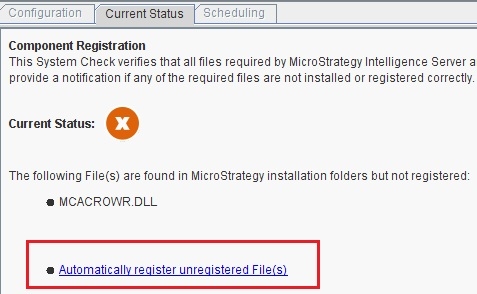
The Component Registration check verifies that all .EXE, .DLL, and OCX files required by Desktop, Intelligence Server and Narrowcast are present and properly registered on a Windows machine. It reports two types of error:

  • If any files are missing, Health Center provides a list of those files. This should be addressed by fresh or repair installation.
  • If any files are not registered correctly, click the link provided to register them.
     
ka04W000000OfAcQAK_0EM4400000029rD.jpeg

The system check first goes through two registry locations and find a list of files required to be installed by Strategy versions. Here are two registry locations:

  • HKEY_CLASSES_ROOT_CLSID
  • HKEY_CLASSES_ROOT_TypeLib

Health Center retrives a list of EXE, DLL and OCX files specific to each Strategy versions by checking XML files stored under Health Center HOME folder:  \Common Files\MicroStrategy\Health Center\plugins\com\MicroStrategy\tools\mcdgnstc\plugins\conf
 

ka04W000000OfAcQAK_0EM4400000029rF.jpeg

 
Each DllValidationList_9.x.x.xml contains list of files searched by the system check. There are four corrective actions if there are files not registered properly:

  1. If the system check detected there were unregistered dlls, it will go through the list of unregistered dlls and register them one by one using Regsvr32.exe /s command
  2. If the system check detected there were dlls registered in the wrong location, it will go through that list to first unregister the dll using Regsvr32.exe /s /u command, followed by registration using Regsvr32.exe /s  command
  3. If the system check detected there were unregistered exes, it will register each exes in that list using <exe name> /regserver command
  4. If the system check detected there were unregistered assembly dll, it will register them using RegAsm.exe /s command. 

Comment

0 comments

Details

Knowledge Article

Published:

May 15, 2017

Last Updated:

May 15, 2017