SYMPTOM
When viewing the folder structure in Strategy Office, users are unable to navigate to or access objects that are outside of the Shared Reports or My Reports folder. In the case where a shortcut to such an object exists inside of Shared Reports or My Reports, the user will be able to navigate to it, but will not be able to access it.
For example, users cannot navigate to a report titled 'Test' that is saved in the Public Objects folder (but remains outside of the Public Reports folder) using the folder structure. The users are able to search and find the report or document; however, on attempting to access the object, the following error displays:
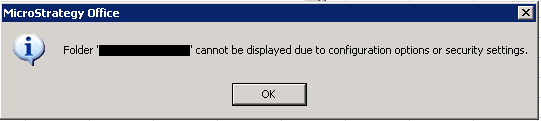
Sample Code/Error
Folder '<path>' cannot be displayed due to configuration options or security settings.
CAUSE
This behavior is by design.
ACTION
In the Configuration, or Strategy Office options, go to General > View > Dialog View section > uncheck the "Show compact folder tree" option. See screen shot below. Apply the changes, click OK, close Strategy Office, then log back in. Users will now be able to access objects outside of the Shared Reports or My Reports folder.

Note: Users will still need to create a shortcut or perform a search to navigate to these objects.
