EducationSoftwareStrategy.com
StrategyCommunity

Knowledge Base

Product

Community

Knowledge Base

TopicsBrowse ArticlesDeveloper Zone

Product

Download SoftwareProduct DocumentationSecurity Hub

Education

Tutorial VideosSolution GalleryEducation courses

Community

GuidelinesGrandmastersEvents
x_social-icon_white.svglinkedin_social-icon_white.svg
Strategy logoCommunity

© Strategy Inc. All Rights Reserved.

LegalTerms of UsePrivacy Policy
  1. Home
  2. Topics

KB38957: In MicroStrategy, how can time data be sorted for reports running against Hyperion Essbase?


Community Admin

• Strategy


This article notes how to setup sorting against Essbase

Introduction:
In Strategy, when a report is executed against Hyperion Essbase, the report data appears unsorted. For example, as seen in the screenshot below, the attribute month's data appears unsorted.
 

ka04W000000ObdKQAS_0EM440000002DOx.jpeg

 
The data in the Essbase cube appears in the expected order as shown below.
 

ka04W000000ObdKQAS_0EM440000002DOL.jpeg

 
This is because Essbase has internal links for sorting data internally. However, this order is not exposed when the values are queried from the cube.
 
This document provides steps to implement on Essbase and on the Strategy side to be able to display sorted data in Strategy reports.
 
STEPS TO IMPLEMENT
The steps below are provided for the Month attribute, but the same principle can be applied to any member to sort it's data.
 
Steps to implement in Essbase:
  • Create a backup of the required cubes on the Essbase side.
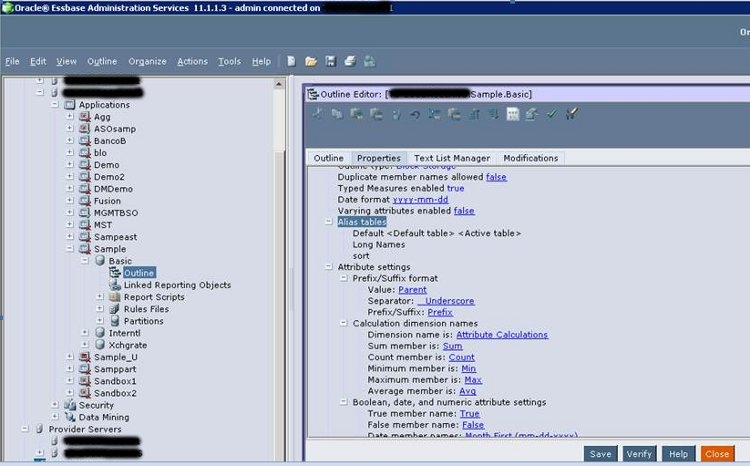
  • In the Essbase Outline  Editor, click on the Properties tab as shown below

ka04W000000ObdKQAS_0EM440000002DOV.jpeg


  • Right click on "Alias Tables' and click on "Create alias table"
  • Create a new table named 'sort' and click OK.

ka04W000000ObdKQAS_0EM440000002DOK.jpeg


  • Click on the Outline tab, and navigate to the member in the outline for which a sort value needs to be added.

ka04W000000ObdKQAS_0EM440000002DON.jpeg


  • Right click on the member, in this example, the member 'Jan', and click on Edit Member Properties.
  • Under the Aliases section, under 'sort', click on 'Click here to edit this field'. Add a value called 'M01' and click on OK. The section now appears as shown below.

     
ka04W000000ObdKQAS_0EM440000002DOa.jpeg
  •  
    Note: The alias has to be unique throughout the entire table alias. It is not possible to use numbers 1-12 for months January to December and again use numbers 1-31 for days of the month. The alias values have to be unique across the entire table. In the above example, values M01 - M12 will be used for the months January to December.
     
  • Users can click on the 'Next' button in the above window to move to the next member in the outline. However, note that users can see Parent or Children values (like Quarters) when using this 'Next' button. After entering the sort alias for all required members, click on OK to return to the outline.


Steps to implement in Strategy 

  • Click on Save and then close to finalize the changes.

ka04W000000ObdKQAS_0EM440000002DOu.jpeg
    • If the cube already exists in the Strategy metadata, it is required to update the cube structure.

ka04W000000ObdKQAS_0EM440000002DOX.jpeg


  • Map the new attribute form in the levels where it needs to be used. In this case, the sort is being applied for the Month attribute. Under the Cube Mapping tab, expand the attribute to which the new sort form needs to be mapped.

ka04W000000ObdKQAS_0EM440000002DOP.jpeg


  • Under the Year.TimeMonth attribute, click on <Unmapped> to expand the dropdown list. Choose 'sort' and then save and close the cube catalog.

ka04W000000ObdKQAS_0EM440000002DOs.jpeg


  • Update the schema with default options.
  • Run a report which only has the 'Year.TimeMonth' attribute. The data is not sorted as displayed below.

ka04W000000ObdKQAS_0EM440000002DOY.jpeg


  • In the report objects, right click on the Year.TimeMonth attribute and choose to add the 'sort' form to the report.

ka04W000000ObdKQAS_0EM440000002DOT.jpeg


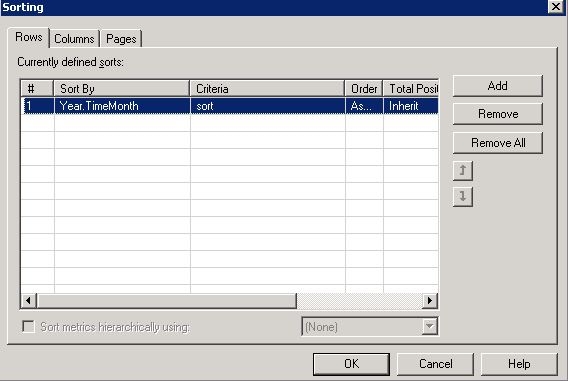
  • After executing the report, click on Data > Advanced sorting. Click on Add in the 'Rows' tab and select the 'sort' form to sort the attribute Year.TimeMonth.

ka04W000000ObdKQAS_0EM440000002DOH.jpeg


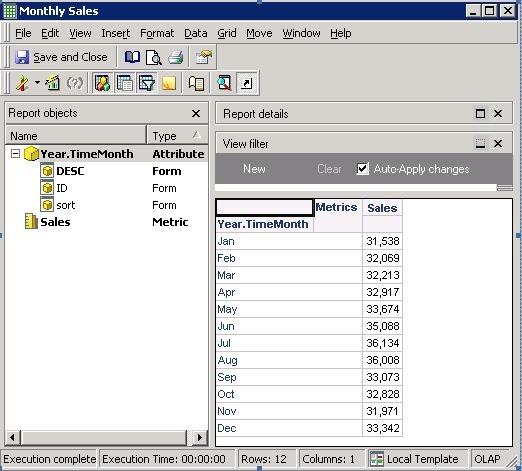
  • The report is now sorted in the correct order of the months.

ka04W000000ObdKQAS_0EM440000002DOc.jpeg


  • The 'sort' attribute form can now be removed from the report. However, it will be still be used in the sorting and the elements are displayed in the correct order.

ka04W000000ObdKQAS_0EM440000002DOR.jpeg

Comment

0 comments

Details

Knowledge Article

Published:

May 25, 2017

Last Updated:

May 25, 2017