EducationSoftwareStrategy.com
StrategyCommunity

Knowledge Base

Product

Community

Knowledge Base

TopicsBrowse ArticlesDeveloper Zone

Product

Download SoftwareProduct DocumentationSecurity Hub

Education

Tutorial VideosSolution GalleryEducation courses

Community

GuidelinesGrandmastersEvents
x_social-icon_white.svglinkedin_social-icon_white.svg
Strategy logoCommunity

© Strategy Inc. All Rights Reserved.

LegalTerms of UsePrivacy Policy
  1. Home
  2. Topics

KB3898: How to set functional parameters such as 'Count on Fact', 'BreakBy' and 'SortBy' in MicroStrategy Developer 9.x and later


Stefan Zepeda

Salesforce Solutions Architect • Strategy


How to set functional parameters such as 'Count on Fact', 'BreakBy' and 'SortBy' in MicroStrategy Developer 9.x and later

Strategy 9.x have approximately 150 functions. Many of them have specific parameters that specify how the functions should execute the computation.
 
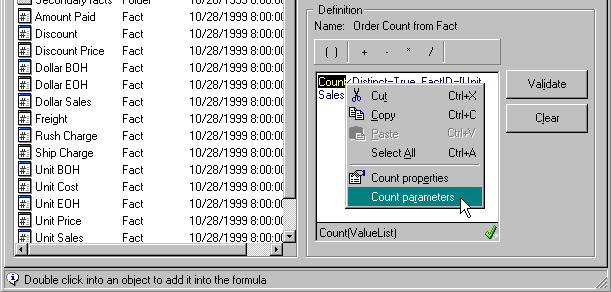
To set functional parameters, highlight the function's name in the metric expression and right-click to select Parameters.
 

ka02R000000kcKJQAY_0EM440000002GKo.gif

 
There are two types of functions:

  • Aggregate functions
     
    Example: Sum, Count, Max, Min
     
     
    Parameters: Distinct (default: false), NULL (default: false)
     
    NOTE: Every function has a distinct and NULL parameter in its parameter window. However, the parameters may not necessarily apply to the function. Users must understand when a parameter is relevant and how it should be set.
     
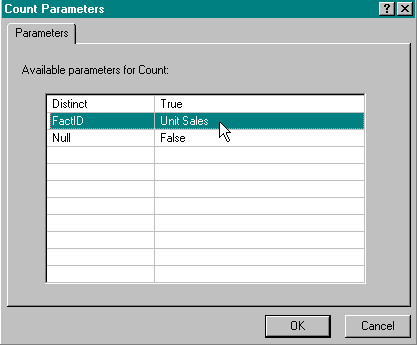
    Special case: ex. Count - FactID (default: nothing)
     
    When FactID is set, the count function is performed on the fact table instead of the lookup table.
     
ka02R000000kcKJQAY_0EM440000002GKh.gif
  •  
    In this example, the Count function is performed on the fact table where Unit Sales exists. If FactID is not set, the count will be performed on the lookup table.


  • Online Analytical Processing (OLAP) functions
     
    Example: Rank, RunningSum, FirstInRange
     
    Parameters: BreakBy, SortBy
     
    EXAMPLE:
     
ka02R000000kcKJQAY_0EM440000002GKf.gif
  •  
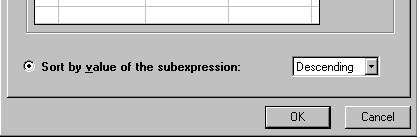
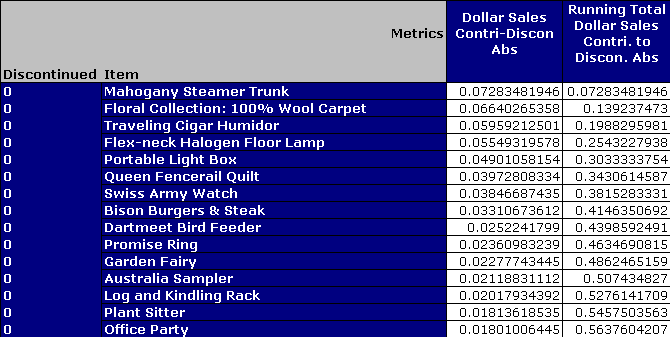
    RunningSum <BreakBy={Discontinued}, SortBy= (Value Desc)> ()
     
ka02R000000kcKJQAY_0EM440000002GKq.gif
  •  
    NOTE: The running sum is performed for each discontinued flag and the value of the "dollar sales contri-discon abs" is descending.


Special Metric:
A metric that prompts users on its function and fact/attribute can be created.

  1. Create an object prompt on functions.
  2. Create an object prompt on facts and/or attributes.
  3. In the metric definition, enter @functions?facts.
     
    NOTE: The @ sign is only used for the object prompt on functions. All other object prompts used in the metric expression use the '?' sign.


Comment

0 comments

Details

Knowledge Article

Published:

May 11, 2017

Last Updated:

May 11, 2017