Dalvik Debug Monitor Server (DDMS) is a very useful tool in order to troubleshoot issues on Android devices such as crashes and hangs of the Strategy App or take screenshots. For more information on this tool refer to: http://developer.android.com/guide/developing/debugging/ddms.html
In order to trigger the DDMS tool in the machine users need to install three main components on the machine:
1. Java SDK
2. Android SDK (Reference: http://developer.android.com/sdk/installing.html )
3. Device Specific Drivers
Step 1: Install the JAVA SDK and the Android SDK on your machine . Once you have them installed the process may vary depending on your android device. If you are using the Motorola or the Samsung drivers you can install them before connecting your device.
Step 2: Follow these steps before each time you connect your device.
1. Enable " USB Debugging" on your device. You find this option in ' Settings> Applications> Development. Check the box for the option.
2. Connect your device . If this is the first time make sure you follow the instructions to install it correctly.
3. Open the folder where you saved the Android SDK and navigate to the 'Tools' folder. Open the DDMS tool. For a 64-bit machine the DDMS tool is located under (C:\ Program files ( x86) --> Android--> Android SDK --> Tools ) .
4. Go to ddbms.bat a CMD prompt window opens. Once the device is connected to the machine the DDMS window opens up. The DDMS window will only pop if the device connected has its driver installed previously as mentioned in Step 1.
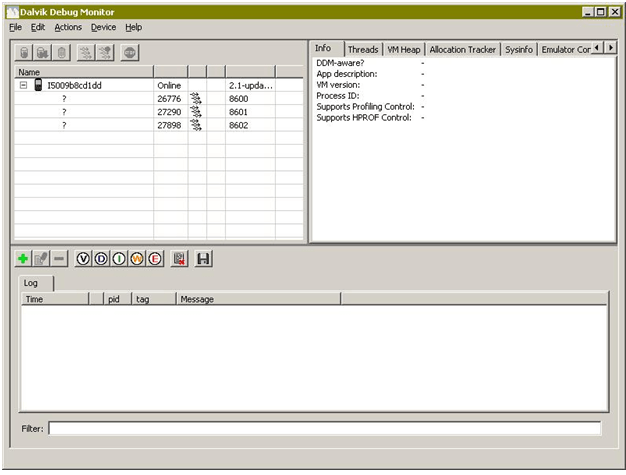
Step 3: Now you will have the Device Screen Capture window at your disposal showing the current screen of your device. You can rotate the image, save it , or copy it to the clipboard. When Navigating to a new screen on device , click Refresh on the one you want to capture and the image will change. Click Done when you are finished. The images are saved in PNG format.
Note: What if I do not see my device listed after opening the DDMS tool
Make sure that your device was installed correctlty. The best way to do is by checking that it can be listed using the ADB tool. Android Debug Bridge ( ADB) is a versatible tool and lets you manage the state of an emulator instance or Android- powered device. With your device connected open a Command Prompt window and from the Android SDK tools folder issue the command :
adb Devices
This will present you the connected devices:
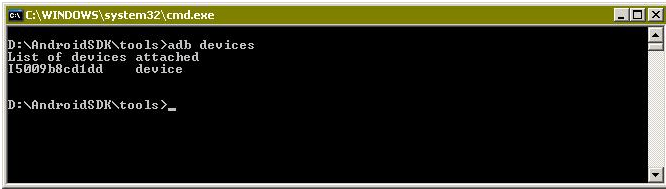
If the device is not listed then the DDMS tool will not be able to see your device. In this case you need to first make sure that you have enabled 'USB debugging'. If it is enabled then make sure that it was installed properly.
