Starting with Strategy 9.2.1m, users can use Transaction Reports to write data back to Salesforce.com. Follow the steps below to create a Transaction Report for writeback:
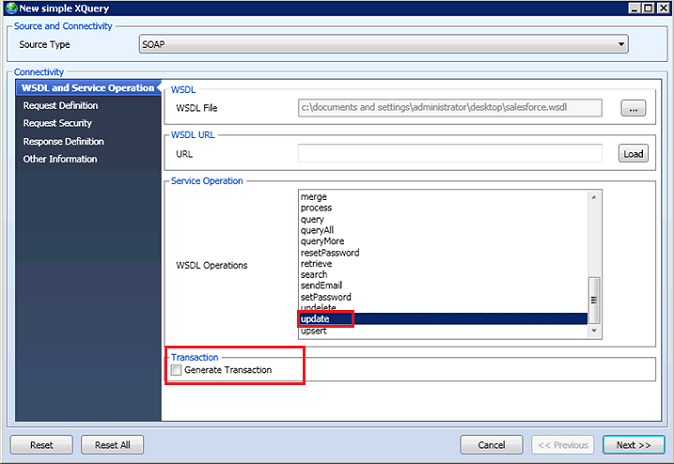
1. Open XQuery Editor and Generator, select SOAP as the source type, upload the WSDL file, select "update" for WSDL Operations, and select "Generate Transaction".
NOTE: WSDL file must be obtained from Salesforce or system administrator. Also there are multiple Saleforce APIs. SOAP is used in the example below. Refer to the following link for more information on usage of other types of APIs:
http://www.salesforce.com/us/developer/docs/api/Content/sforce_api_quickstart_intro.htm
2. On the "Request Definition" page, replace the Sample Request Text with the following snippet:
-----
<update xmlns="urn:enterprise.soap.sforce.com" xmlns:sf="urn:sobject.enterprise.soap.sforce.com" xmlns:xsi="http://www.w3.org/2001/XMLSchema-instance"> <records xsi:type="sf:Event"> <sf:Id>00UA0000006IIWOMA4</sf:Id> <sf:Subject>Budgeting </sf:Subject> <sf:Description>Discuss Q3 projects </sf:Description> </records> </update>
-----
NOTE: Here one record of "Event" object is used as an example. The value in the Id tag is the ID of this specific record (contact Salesforce administrator to get the ID of records that need to be updated). To figure out how to update other types of Salesforce records besides Event, consult the Salesforce API documentation.
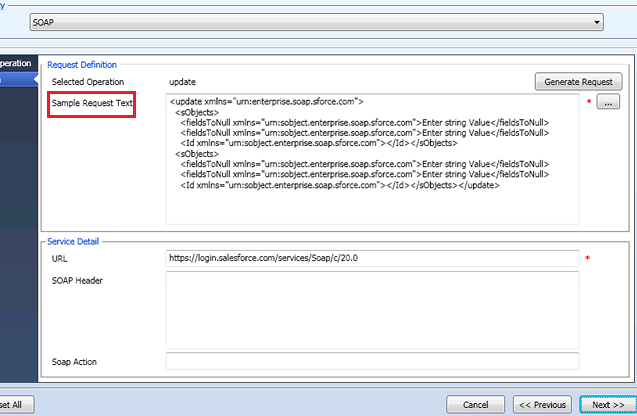
Note: The SOAP Header section needs to be empty.
3. Select "Salesforce Login" and input the Security information, follow the wizard accordingly to generate the XQuery code.
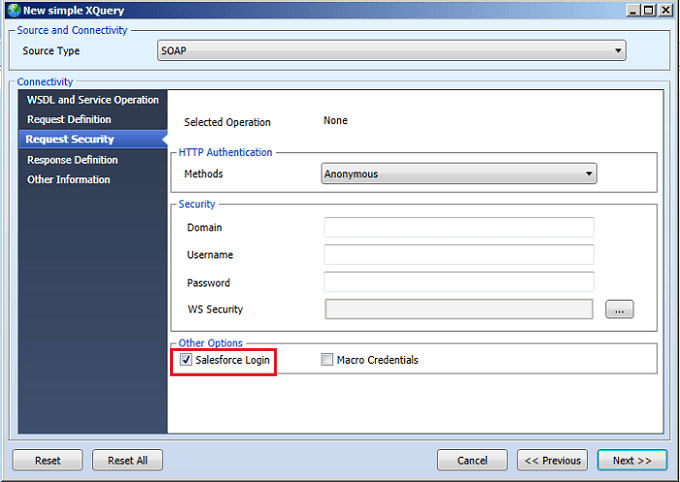
NOTE: The highlighted object information (the "records" part) needs to replaced with user input objects in Freeform SQL Editor later.
4. Use the generated XQuery code to create a Transaction Report, insert a transaction, put the "records" part within it.
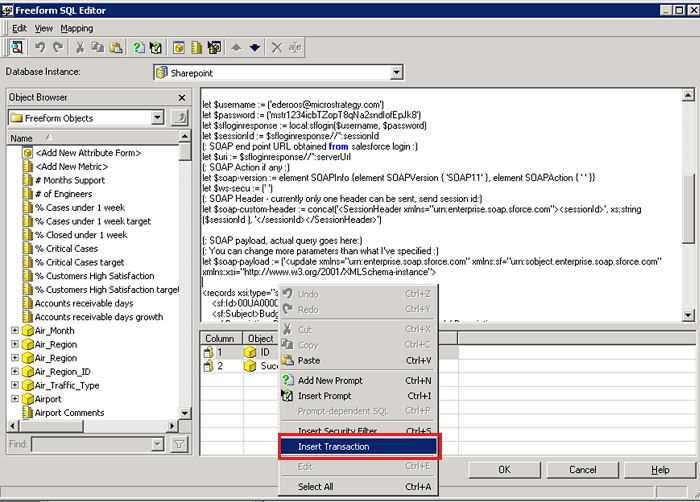
5. Define new input objects for users to input object information and save the report. When the transaction is submitted, each input object will be replaced by user input.
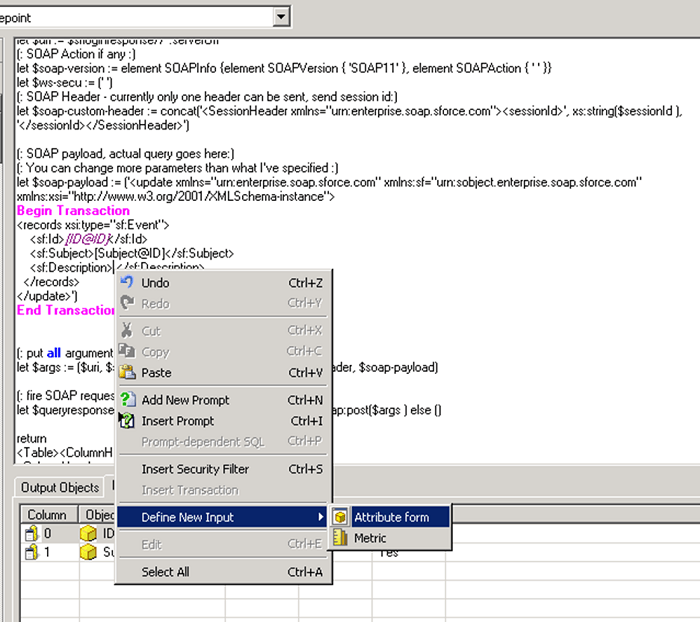
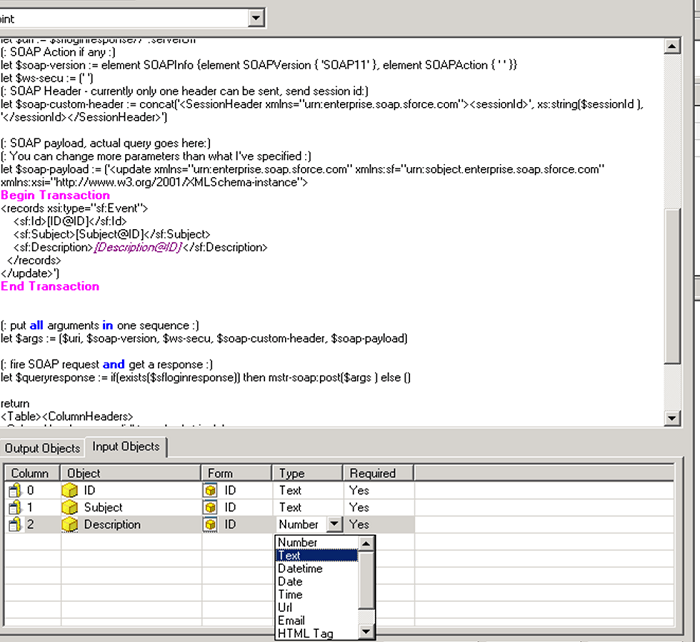
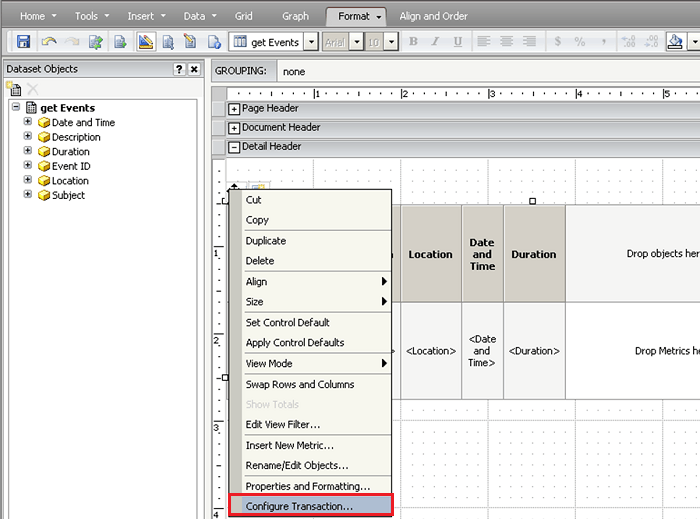
6. Apply the transaction report on the document that queries Salesforce data. Right click on the grid, select "Configure Transaction", choose the report created above, and map the object information.
NOTE: The dataset report “GetEvent” is a XQuery report. Refer to following technical note to create the XQuery report
KB38308: How to connect to Salesforce using XQuery reports in MicroStrategy 9.2.x and above
7. Add an "Action Selector Button" after configuring the transaction.
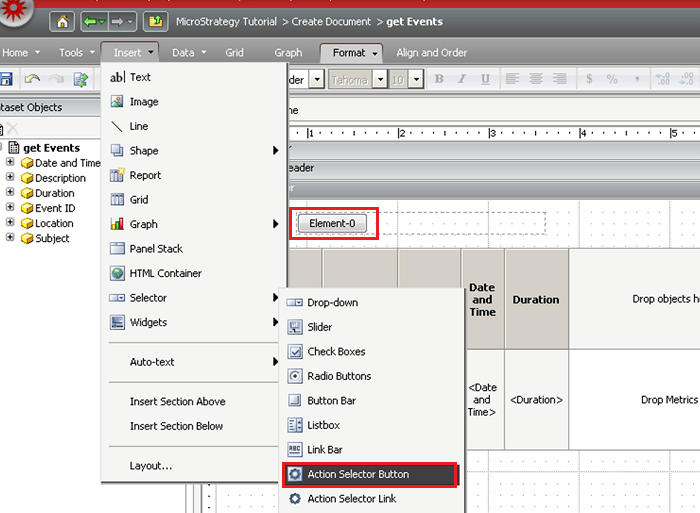
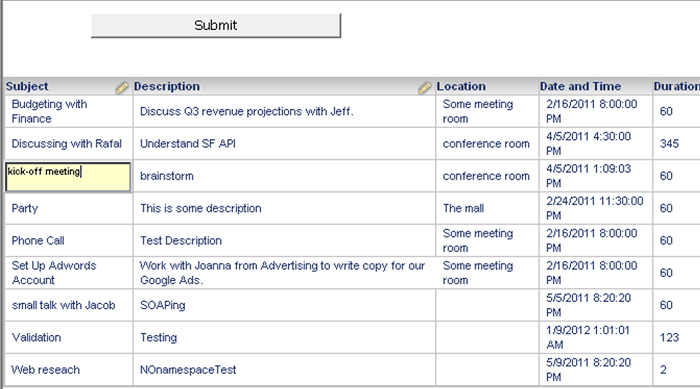
8. Run the document in Express Mode. Edit a field and click on the Submit button.
KB23401
