EducationSoftwareStrategy.com
StrategyCommunity

Knowledge Base

Product

Community

Knowledge Base

TopicsBrowse ArticlesDeveloper Zone

Product

Download SoftwareProduct DocumentationSecurity Hub

Education

Tutorial VideosSolution GalleryEducation courses

Community

GuidelinesGrandmastersEvents
x_social-icon_white.svglinkedin_social-icon_white.svg
Strategy logoCommunity

© Strategy Inc. All Rights Reserved.

LegalTerms of UsePrivacy Policy
  1. Home
  2. Topics

KB39231: How to Create a Transformation Metric in MicroStrategy


Community Admin

• Strategy


Metrics use time transformations to compare values at different times, such as this year versus last year or current date versus month-to-date. The last year transformation maps each time period to its corresponding time period last year, while the month-to-date transformation maps each time period to a set of time periods that comprise the entire month to date.
The definition of a new transformation metric is:


Sum([Account Amount]) {~+} | [Last Quarter] |
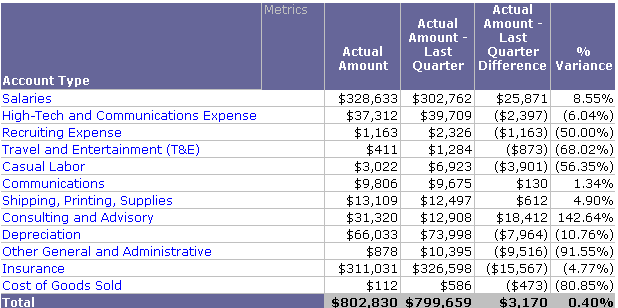
In the metric definition, a transformation is placed between pipe symbols (|). The two metrics are placed on a report with the Account Type attribute, as well as other metrics. The results are shown in the following figure.

ka04W000000rZQnQAM_0EM44000000QBek.png

Prerequisites

  1. You apply a transformation to a metric when you create a transformation metric. If the transformation you need does not exist, you must create it before adding it to the metric. See Steps to create a transformation.


  1. You can apply transformations to simple metrics but not for compound metrics. The formula of a simple metric is based on group functions (such as sum or average). For more information, see Simple vs. compound metrics .


  1. This procedure assumes you are already working with a metric in the Metric Editor. If you are not, do one of the following:
  • Edit an existing metric
  • Create a simple metric


  1. Rather than using the Metric Editor to apply a transformation to a single metric, you can use the Advanced Metric Assistant to combine multiple, simple metrics with multiple transformations. This can help reduce the time required to create the transformation metrics for a project, as described in Creating metrics by combining metrics, filters, and transformations .

How do users create a transformation metric?
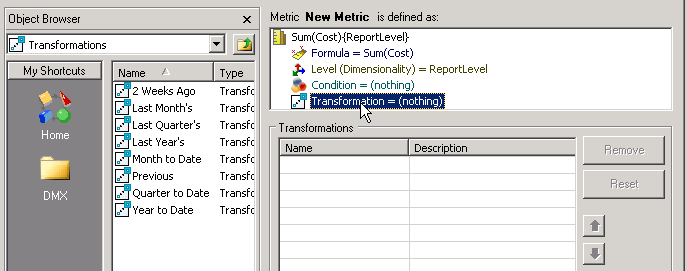
  1. Click Transformation on the Metric component pane (located under the heading "Metric (metric name) is defined as"). The Transformations definition pane displays below the Metric component pane.


ka04W000000rZQnQAM_0EM44000000QBeu.png


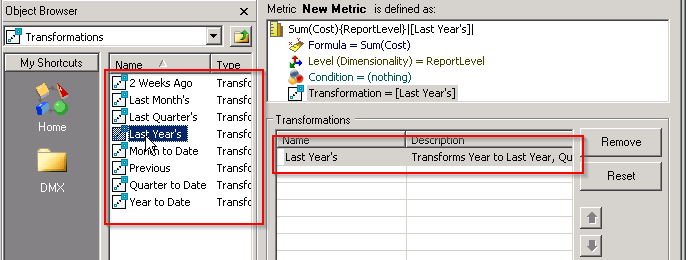
  1. To specify a transformation, double-click it in the Object Browser to add it to the Transformations definition pane.


​            

ka04W000000rZQnQAM_0EM44000000QBez.png


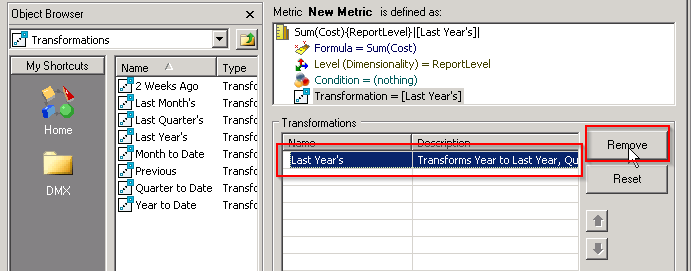
  1. To remove a transformation, select it in the Transformations definition pane and click Remove.


​            

ka04W000000rZQnQAM_0EM44000000QBf4.png


  1. To remove all the transformations, click Reset. 


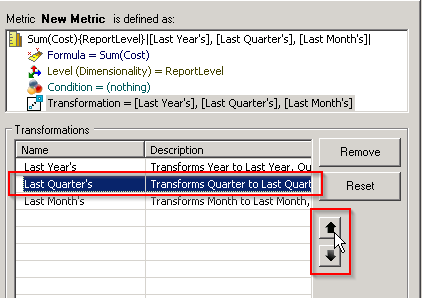
  1. To change the order of the transformations, select a transformation and use the directional arrows to re-position it.


​           

ka04W000000rZQnQAM_0EM44000000QBf9.png


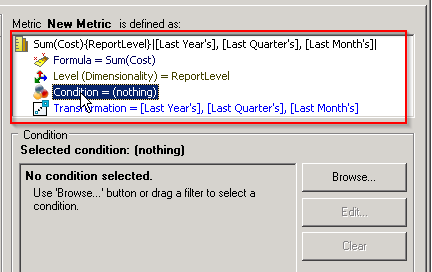
  1. Choose one of the following:
  • Save the metric
  • Continue creating the metric (for example, adding levels or conditionality)


​                       

ka04W000000rZQnQAM_0EM44000000QBfE.png

Article Reference Number:  KB39231


Comment

0 comments

Details

Knowledge Article

Published:

December 15, 2017

Last Updated:

November 29, 2023