EducationSoftwareStrategy.com
StrategyCommunity

Knowledge Base

Product

Community

Knowledge Base

TopicsBrowse ArticlesDeveloper Zone

Product

Download SoftwareProduct DocumentationSecurity Hub

Education

Tutorial VideosSolution GalleryEducation courses

Community

GuidelinesGrandmastersEvents
x_social-icon_white.svglinkedin_social-icon_white.svg
Strategy logoCommunity

© Strategy Inc. All Rights Reserved.

LegalTerms of UsePrivacy Policy
  1. Home
  2. Topics

KB39399: How to subscribe document with multiple layouts to history list and have all layouts exported in MicroStrategy Web


Community Admin

• Strategy


How to subscribe document with multiple layouts to history list and have all layouts exported in MicroStrategy Web.

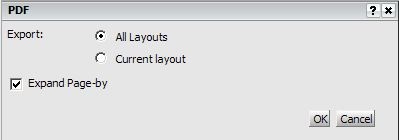
When exporting a document with multiple layouts to PDF in Strategy Web, a window will be prompted to ask for either exporting all layouts or current layouts, as shown below:
 

ka04W000000OgIGQA0_0EM4400000027FJ.jpeg

 
However, when subscribing document with multiple layouts to history list in Strategy Web, only the current layout is exported as default and there is no option prompted.
 
Perform below steps to export all the layouts when subscribing the document to history list:
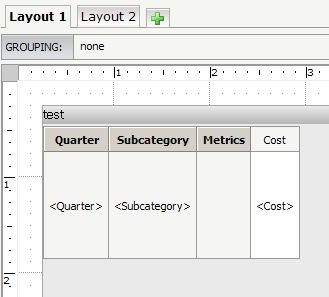
 

  1. Create document with multiple layouts as shown below:
ka04W000000OgIGQA0_0EM4400000027FA.jpeg


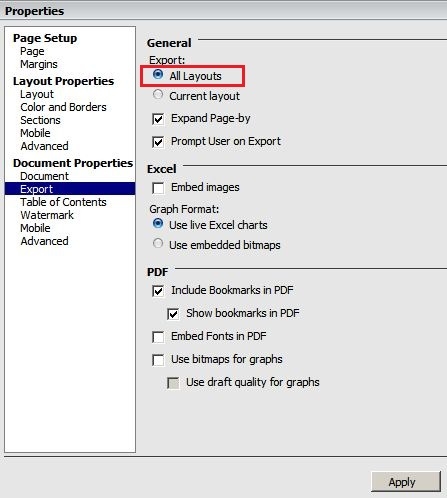
  • Go to Tools>Document Properties and check "All Layouts" under "export" as shown below:
ka04W000000OgIGQA0_0EM4400000027FC.jpeg


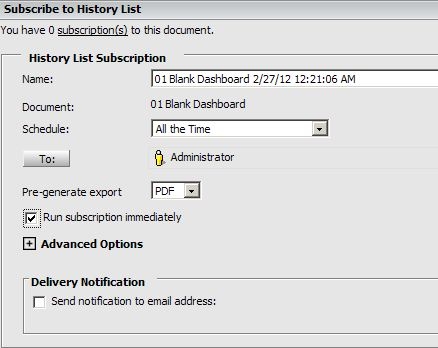
  • Subscribe the document to History List with PDF format as shown below:
ka04W000000OgIGQA0_0EM4400000027FH.jpeg


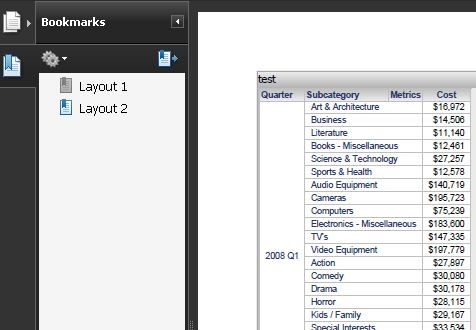
  • Check the PDF file generated under inbox folder, multiple layouts are exported as expected.
ka04W000000OgIGQA0_0EM4400000027FE.jpeg

Note: The document definition would include all flexibility for the designer to create the output in defined format. The above steps are also applicable for email and file subscription.


Comment

0 comments

Details

Knowledge Article

Published:

June 15, 2017

Last Updated:

June 15, 2017