EducationSoftwareStrategy.com
StrategyCommunity

Knowledge Base

Product

Community

Knowledge Base

TopicsBrowse ArticlesDeveloper Zone

Product

Download SoftwareProduct DocumentationSecurity Hub

Education

Tutorial VideosSolution GalleryEducation courses

Community

GuidelinesGrandmastersEvents
x_social-icon_white.svglinkedin_social-icon_white.svg
Strategy logoCommunity

© Strategy Inc. All Rights Reserved.

LegalTerms of UsePrivacy Policy
  1. Home
  2. Topics

KB39440: How to disable the class reloading option in WebSphere versions 6.1, 7, and 8.


Community Admin

• Strategy


How to disable the class reloading option in WebSphere versions 6.1, 7, and 8.

SYMPTOM
For WebSphere versions prior to 6.1, the Reload Interval should be explicitly set to -1, as instructed in the Installation and Configuration Guide. However, doing so for later versions of WebSphere (6.1, 7, and 8) may result in an error. In these later versions, the class reloading option is already disabled by default, and the value does not need to be set explicitly. See ACTION section below for installation steps for WebSphere 6.1, 7, and 8.
 
ACTION

  • Specify the path to the WAR file and a ContextRoot for the application (in WebSphere 6.1).
    Note: In WebSphere 7 and 8, this will be done in the last step of the installation. The following screen will also display initially, where the default selections can be used by selecting the Fast Path option.
ka04W000000Oh70QAC_0EM4400000027GH.png
  • The following screen will display on Step 1: Select Installation Options.
     
    Recommendation: Turn on the precompile JSP files option
     
    Note: Class reloading is disabled by default in WebSphere 7 and 8. In earlier versions of WebSphere, users are instructed to set the reload interval to -1 (Installation and Configuration Guide).
     
ka04W000000Oh70QAC_0EM4400000027GL.png
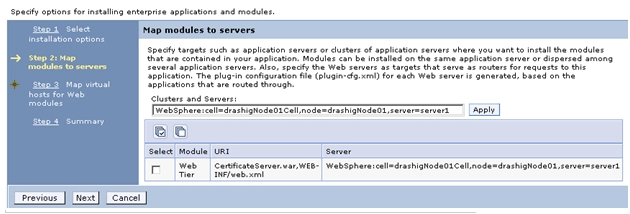
  • Click Next to Step  2: Map Modules to Servers. This is where users will select what application server instances the application should be deployed under.

     
ka04W000000Oh70QAC_0EM4400000027GJ.png
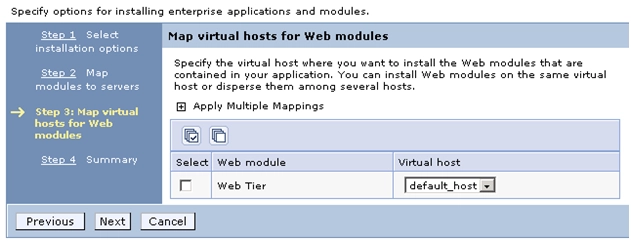
  • Click Next to Step 3: Map virtual hosts for Web modules.  Virutal hosts are a combination of a host name and unique port number. At minimum, users will see the default_host as an available selection, which is created by default when installing WebSphere.

     
ka04W000000Oh70QAC_0EM4400000027GI.png
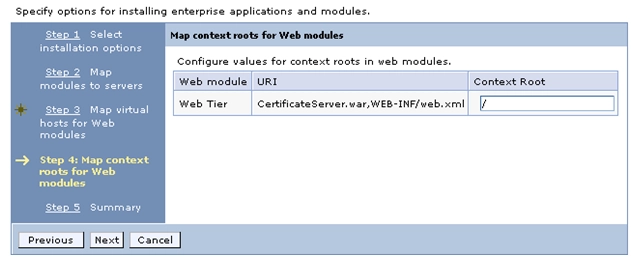
  • (WebSphere 7 and WebSphere 8 only) Click Next to Step 4: Map context roots for Web modules. This is where a context root will be provided for the application.
     
ka04W000000Oh70QAC_0EM4400000027GK.png
  • Click Next to Step 4 (WebSphere 6.1) or step 5 (WebSphere 7 and 8) to view a summary of the selections made. 

ka04W000000Oh70QAC_0EM4400000027GM.png


Comment

0 comments

Details

Knowledge Article

Published:

June 2, 2017

Last Updated:

June 2, 2017