EducationSoftwareStrategy.com
StrategyCommunity

Knowledge Base

Product

Community

Knowledge Base

TopicsBrowse ArticlesDeveloper Zone

Product

Download SoftwareProduct DocumentationSecurity Hub

Education

Tutorial VideosSolution GalleryEducation courses

Community

GuidelinesGrandmastersEvents
x_social-icon_white.svglinkedin_social-icon_white.svg
Strategy logoCommunity

© Strategy Inc. All Rights Reserved.

LegalTerms of UsePrivacy Policy
  1. Home
  2. Topics

KB39514: The default display Attribute form cannot be modified after setting attribute display in Intelligent Cube in MicroStrategy Developer 9.4.x-10.x


Stefan Zepeda

Salesforce Solutions Architect • Strategy


In Intelligent Cube editor, the default display attribute forms cannot be modified after choosing "Use the following attribute forms" and adding a new attribute form in "Attribute Display". All the attribute forms are in bold type and will display in Intelligent cube reports. It happens in MicroStrategy Developer 9.4.x-10.x.

SYMPTOM:
In Intelligent Cube editor, the default display attribute forms cannot be modified after choosing "Use the following attribute forms" and adding a new attribute form in "Attribute Display". All the attribute forms are in bold type and will display in Intelligent cube reports. It happens in Strategy Developer 9.4.x-10.x.
 
STEPS TO REPRODUCE:
Follow the steps below to reproduce the issue in Tutorial project in Strategy 9.4.x-10.x:
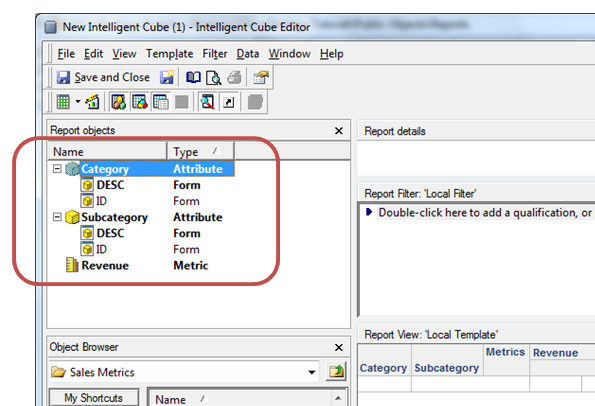
  1. Create a new Intelligent Cube with Attributes Category, Subcategory and Metric Revenue. Notice the attribute forms in the Report Objects pane. DESC forms are in bold as they are displayed by default in the report, as shown below:
ka02R000000kaR3QAI_0EM440000002DKN.png


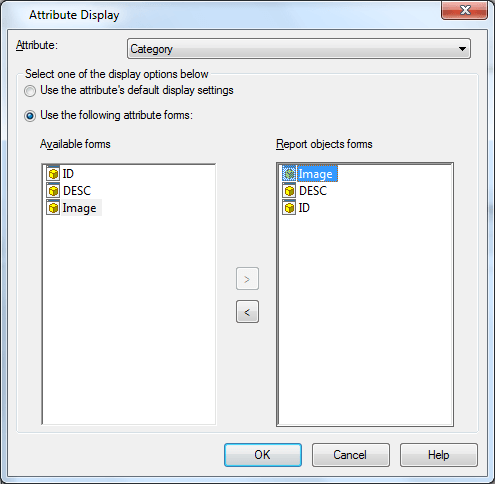
  • Modify the attribute display of Category, choose "Use the following attribute forms" and add "Image" to the Report Objects, as shown below:
ka02R000000kaR3QAI_0EM440000002DKJ.png


  • Notice that now all the attribute forms of Category are displayed in bold, as shown below:
ka02R000000kaR3QAI_0EM440000002DKE.png


  • Save and publish the Cube.
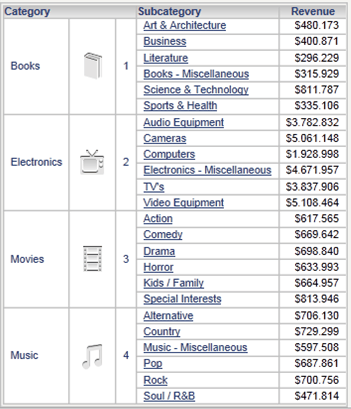
  • Create a report on top of that cube, all available attribute forms are displayed by default (both in Developer and Web), as shown below:
ka02R000000kaR3QAI_0EM440000002DKH.png

 
CAUSE:
It is a known issue in Strategy 9.4.x-10.
 
ACTION:
Strategy will continue to investigate and post updates as soon as they are available.
WORKAROUND:
Manually change the display form in the Intelligent Cube report.
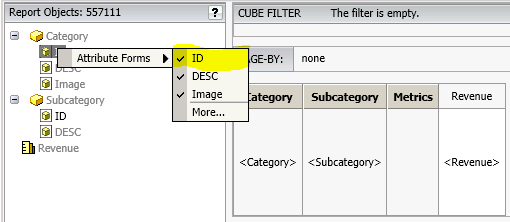
  1. Right click the attribute form in report edit mode.
  2. Clear the attribute form you don't want to display by default, as shown below:
ka02R000000kaR3QAI_0EM440000002DKL.png


Comment

0 comments

Details

Knowledge Article

Published:

April 24, 2017

Last Updated:

April 24, 2017