EducationSoftwareStrategy.com
StrategyCommunity

Knowledge Base

Product

Community

Knowledge Base

TopicsBrowse ArticlesDeveloper Zone

Product

Download SoftwareProduct DocumentationSecurity Hub

Education

Tutorial VideosSolution GalleryEducation courses

Community

GuidelinesGrandmastersEvents
x_social-icon_white.svglinkedin_social-icon_white.svg
Strategy logoCommunity

© Strategy Inc. All Rights Reserved.

LegalTerms of UsePrivacy Policy
  1. Home
  2. Topics

KB39626: How to use a calendar as selector in Interactive mode of a Report Services document in MicroStrategy Web


Community Admin

• Strategy


The following steps describes a workaround to use a Date Selection Widget, which display as calendar in Interactive mode of a Report Services document with MicroStrategy Tutorial project

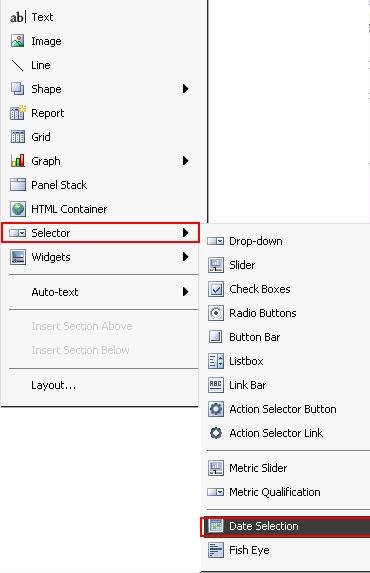
Starting from Strategy Web 9.2.x, "Date Selection" is introduced as a new selector, as shown below. The Date Selection selector uses a date type attribute as source. In Flash mode of a Report Services document, it appears as a calendar. In Interactive mode of a Report Services document, it appears as a normal selector control. 
ka04W000000Oe2zQAC_0EM4400000027EN.jpeg

 
The following steps describes a workaround to use a Date Selection Widget, which display as calendar in Interactive mode of a Report Services document with Strategy Tutorial project:
  • In Strategy Web, create a report R1 with the attribute Day in the row and the metric Cost in the column.
  • Create a Report Services document D1 with R1 datasets.
  • Insert R1 into D1 as grid1 and insert another grid2 with only Day attribute.
  • In grid2, right click Day attribute header to set Day attribute as selector and targeting grid1.
  • Right-click grid1, select Properties and Formatting. Under Options of widget, select date selection in both Flash and Interactive Mode.
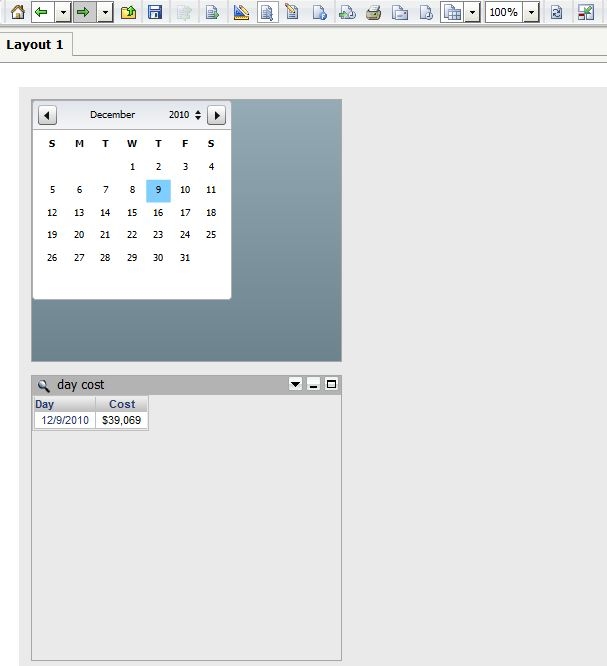
  • Save D1 and run it in Interactive mode. Note that grid1 appears as a calendar functioning as a date selector, as shown below:
ka04W000000Oe2zQAC_0EM4400000027EB.jpeg


Comment

0 comments

Details

Knowledge Article

Published:

April 1, 2017

Last Updated:

April 1, 2017