The annotation mode is available for reports and documents in Strategy Mobile 9.21m Patch 5 for iPad .
Note: Starting from Strategy 9.3.0 annotation mode is available for iPhone.
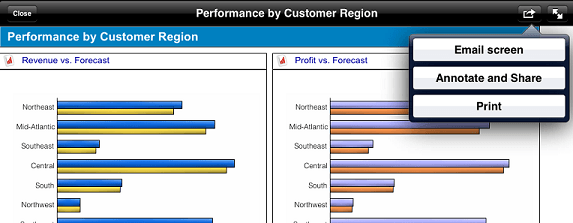
On entering the report or document user will get an option to enter the annotation mode as shown below.
The splash screen will be only shown for the first three times the user enters the annotation mode.
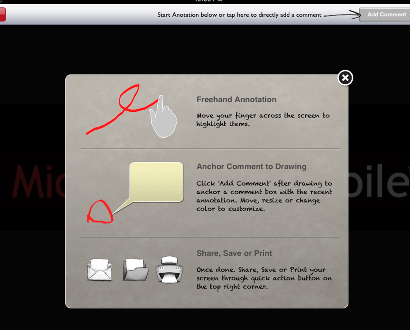
On entering the annotation mode by default the user enters into the draw mode.
Available features:
Draw: Once user enters annotation mode, they can start drawing. Currently only freehand drawing is supported.
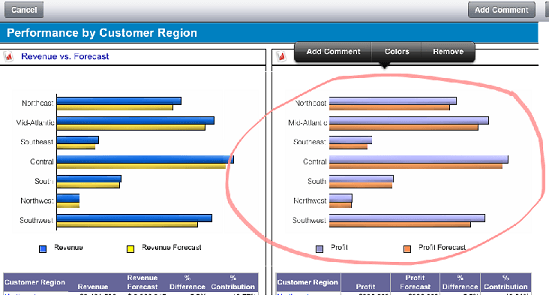
On lifting the finger from screen user gets three tabs on top of the drawing:
User can add a comment. Keyboard pop's up instantly and user can start adding text to the comment box. User can't change the color or style of the comment box. It stays the same.
User can change the color of the drawing border.

User can remove the recently added shape.
Comment: On single tap the comment box appears next to the drawing.
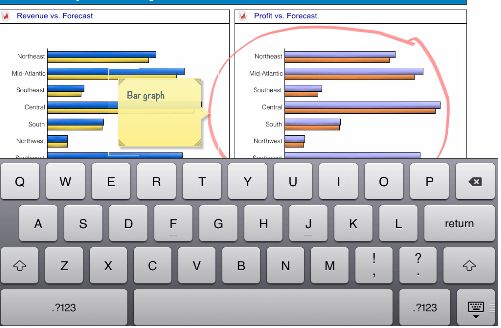
User can move the tool tip
User can resize the box
User can drag and move the comment box.
User can double tap to insert text in the comment box.
Save the annotation:

Email Screen: User can email the screen to an email id.
Save to photos : User can save it as an image in the photo album of the device.

Print screen: user can print the screen directly.
Exit Annotation Mode:
To exit annotation click on cancel on left hand top of the screen . Once you press cancel it pop's up with the following message. On clicking ok the annotation mode is exited.

