EducationSoftwareStrategy.com
StrategyCommunity

Knowledge Base

Product

Community

Knowledge Base

TopicsBrowse ArticlesDeveloper Zone

Product

Download SoftwareProduct DocumentationSecurity Hub

Education

Tutorial VideosSolution GalleryEducation courses

Community

GuidelinesGrandmastersEvents
x_social-icon_white.svglinkedin_social-icon_white.svg
Strategy logoCommunity

© Strategy Inc. All Rights Reserved.

LegalTerms of UsePrivacy Policy
  1. Home
  2. Topics

KB39696: How to Modify the "Cannot display page" error in MicroStrategy Web using the MicroStrategy Web SDK 9.4.x


Community Admin

• Strategy


This article explains how to modify the "Cannot display page" error in MicroStrategy Web using the MicroStrategy Web SDK 9.4.x

Before Customization:

ka04W000000OewCQAS_0EM440000002Ghl.png

After Customization:

ka04W000000OewCQAS_0EM440000002Ghq.png

The example provided in this document is provided “as-is” to the user and assumes that the user:

  • Can program, compile (e.g. javac, jikes, etc.), and execute Java programs
  • Can configure environment variables (e.g. JAR files, property files, etc.)
  • Have all the necessary tools to create Java applications (JDK, IDE, etc.)
  • Has access to the Strategy SDK documentation.
  • Has read the customization warning at the bottom of this document

PREREQUISITES:
For the sample to work, the Strategy Web JAR files must be accessible by the Java Runtime
Environment. The Strategy Web JAR files can be found under:

  • Strategy Web Universal (JSP): {web_root}/WEB-INF/lib directory.
  • Strategy Web (.NET): Program Files\Common Files\Strategy directory.

Note:
More elaborate programs will require additional library files and are out of the scope of this document.
Using the Web Customization Editor to create a plug-in
Strategy SDK provides a Web Customization Editor that can be used to create a customization plug-in. The following steps show how to create the plug-in and deploy.
  • Launch the Web Customization Editor. 
  • Create a new plug-in and give it a meaningful name. For example: ModifyErrorMessage. (For step by step instructions on creating a new plug-in, please navigate to Home > Web SDK > Customizing Strategy Web > Web Customization Editor > Features and Customizable) 
  • Click in Strategy Web Configuration inside the Application Settings view to expand the hierarchical tree. The expanded list comprises the different settings that can be modified to perform customizations. 
  • Navigate to Pages > error(Error page).  Double-click on error(Error page), the editor should open.
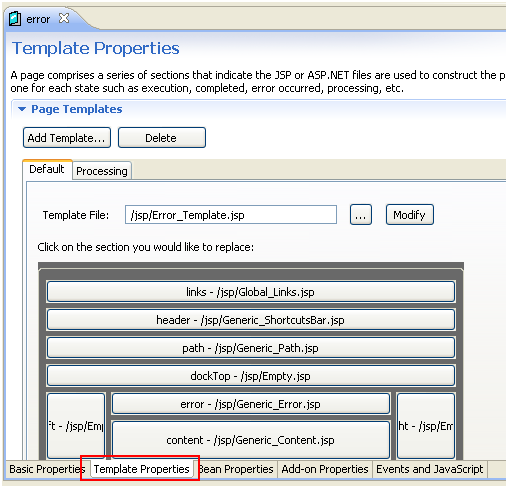
  • Click on the Template Properties tab.
ka04W000000OewCQAS_0EM440000002Ghr.png
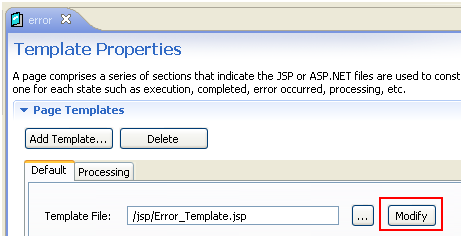
  • On the Page Templates section, on the Default tab, click the Modify button for the Template File: (by default is defined as /jsp/Error_Template.jsp).
ka04W000000OewCQAS_0EM440000002Ghm.png
  • Click ‘YES’ if prompted “Editing this file will create a copy in your plug-in folder and this copied file will be opened for editing.  Do you want to continue?”  The Error_Template.jsp file should be open.
  • Minimize Eclipse.
  • Navigate to the Strategy Web folder location on the Web Server machine.
  • Copy the following 2 files from ..\jsp to the following location ..\plugins\ModifyErrorMessage\jsp
    • Error_FullContent.jsp
    • JSP_Error.jsp
  • Edit the ..\plugins\ModifyErrorMessage\jsp\JSP_Error.jsp file.  Modify the following line:

    Sample Code/Error

    
    <div class="mstrAlertMessage"><web:errorValue property="message"/></div>


    to the following code:

    Sample Code/Error

    
    <div class="mstrAlertMessage"><web:scriptlet>document.write("Place message you want your users to see here.<br>");</web:scriptlet></div>


  • Save the changes to the file.
  • Restart the Web Server.

ADDITIONAL INFORMATION:
The Strategy SDK allows you to customize several Strategy products and extend and integrate the Strategy business intelligence functionality into other applications. However, before changing the way Strategy products look or behave, it is helpful to understand how the application is built. For more information regarding the Strategy products or the process of customizing Strategy products, please refer to Strategy Developer Zone (https://developer.Strategy.com).
To access the Strategy Developer Zone, you must have access to the Strategy Knowledge Base, you must have purchased the Strategy SDK, and you must be current on your Strategy maintenance agreement. If you are a US-based business and believe that you satisfy all three of these conditions but you do not have access to the Strategy Developer Zone, please contact Strategy Technical Support at support@Strategy.com or at (703) 848-8700. If you are an international business, please contact Strategy Technical Support at the appropriate email address or phone number found at https://www.Strategy.com/us/services/support/contact.
CUSTOMIZATION WARNING:
This customization is provided as a convenience to Strategy users and is only directly applicable to the version stated. While this code may apply to other releases directly, Strategy Technical Support makes no guarantees that the code provided will apply to any future or previous builds. In the event of a code change in future builds, Strategy Technical Support makes no guarantee that an updated version of this particular customization will be provided. In the event of a code change in future builds, Strategy may not be able to provide additional code on this matter even though this customization is provided at this time for this specific build. For enhancements to this customization or to incorporate similar functionality into other versions, contact your Account Executive to inquire about Strategy Consulting assistance.


Comment

0 comments

Details

Knowledge Article

Published:

June 23, 2017

Last Updated:

June 23, 2017
