EducationSoftwareStrategy.com
StrategyCommunity

Knowledge Base

Product

Community

Knowledge Base

TopicsBrowse ArticlesDeveloper Zone

Product

Download SoftwareProduct DocumentationSecurity Hub

Education

Tutorial VideosSolution GalleryEducation courses

Community

GuidelinesGrandmastersEvents
x_social-icon_white.svglinkedin_social-icon_white.svg
Strategy logoCommunity

© Strategy Inc. All Rights Reserved.

LegalTerms of UsePrivacy Policy
  1. Home
  2. Topics

KB39749: How can element caching be disabled for a particular attribute in MicroStrategy?


Community Admin

• Strategy


How can element caching be disabled for a particular attribute in MicroStrategy

SUMMARY:
Element caching can be turned on and off both at the Project Level and Attribute Level. For elements of an attribute to be cached, both attribute and project level element caching should be turned on. If the project level setting is turned off, element caching will be turned off for all attributes. However, it may be necessary to disable element caching for a particular attribute.
 
To do this, perform the following steps:
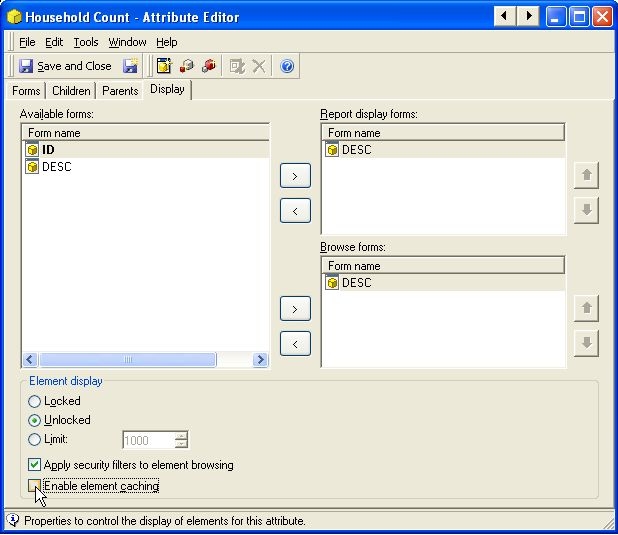
 

  1. Open the Attribute Editor for the particular attribute that will have its element cache disabled.
  2. In the editor, click on the "Display" tab.
  3. Uncheck the option, "Enable element caching," on the lower left section of the editor, as shown below:


ka04W000000OeF5QAK_0EM4400000029mn.jpeg


Comment

0 comments

Details

Knowledge Article

Published:

June 12, 2017

Last Updated:

June 12, 2017