EducationSoftwareStrategy.com
StrategyCommunity

Knowledge Base

Product

Community

Knowledge Base

TopicsBrowse ArticlesDeveloper Zone

Product

Download SoftwareProduct DocumentationSecurity Hub

Education

Tutorial VideosSolution GalleryEducation courses

Community

GuidelinesGrandmastersEvents
x_social-icon_white.svglinkedin_social-icon_white.svg
Strategy logoCommunity

© Strategy Inc. All Rights Reserved.

LegalTerms of UsePrivacy Policy
  1. Home
  2. Topics

KB39765: "%@ Page Language="vb" AutoEventWireup="false" Inherits="MicroStrategy.main" validateRequest="false" CodeFile="Main.aspx.vb" % ... " error message appears when logging in MicroStrategy Web 9.x hosted on Internet Information Services


Community Admin

• Strategy


This article discusses an issue where by "The XML page cannot be displayed" error is presented to the users in MicroStrategy Web hosted on IIS.

SYMPTOM:
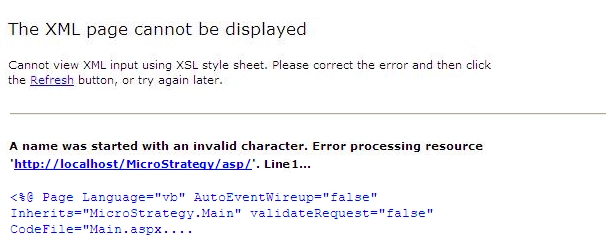
When accessing the Strategy Web 9.x hosted by the Internet Information Services the following error message is presented: 
 

ka04W000000OeCaQAK_0EM4400000027CI.png

Sample Code/Error
The XML page cannot be displayed
Cannot view XML input using XSL style sheet. Please correct the error and then click the Refresh button, or try again later.
________________________________________
A name was started with an invalid character. Error processing resource
'http://localhost/MicroStrategy/asp/'. Line 1...
<%@ Page Language="vb" AutoEventWireup="false"
Inherits="Strategy.Main" validateRequest="false"
CodeFile="Main.aspx....
CAUSE:
After installing the Microsoft .NET Framework Software Development Kit (SDK) or Microsoft Visual Studio .NET, the Microsoft Internet Information Services (IIS) mappings are created to associate new file name extensions and new settings for ASP.NET.
The new settings are not in place if either of the following statements apply to:

  1. IIS was not installed when running the .NET Framework SDK or Visual Studio .NET Setup.
  2. IIS was removed / installed after running the .NET Framework SDK Setup or the Visual Studio .NET Setup.   

ACTION:
Follow the steps below in order to run the Aspnet_regiis.exe utility to fix the IIS mappings for ASP.NET :

  1. Click on the button Start select the option Run.
  2. In the open Run text box, type cmd and press enter.
  3. At the command prompt, type the following command "%windir%\Microsoft.NET\Framework\version\aspnet_regiis.exe" -i and then press enter.  
  4. Restart the IIS service.

Observation: In this path, version represents the version number of the .NET Framework installed on server, so the placeholder must be replaced with the actual version number when typing the command.


Comment

0 comments

Details

Knowledge Article

Published:

June 13, 2017

Last Updated:

June 13, 2017