EducationSoftwareStrategy.com
StrategyCommunity

Knowledge Base

Product

Community

Knowledge Base

TopicsBrowse ArticlesDeveloper Zone

Product

Download SoftwareProduct DocumentationSecurity Hub

Education

Tutorial VideosSolution GalleryEducation courses

Community

GuidelinesGrandmastersEvents
x_social-icon_white.svglinkedin_social-icon_white.svg
Strategy logoCommunity

© Strategy Inc. All Rights Reserved.

LegalTerms of UsePrivacy Policy
  1. Home
  2. Topics

KB39950: How to format all data labels at the same time on a graph in MicroStrategy Desktop 9.x.


Stefan Zepeda

Salesforce Solutions Architect • Strategy


When working with a Graph in MicroStrategy Desktop 9.x, it is possible to change the data label formatting at the series level or one series at a time.

 
When working with a Graph in Strategy Desktop 9.x, it is possible to change the data label formatting at the series level or one series at a time.
 
The different methods to change the graph label formatting are explained below:
 
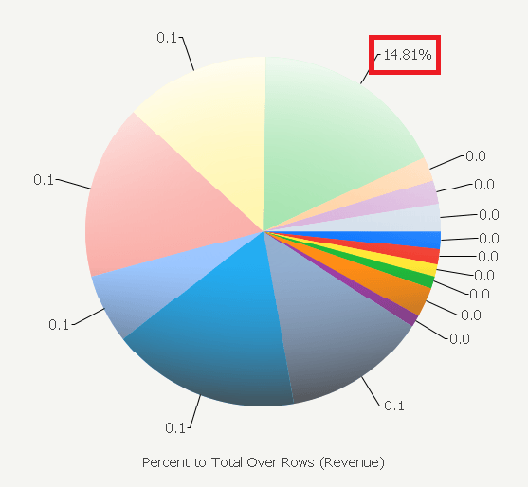
To change the format of one data label:
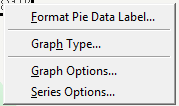
 

  • Right-click on the data label and select "Format Data Label"
ka02R000000kVc4QAE_0EM440000002DG6.png

End Result

ka02R000000kVc4QAE_0EM440000002DG3.png

 
To change the format of all data labels on a report:
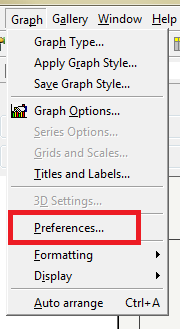
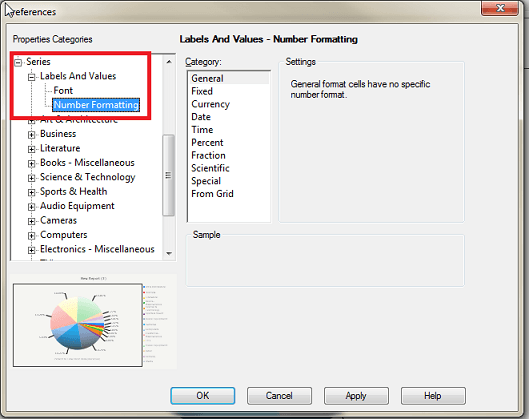
  • Once the report is in graph view, go to Graph - Preferences.
ka02R000000kVc4QAE_0EM440000002DFs.png
  • Expand Series - Lables and Values and select Number Formatting.
ka02R000000kVc4QAE_0EM440000002DFx.png
  • Change the formatting to the necessary format.

 
To change the format of all data labels in a Report Services Document:
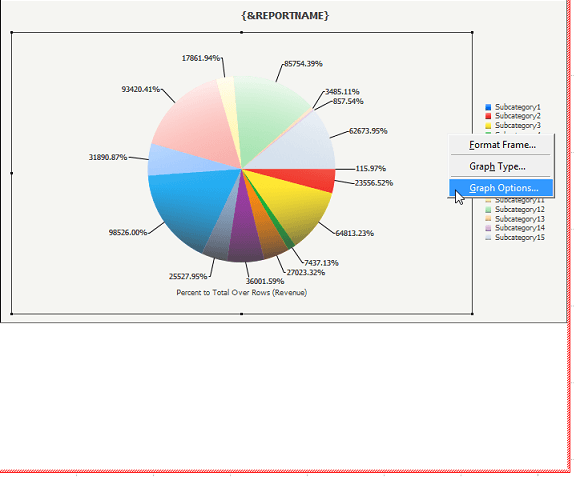
  •  Double click on the graph so the graph has a red border. Right click and select Graph Options.
ka02R000000kVc4QAE_0EM440000002DG7.png
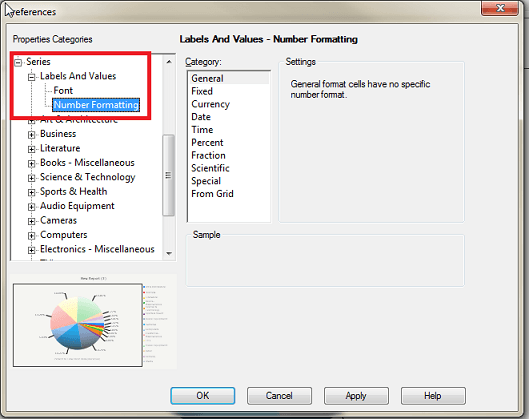
  • Expand Series - Lables and Values and select Number Formatting.
ka02R000000kVc4QAE_0EM440000002DFp.png
  • Change the formatting to the necessary format.

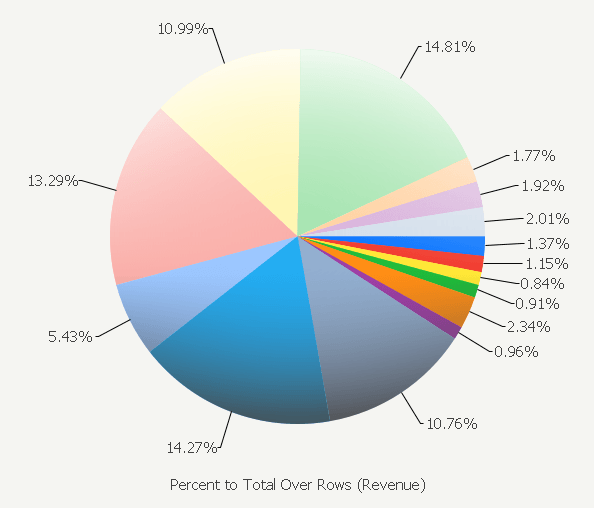
 End Result

ka02R000000kVc4QAE_0EM440000002DG1.png

Comment

0 comments

Details

Knowledge Article

Published:

May 31, 2017

Last Updated:

May 31, 2017