EducationSoftwareStrategy.com
StrategyCommunity

Knowledge Base

Product

Community

Knowledge Base

TopicsBrowse ArticlesDeveloper Zone

Product

Download SoftwareProduct DocumentationSecurity Hub

Education

Tutorial VideosSolution GalleryEducation courses

Community

GuidelinesGrandmastersEvents
x_social-icon_white.svglinkedin_social-icon_white.svg
Strategy logoCommunity

© Strategy Inc. All Rights Reserved.

LegalTerms of UsePrivacy Policy
  1. Home
  2. Topics

KB39969: How to Switch MDX Cube in an MDX report which contains metrics within the same database instance in MicroStrategy Developer


Community Admin

• Strategy


This technical note lists the steps to switch MDX Cube in an MDX report which contains metrics within the same database instance.

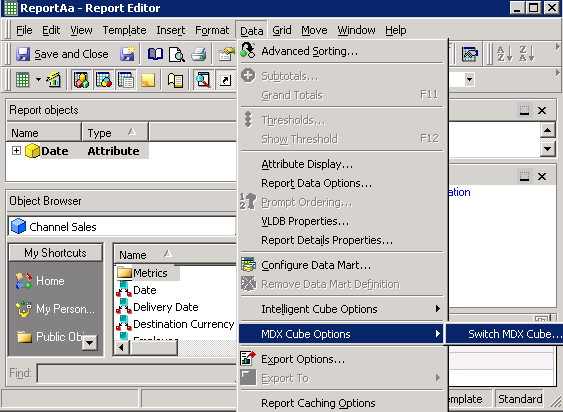
An option "Switch MDX Cube" which can be located in "Data" -> "MDX Cube Options" in an MDX report editor provides the functionality to switch to another source cube for an MDX report, as shown below:
 

ka04W000000uGDQQA2_0EM440000002DGe.png
ka04W000000uGDQQA2_0EM440000002DGi.png


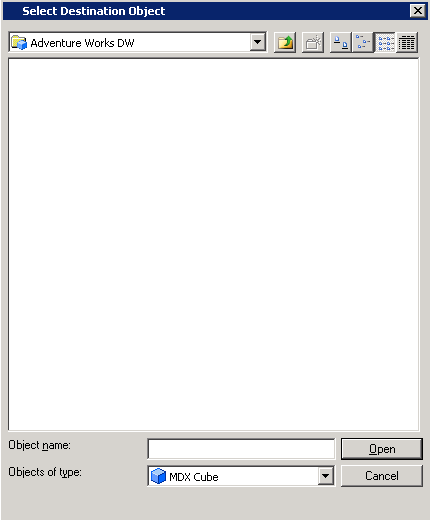
In order to display another MDX cube as a candidate to be switched to, the attributes and metrics on the report should exist on the destination cube with the same GUID. Otherwise, the MDX cube is not listed as an option as shown in the above screenshot.
 
For Microsoft Analysis Services and SAP as well as TM1 MDX sources, attribute/dimension objects are shared among all the cubes of the sources, as long as they reference to the same unique name (for SAP case, characteristic).
 
For all of the MDX sources, metrics are never shared among cubes. If the MDX cube of an MDX cube report which contains metrics needs to be switched, it is required to share the metrics among the related MDX cubes which can be realized by editing the target MDX cube, selecting the metric object, and mapping to the metric object of the source cube.
  
The following steps describes how to Switch MDX Cube in an MDX report which contains metrics within the same Microsoft Analysis Services Database instance in Strategy Developer 9.x - 10.x
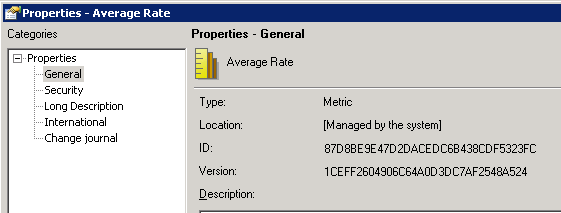
Note the GUID of the metric Average Rate in cube "Finance" is different from the GUID of the metric Average Rate in cube "Channel Sales". 
 

  • Import two cubes "Finance" and "Channel Sales" from the same DB instance "MSAS2005" as shown below:
ka04W000000uGDQQA2_0EM440000002DGI.png
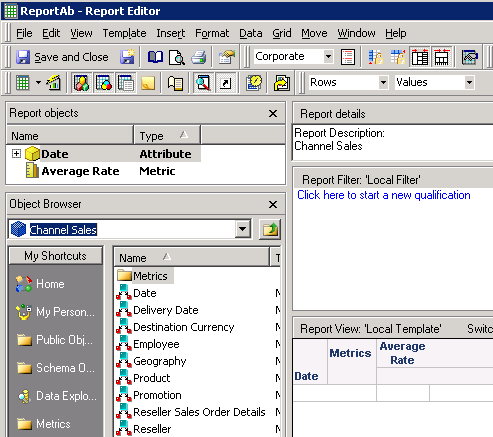
  • Create a MDX report "ReportAb" with attribute Date and metric Average Rate from "Channel Sales" cube, as shown below:  
ka04W000000uGDQQA2_0EM440000002DGt.png
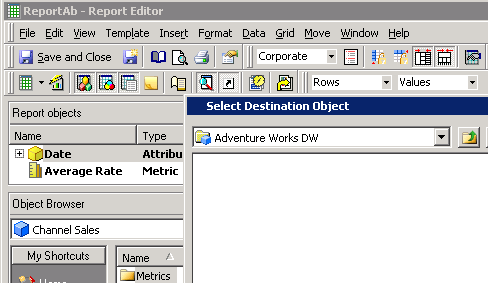
  • Go to Data menu and choose "Switch MDX Cube". There is no cube available for switching. As shown below.
ka04W000000uGDQQA2_0EM440000002DG9.png
  • Right click the metric Average Rate and choose Properties in the metric editor, as shown below:   
ka04W000000uGDQQA2_0EM440000002DGn.png
ka04W000000uGDQQA2_0EM440000002DGj.png
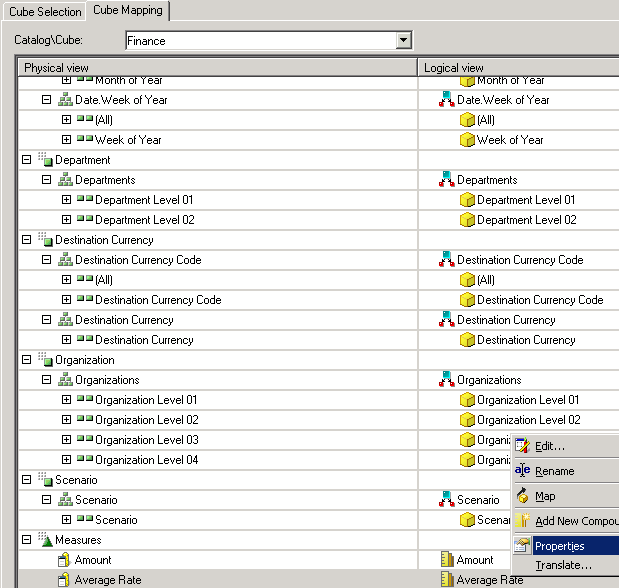
  • Go to MDX Cube Catalog and choose the cube "Finance". Right click the metric Average Rate and choose Properties. As shown below.                                                                     
                                     
ka04W000000uGDQQA2_0EM440000002DGH.png
ka04W000000uGDQQA2_0EM440000002DGm.png
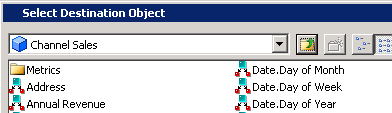
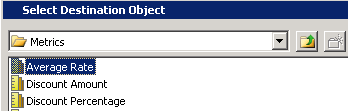
  • Right click the metric Average Rate and choose Map. Map to the metric Average Rate from cube "Channel Sales", as shown below:
ka04W000000uGDQQA2_0EM440000002DGG.png
ka04W000000uGDQQA2_0EM440000002DGg.png
ka04W000000uGDQQA2_0EM440000002DGl.png
  • Save and close the MDX cube Catalog and Update Schema.
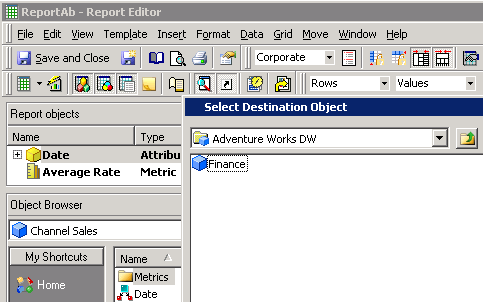
  • Edit the report "ReportAb" and go to Data menu and choose "Switch MDX Cube". Note cube "Finance" is available to be switched to, as shown below:                
ka04W000000uGDQQA2_0EM440000002DGJ.png


KB39969


Comment

0 comments

Details

Knowledge Article

Published:

June 8, 2017

Last Updated:

December 31, 2018