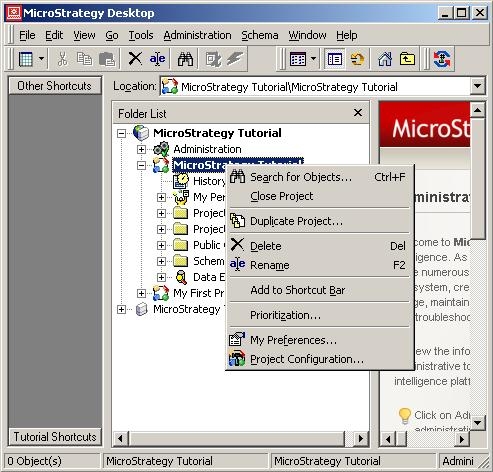
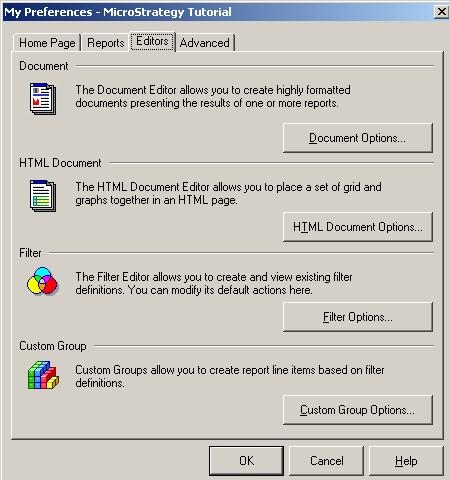
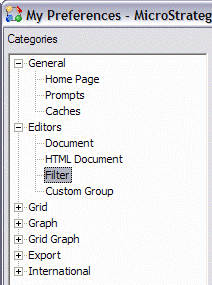
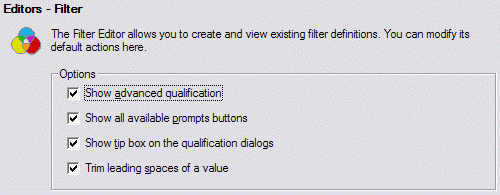
To create a custom expression filter, the Advanced Qualification Editor must be enabled in the user's project preferences in Strategy Developer 9.x.
To create an advanced qualification, in the Filter Editor, double-click in the top right-most box to create a qualification and choose Advanced. Click 'OK' and an empty box appears, as shown below:
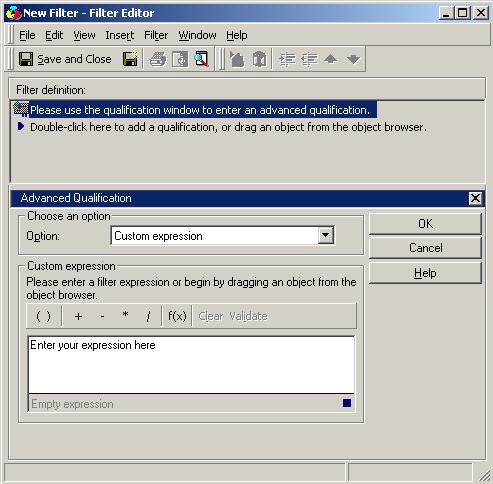
Whatever is entered into the box must evaluate to either true or false. For example, if users enter '5 = 6,' the report never returns data since this expression never evaluates to true. But if users enter '5 = 5,' nothing is filtered out since this expression always evaluates to true. The two sides of the expression should be separated by an operator (i.e., =, <, >, like, in, etc.).
The ApplySimple and ApplyComparison functions are useful in the Advanced Qualification Editor. ApplySimple may be used in one or both sides of a comparison expression. In ApplyComparison, the custom SQL syntax enclosed in quotation marks represents the entire condition; thus there is no need to compare the result of ApplyComparison to anything else.
The following is an example of a valid Advanced Qualification Expression that discovers the difference between today's year and the year of Start_Date in SQL Server:
ApplySimple ("datepart(yy, #0)", Start_Date) = ApplySimple ("datepart(yy, getdate())", Start_Date)
With ApplyComparison, the same condition would be written:
ApplyComparison ("datepart(yy, #0) = datepart(yy, getdate())", Start_Date)
