EducationSoftwareStrategy.com
StrategyCommunity

Knowledge Base

Product

Community

Knowledge Base

TopicsBrowse ArticlesDeveloper Zone

Product

Download SoftwareProduct DocumentationSecurity Hub

Education

Tutorial VideosSolution GalleryEducation courses

Community

GuidelinesGrandmastersEvents
x_social-icon_white.svglinkedin_social-icon_white.svg
Strategy logoCommunity

© Strategy Inc. All Rights Reserved.

LegalTerms of UsePrivacy Policy
  1. Home
  2. Topics

KB4010: Changes in the Warehouse tables are not reflected in MicroStrategy 10.x even after updating the schema


Stefan Zepeda

Salesforce Solutions Architect • Strategy


This article explains why changes in the Warehouse tables are not reflected in MicroStrategy 10.x even after updating the schema and provides the correct steps to reflect the changes after the changes.

SYMPTOM:
After making changes in the Warehouse tables (i.e., changing column names, adding or deleting a column, etc), if users open Strategy Developer and update the schema, those changes never take place. In the Physical View of the table in question, in the folder "Tables", users cannot see the modifications.
 
In the Fact editor, when selecting the columns that will be applied, the changes never occur. Users are not warned that the tables were changed. It appears that editor does not know the tables were changed.
 
When creating a report with a metric built upon the specific fact column changed, users receive the following error:
The QueryEngine encountered error: Call SQLExecDirect got error SQL_ERROR Too few parameters. Expected 1
CAUSE:
After any modification takes place in the Warehouse tables, the Logical Table Structure in the Strategy project must be updated along with the schema.
 
ACTION:
The changes must be updated in the Warehouse Catalog. To update the Logical Table Structures:
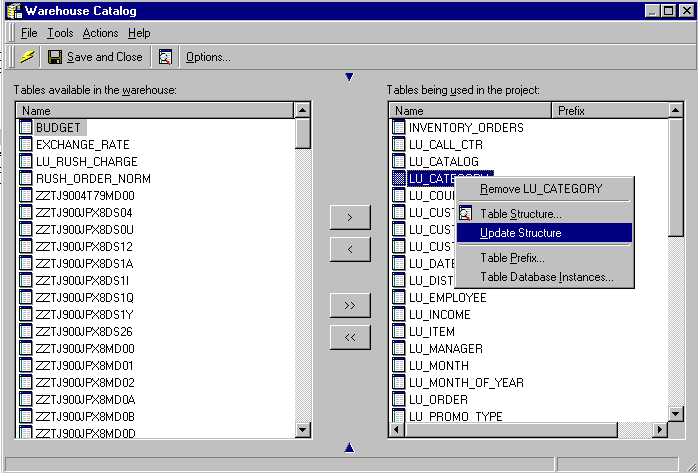
  • Go to Menu> Schema> Warehouse Catalog.
  • Place the mouse in the table that was modified in the warehouse and right-click.
     
ka044000000kJHlAAM_0EM440000002GKW.gif
  • Select 'Update Structure' (see picture above).
  • After performing the update, save and close the Warehouse Catalog window.


Comment

0 comments

Details

Knowledge Article

Published:

June 13, 2017

Last Updated:

June 13, 2017