EducationSoftwareStrategy.com
StrategyCommunity

Knowledge Base

Product

Community

Knowledge Base

TopicsBrowse ArticlesDeveloper Zone

Product

Download SoftwareProduct DocumentationSecurity Hub

Education

Tutorial VideosSolution GalleryEducation courses

Community

GuidelinesGrandmastersEvents
x_social-icon_white.svglinkedin_social-icon_white.svg
Strategy logoCommunity

© Strategy Inc. All Rights Reserved.

LegalTerms of UsePrivacy Policy
  1. Home
  2. Topics

KB401295: Selectors based on linked attributes do not filter selectors based on other linked attributes in MicroStrategy Web 10.2


Community Admin

• Strategy


This knowledge base article describes an identified defect in MicroStrategy Web 10.2 and up where selectors based on linked attributes do not filter selectors based on other linked attributes. This is still under review by MicroStrategy for inclusion in a future release. Contact MicroStrategy Technical Support for an update.

SYMPTOM:
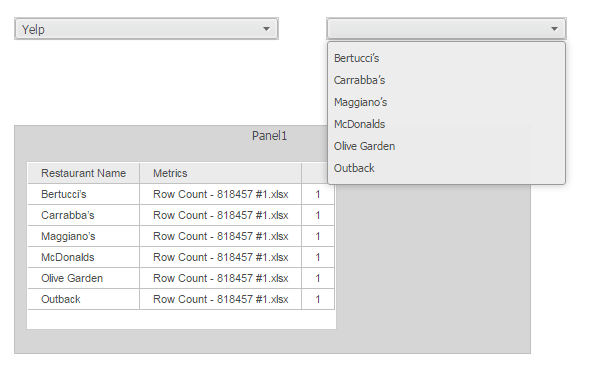
In Strategy Web 10.2, attributes in different datasets can be linked to one another. Selectors in Report Services Documents can target other selectors to cascade the selections on to other selectors from the same hierarchy. However when using data import cubes, selectors based on linked attributes do not filter the elements correctly in other selector also based on a linked attribute. The selector does correctly filter the data in a grid, however, as shown below.

ka04W000000ObtRQAS_0EM4400000025U1.jpeg

Notice that changing the first selector from OpenTable to Yelp, changes the data in the grid but the data in the other selector stays the same.
ka04W000000ObtRQAS_0EM4400000025UK.jpeg

STEPS TO REPRODUCE:

  1. Create an Excel file with the following table information.

​

ka04W000000ObtRQAS_0EM4400000025U3.jpeg
  1. Create another Excel file with the following table information.

​

ka04W000000ObtRQAS_0EM4400000025U5.jpeg
  1. Import both cubes in Strategy Web 10.
  2. Add both cubes to a document.
  3. Link the attributes 'Restaurant Name' between cubes by right-clicking on the attribute in the Dataset Objects and choosing 'Link to'.                    
  4. Repeat step 5 for the 'Website' attributes, as shown below.
ka04W000000ObtRQAS_0EM4400000025U0.jpeg
  1. Add a dropdown selector for Website.
  2. Add a dropdown selector for Restaurant Name.
  3. Add a panel stack to the document containing a grid with the Restaurant Name attribute and the metrics.
  4. Set the Website selector to target the panel stack and Restaurant Name selector, as shown below.

​

ka04W000000ObtRQAS_0EM4400000025Ty.jpeg
  1. Run the document in Presentation mode.
  2. Notice that changing the Website selector affects the grid but not the Restaurant Name selector.

CAUSE:
This is an identified defect in Strategy Web 10.2.
ACTION:
Currently this issue is still being reviewed for feasibility by our Technology team and it is not scoped for any upcoming scheduled Strategy release.
This issue has been logged as Scopus ID: 818457, DE30399, and KB401295
KB401295


Comment

0 comments

Details

Knowledge Article

Published:

June 8, 2017

Last Updated:

November 13, 2018