EducationSoftwareStrategy.com
StrategyCommunity

Knowledge Base

Product

Community

Knowledge Base

TopicsBrowse ArticlesDeveloper Zone

Product

Download SoftwareProduct DocumentationSecurity Hub

Education

Tutorial VideosSolution GalleryEducation courses

Community

GuidelinesGrandmastersEvents
x_social-icon_white.svglinkedin_social-icon_white.svg
Strategy logoCommunity

© Strategy Inc. All Rights Reserved.

LegalTerms of UsePrivacy Policy
  1. Home
  2. Topics

KB40152: How to rename the column in a warehouse table object in MicroStrategy Developer 9.x - 10.x


Stefan Zepeda

Salesforce Solutions Architect • Strategy


This technical note lists the steps to rename a column in a warehouse table object in MicroStrategy Developer 9.x - 10.x

Once the user imports a table into the metadata, if any column is renamed at the database side, Strategy Warehouse Catalog will display a message warning saying that this column cannot be found and will be removed. See the screenshot below:
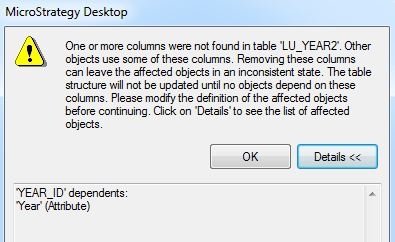
 

ka02R000000kVZDQA2_0EM440000002DEj.jpeg


One or more columns were not found in table ''. Other objects use some of these columns. Removing these columns can leave the affected objects in inconsistent state. The table structure will not be updated until no objects depend on these columns. Please modify the definition of the affected objects before continuing. Click on'Details' to see the list of affected objects.
 
 
In this example, the a column called "YEAR_ID" cannot be found in the table "LU_YEAR2"  and the attribute "Year" can no longer use this column. This column "YEAR_ID" existed when the table "LU_YEAR2" was imported. However, this column in the table is then renamed as "YEAR_ID_2". Before Strategy 9.0.0, the user needs to unmap all the dependent objects using the target column and then remap them again. In Strategy 9.x - 10.x, Strategy Architect provides a way to rename the column objects in the metadata. Please see steps below (continue the example given above):

  • Before update the table structure of "LU_YEAR2", launch Strategy Architect.
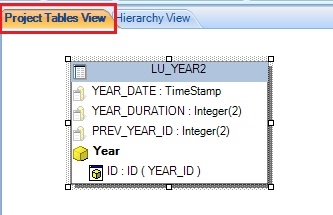
  • Open the Project Tables View.
     
ka02R000000kVZDQA2_0EM440000002DEd.jpeg
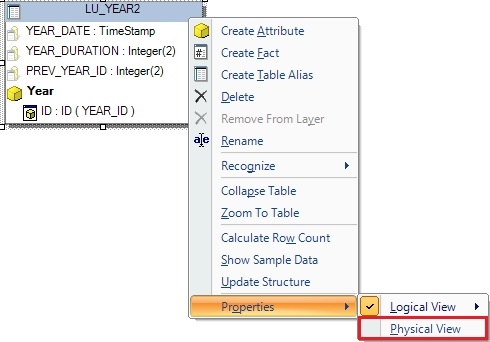
  • Right mouse click on the table "LU_YEAR2" and switch to Physical View.
     
ka02R000000kVZDQA2_0EM440000002DEb.jpeg
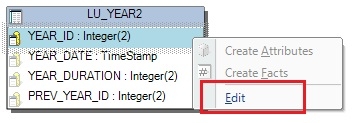
  • Right mouse click on the target column to be renamed and choose Edit.
     
ka02R000000kVZDQA2_0EM440000002DEf.jpeg
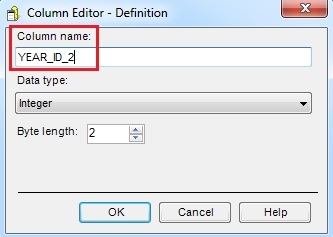
  • Input the new name "YEAR_ID_2".
     
ka02R000000kVZDQA2_0EM440000002DEh.jpeg
  • Save and close Architect.
  • Update Schema.


Comment

0 comments

Details

Knowledge Article

Published:

June 1, 2017

Last Updated:

June 1, 2017