EducationSoftwareStrategy.com
StrategyCommunity

Knowledge Base

Product

Community

Knowledge Base

TopicsBrowse ArticlesDeveloper Zone

Product

Download SoftwareProduct DocumentationSecurity Hub

Education

Tutorial VideosSolution GalleryEducation courses

Community

GuidelinesGrandmastersEvents
x_social-icon_white.svglinkedin_social-icon_white.svg
Strategy logoCommunity

© Strategy Inc. All Rights Reserved.

LegalTerms of UsePrivacy Policy
  1. Home
  2. Topics

KB40183: How to use URL API to dynamically pass selector values to a document with a cube report containing multiple prompts to be exported to Excel from MicroStrategy Web 9.2.x


Community Admin

• Strategy


How to use URL API to dynamically pass selector values to a document with a cube report containing multiple prompts to be exported to Excel from MicroStrategy Web 9.2.x

Users may want to dynamically pass multiple selectors' values as prompted answers to another Report Services document that is to be exported to Excel. The target Report Services document contains a cube report.
 
Follow the steps in the example below which use Strategy Tutorial project:
  • Create and publish a cube with attributes Category and Year.
  • Create a cube report off of the cube in Step 1.
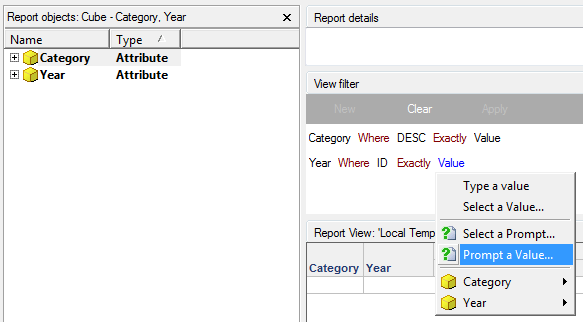
  • Add value prompts for Category and Year in the view filter of the cube report:
ka04W000000OgieQAC_0EM440000002799.png
  • Create a document with the cube report as the dataset. Save the document (Document1).
  • Create a standard report with attributes Category and Year.
  • Create a new document (Document2) with the report in Step 5 as the dataset.
  • Add a panel stack to the layout in Document2.
  • Add dropdown selectors for Category and Year that targets the panel stack.
  • Within the panel stack, insert a textbox that links to Document1.
  • Right-click the textbox to Properties and Formatting and enable 'Is Hyperlink'
  • Insert the following hyperlink:
     

    Sample Code/Error
    http://<web server>/MicroStrategy/asp/Main.aspx?Server=<web server>&Project=<Project Name>&Port=<port #>&evt=3069&src=Main.aspx.3069&executionMode=4&documentID=<document ID>&valuePromptAnswers={Category@Desc}^{Year@ID}


    Note: Anything in between < > brackets is specific to each environment.
     
    The event that specifies the export to Excel is:

    Sample Code/Error
    &evt=3069&src=Main.aspx.3069

     
    Because the report is coming from a cube report, the prompts only exist in value prompt type, therefore &valuePromptAnswers must be used. In the sample above, Category is being prompted on the DESC form and Year on the ID form. Therefore those are the forms specified in the parameter:

    Sample Code/Error
    &valuePromptAnswers={Category@Desc}^{Year@ID}

     
    Separate different prompts using the caret character ^.
     
    If the attribute name contains spaces, enclose it inside brackets {@Form}
     
    Ensure the order in which the attributes are defined in the URL matches the prompt order in the report.
     
      
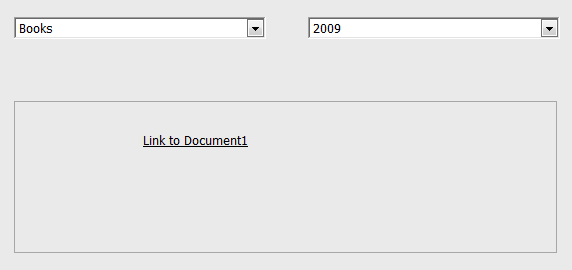
  • Run Document2 and choose 'Books' and '2009' on the dropdown selectors:
ka04W000000OgieQAC_0EM44000000278v.png
  • Click the link to Document1.
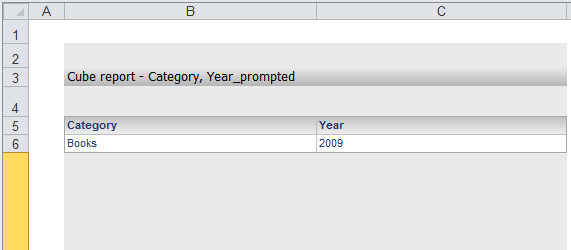
  • Notice that Document1 will directly export to Excel with the selector values as the prompt answers:
ka04W000000OgieQAC_0EM44000000278t.png


Comment

0 comments

Details

Knowledge Article

Published:

June 12, 2017

Last Updated:

June 12, 2017