EducationSoftwareStrategy.com
StrategyCommunity

Knowledge Base

Product

Community

Knowledge Base

TopicsBrowse ArticlesDeveloper Zone

Product

Download SoftwareProduct DocumentationSecurity Hub

Education

Tutorial VideosSolution GalleryEducation courses

Community

GuidelinesGrandmastersEvents
x_social-icon_white.svglinkedin_social-icon_white.svg
Strategy logoCommunity

© Strategy Inc. All Rights Reserved.

LegalTerms of UsePrivacy Policy
  1. Home
  2. Topics

KB4022: How to change the warehouse database for a project in MicroStrategy Developer


Stefan Zepeda

Salesforce Solutions Architect • Strategy


How to change the warehouse database for a project in MicroStrategy Developer

If a project is changed to run against a new warehouse, it is imperative that the new warehouse contains all of the tables and columns as in the old warehouse, and that they are named the same. If tables or columns are missing in the new warehouse, the project is not fully functional after being pointed to the new warehouse space.
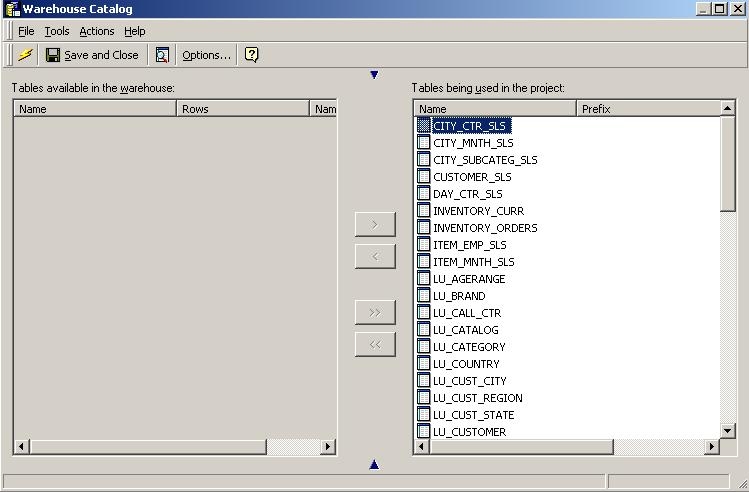
  • In the Strategy Developer Schema menu, click on 'Warehouse Catalog.' The Warehouse Catalog browser appears as seen below:
ka0PW00000010SbYAI_0EM440000002GKZ.jpeg
  • The project points to a certain warehouse. Lets say the current Warehouse Table Name Space is 'dbo,' so the tables in that project are saved as belonging to that Table Name Space.
     
    Note: Not all Database Management Systems (DBMS) are accommodating to this concept, so this applies to those databases that are.
     
  • Have a second warehouse with a different table name space, for instance, 'admin.'
  • Create a different database connection and database instance to point to the new warehouse (the 'admin' database).
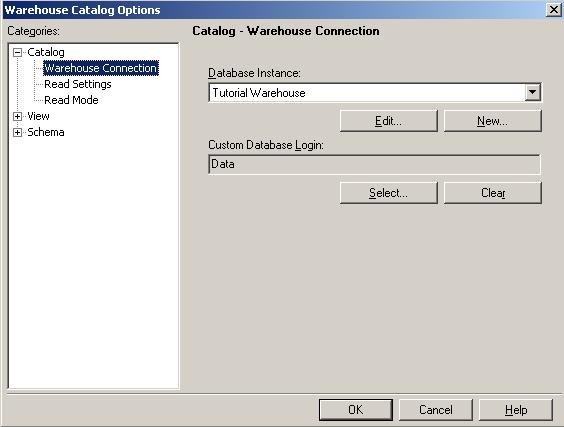
  • Switch the selected database instance to the new one (the 'admin' Table Name Space) in the Warehouse Catalog Browser via the Warehouse Catalog Properties dialog and can be accessed from the Warehouse Catalog Browser or from the Schema menu SQL Generation options as seen below:
ka0PW00000010SbYAI_0EM440000002GKb.jpeg
  • Before closing the dialog, in the Read Settings tab of Warehouse Catalog Options, check the 'Ignore current table name space when reading from the database catalog and update using new table name space' checkbox, which causes the Warehouse Catalog browser to ignore the Table Name Space when comparing the current tables in the project. For additional details on this setting refer to Strategy Knowledge Base document below:
     
    KB3945 -When is the ’Ignore Table Space’ setting in the Warehouse Catalog Options tab is useful in MicroStrategy Developer?
     
  • Click on 'OK.' The project now points to the new warehouse.
  • Save the changes in the Warehouse Catalog. The tables now belong to the new Table Name Space.
  • Open the Warehouse Catalog and uncheck the same checkbox to avoid ignoring the Table Name Space in further readings of the Warehouse Catalog.
  • Click on 'OK.'

Comment

0 comments

Details

Knowledge Article

Published:

June 8, 2017

Last Updated:

February 27, 2024