EducationSoftwareStrategy.com
StrategyCommunity

Knowledge Base

Product

Community

Knowledge Base

TopicsBrowse ArticlesDeveloper Zone

Product

Download SoftwareProduct DocumentationSecurity Hub

Education

Tutorial VideosSolution GalleryEducation courses

Community

GuidelinesGrandmastersEvents
x_social-icon_white.svglinkedin_social-icon_white.svg
Strategy logoCommunity

© Strategy Inc. All Rights Reserved.

LegalTerms of UsePrivacy Policy
  1. Home
  2. Topics

KB440255: How to hide the logout link from non-administrators with the MicroStrategy Web SDK 10.9


Community Admin

• Strategy


After logging into a project in MicroStrategy Web, a logout option is shown after clicking the user drop down on the top-right. This option can be selectively hidden using the Web SDK.

By default, this option is shown to all users after logging into a project in Strategy Web:

ka0PW0000000ifNYAQ_0EM44000000A5B3.png


Technically this feature can be hidden for all users using a CSS customization. However, this feature can also be customized at the source of this. These options shown in this menu are defined within the pageConfig.xml, within the shortcuts-list definition of the -1 default page. This pageConfig.xml resides in the WEB-INF/XML folder of Strategy Web, but should not be edited directly.
Instead, a plugin can be manually created to apply changes to this shortcuts list while adhering to best customization practices.

Creating a plugin manually


The plugin architecture requires plugins for Strategy Web to use specific folder & file naming and structures. These steps demonstrate how to create the plugin for this customization manually:
  • Navigate to the root folder of Strategy Web. In a J2EE/Tomcat environment, this will be the deployed folder within tomcat/webapps/.
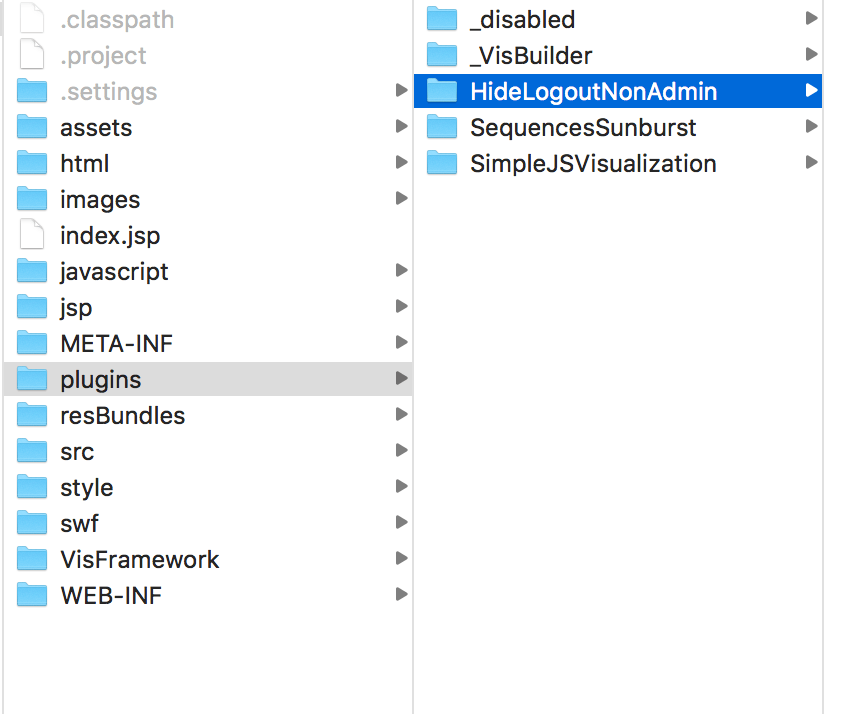
  • Navigate to the plugins folder within the Strategy Web root folder.
  • Within the plugins folder, create a new folder. A name that makes the customization easy to identify is recommended, for example, a folder named HideLogoutNonAdmin:
ka0PW0000000ifNYAQ_0EM44000000A5BD.png
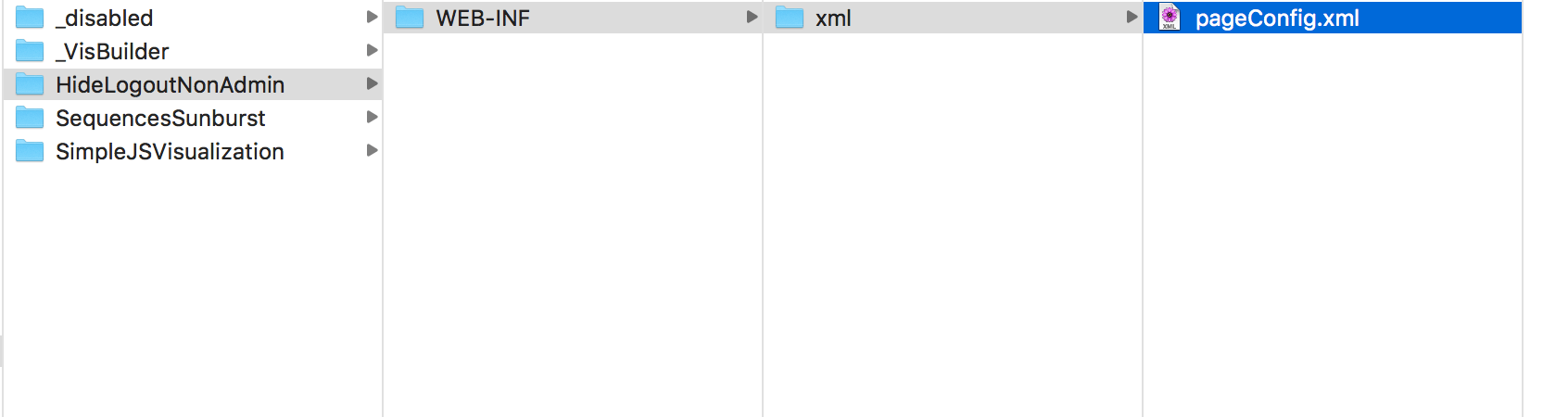
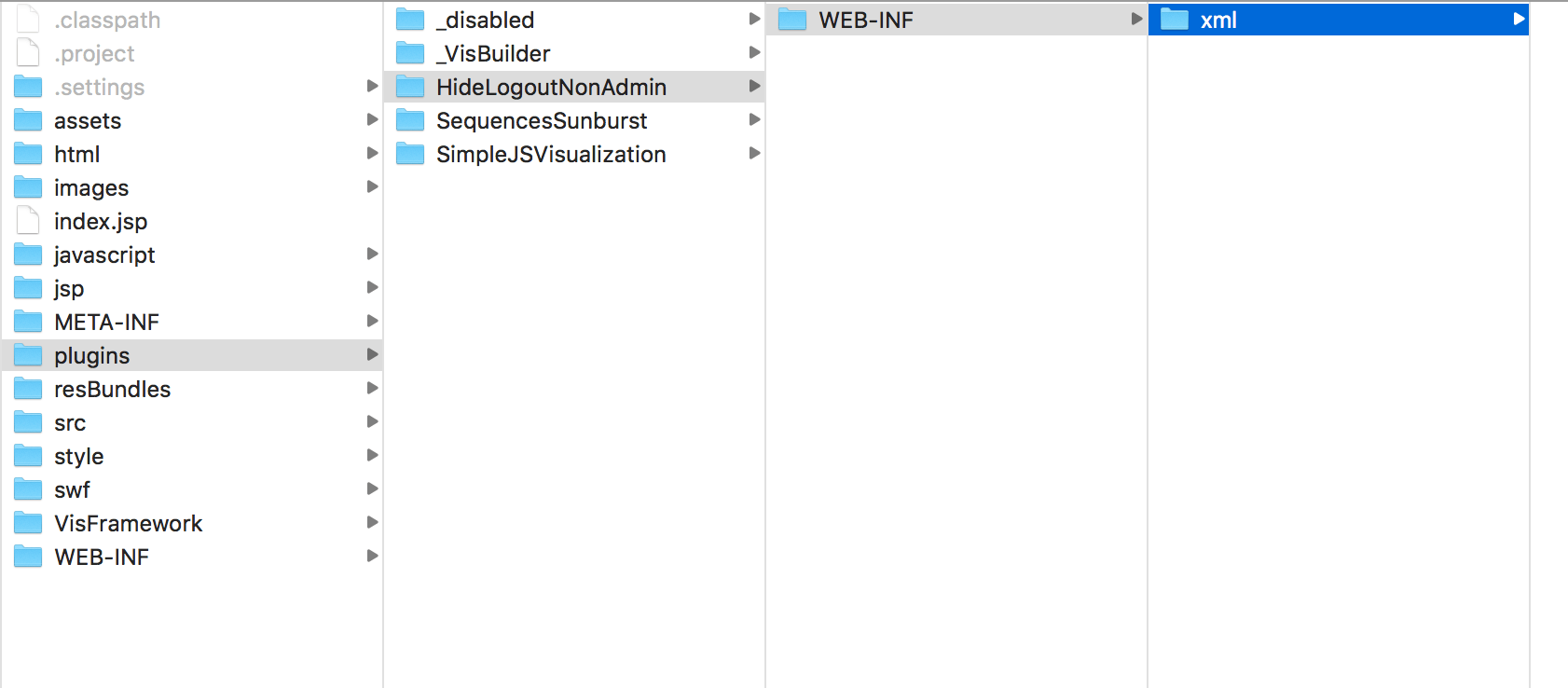
  • The built-in pageConfig.xml normally resides in the XML folder within the WEB-INF folder. To customize it, we will mirror this folder structure.
  • Create a WEB-INF folder inside the plugin called HideLogoutNonAdmin. Inside this newly created WEB-INF folder, create an XML folder (lower case):
ka0PW0000000ifNYAQ_0EM44000000A5BI.png
  • Lastly, since the built-in pageConfig.xml resides in the built-in version of this folder, create an empty text file called "pageConfig.xml" within this XML folder within the plugin:
ka0PW0000000ifNYAQ_0EM44000000A5BN.png


This completes the folder and file structure required to adhere with the plugin architecture, while allowing the customization to interfere with the default pageConfig.xml, without modifying the original file. To complete the customization, the pageConfig.xml now needs to be populated with the correct syntax, instructing Strategy Web exactly which changes need to be made.

Using the custom pageConfig.xml to modify an existing menu item


The original pageConfig.xml can be used to determine the correct syntax. Navigating through the XML structure in the built-in file, we can find an item labelled <shortcut-list name="account"> within the default page definition. This is the path within this XML structure:

  • pageConfig.xml
  • -> <framework>
  • -> <pages>
  • -> <page name="-1">
  • -> <templates>
  • -> <template>
  • -> <shortcut-list-set name="default">
  • -> <shortcut-list name="account">


Within this original "account" shortcut-list we can see a structure similar to how this drop-down is populated by default:


<shortcut-list name="account">
	<shortcut append-state="false" desc="Preferences" desc-id="mstrWeb.862" feature-id="dhtml;preferences" href="" iframe="false" name="preferences" shortcut-class-name="com.Strategy.web.app.gui.shortcuts.ShortcutAnchor" position="0">
		<event XMLmerge_id="1" event-id="com.Strategy.web.app.beans.EnumServletEvents.WebEventOpenPreferences">
			<argument name="com.Strategy.web.app.beans.EnumServletEvents.WebEventArgumentPreferenceGroup" value="general"/>
		</event>
	</shortcut>
	<shortcut append-state="false" desc="Feedback" desc-id="mstrWeb.13353" feature-id="dhtml;show-feedback" href="http://community.Strategy.com/t5/forums/postpage/board-id/390" iframe="false" name="feedback" target="_blank" position="1">
	</shortcut>
	<shortcut append-state="false" desc="Help" desc-id="mstrWeb.1143" feature-id="dhtml" href="" iframe="false" name="help" target="_new" position="2">
	</shortcut>
	<shortcut  append-state="false" desc="About Strategy" desc-id="mstrWeb.14348" feature-id="" href="" iframe="false" name="about" target="_new" position="3">
		<event XMLmerge_id="1" event-id="com.Strategy.web.app.beans.EnumServletEvents.WebEventOpenAbout"/>
	</shortcut>
	<shortcut append-state="true" desc="Logout" desc-id="mstrWeb.8" feature-id="" href="" iframe="false" name="logout" position="4">
		<event XMLmerge_id="1" event-id="com.Strategy.web.app.beans.EnumServletEvents.WebEventLogout"/>
	</shortcut>
</shortcut-list>

We can use minimal information to uniquely identify the "logout" option within the shortcut list that populates this menu. Following the XML structure path we found above, this example pageConfig.xml is enough to instruct Strategy Web to modify the "logout" item from this shortcut list, to add "administrator" to the feature-id parameter. 
This is the finished pageConfig.xml file within the plugin, hiding this option from all non-administrator users:

<framework>
  <pages>
    <page desc-id="" feature-id="" name="-1">
      <templates>
        <template>
          <shortcut-list-set name="default">
            <shortcut-list name="account">
              <shortcut name="logout" feature-id="administrator"/>
            </shortcut-list>
          </shortcut-list-set>
        </template>
      </templates>
    </page>
  </pages>
</framework>

This example can be further adapted for other changes in this and similar menus. In summary, adding "administrator" into the feature-id property allows only the administrator to see this option in the menu. For more information on Web Features and how they work, refer to the following SDK documentation:
https://www2.microstrategy.com/producthelp/Current/WebSDK/Content/topics/objbeans/Understanding_Web_Features.htm
Custom features can also be created in Java, although that is outside the scope of this article. For more information, refer to this example and corresponding documentation at the end of the example:
https://www2.microstrategy.com/producthelp/Current/WebSDK/Content/topics/scenarios/WEBSDK135.htm
 
The example provided in this document is provided “as-is” and assumes the user has read the following customization warning:
ADDITIONAL INFORMATION:
The Strategy SDK allows you to customize several Strategy products and extend and integrate the Strategy business intelligence functionality into other applications. However, before changing the way Strategy products look or behave, it is helpful to understand how the application is built. For more information regarding the Strategy products or the process of customizing Strategy products, please refer to Strategy Developer Zone (https://developer.microstrategy.com).
To access the Strategy Developer Zone, you must have access to the Strategy Knowledge Base, you must have purchased the Strategy SDK, and you must be current on your Strategy maintenance agreement. If you are a US-based business and believe that you satisfy all three of these conditions, but you do not have access to the Strategy Developer Zone, please contact Strategy Technical Support at support@microstrategy.com or at (703) 848-8700. If you are an international business, please contact Strategy Technical Support at the appropriate email address or phone number found at https://www.microstrategy.com/us/services/support/contact.
CUSTOMIZATION WARNING:
This customization is provided as a convenience to Strategy users and is only directly applicable to the version stated. While this code may apply to other releases directly, Strategy Technical Support makes no guarantees that the code provided will apply to any future or previous builds. In the event of a code change in future builds, Strategy Technical Support makes no guarantee that an updated version of this particular customization will be provided. In the event of a code change in future builds, Strategy may not be able to provide additional code on this matter even though this customization is provided at this time for this specific build. For enhancements to this customization or to incorporate similar functionality into other versions, contact your Account Executive to inquire about Strategy Consulting assistance.
KB440255


Comment

0 comments

Details

Knowledge Article

Published:

March 23, 2018

Last Updated:

February 13, 2024