EducationSoftwareStrategy.com
StrategyCommunity

Knowledge Base

Product

Community

Knowledge Base

TopicsBrowse ArticlesDeveloper Zone

Product

Download SoftwareProduct DocumentationSecurity Hub

Education

Tutorial VideosSolution GalleryEducation courses

Community

GuidelinesGrandmastersEvents
x_social-icon_white.svglinkedin_social-icon_white.svg
Strategy logoCommunity

© Strategy Inc. All Rights Reserved.

LegalTerms of UsePrivacy Policy
  1. Home
  2. Topics

KB40329: New feature in MicroStrategy Office 9.3.0: Startup tracing for the Configuration utility.


Community Admin

• Strategy


Article outlines how to use the start up tracing to monitor the MicroStrategy Office plug initialisation for troubleshooting purposes.

Starting in Strategy Office 9.3.0, users can monitor the Strategy Office plugin initialization for troubleshooting purposes using the Strategy Office Configuration Utility. This utility is useful for troubleshooting issues related to:

  • Installation of the plugin
  • Configuration
  • Missing toolbars
  • Missing add-ons or plugins

To enable the Configuration Utility, follow these steps:
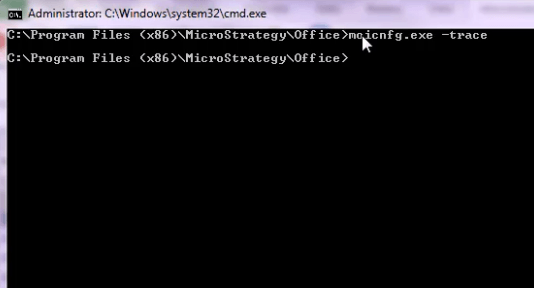
  • Start a Windows Command Prompt as Administrator and browse to the Strategy Office parent directory. By default, this is located here: C:\Program Files (x86)\Strategy\Office
  • Type in the command moicnfg.exe -trace to enable the trace, like shown below:

ka04W000000OectQAC_0EM44000000278r.png
  •  
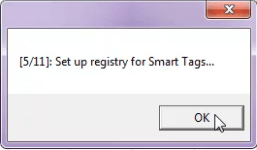
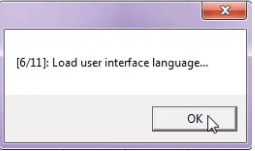
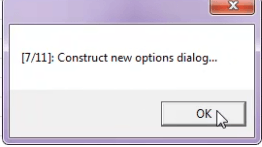
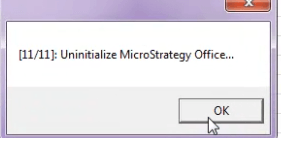
    At this point, the utility will go through eleven steps to determine if the Office plugin can be initialized successfully. Successful completion of these steps will appear similar to the following:
     

Step 1: Construct new Strategy Office instance.
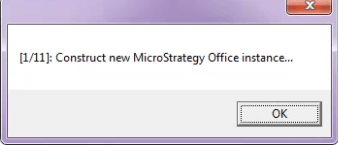
ka04W000000OectQAC_0EM44000000278h.png

 
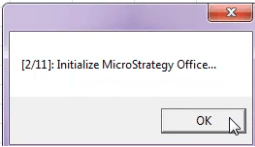
Step 2: Initialize Strategy Office

ka04W000000OectQAC_0EM44000000278U.png

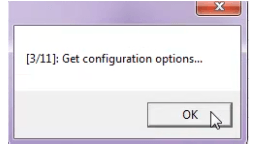
Step 3: Get configuration options

ka04W000000OectQAC_0EM44000000278b.png

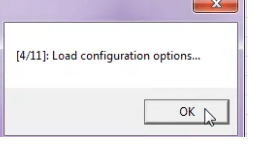
Step 4: Load configuration options

ka04W000000OectQAC_0EM44000000278d.png

Step 5: Set up registry for Smart tags
ka04W000000OectQAC_0EM44000000278W.png

 
Step 6 : Load user interface language
ka04W000000OectQAC_0EM44000000278p.png

 
Step 7 : Construct new options dialog
ka04W000000OectQAC_0EM44000000278Z.png

 
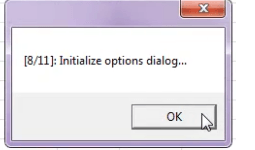
Step 8: Initialize options dialog

ka04W000000OectQAC_0EM44000000278f.png

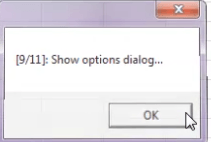
Step 9: Show options dialog
 

ka04W000000OectQAC_0EM44000000278n.png

 
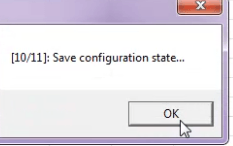
Step 10:  Save configuration state

ka04W000000OectQAC_0EM44000000278j.png

 
Step 11 : Uninitialize Strategy office.
ka04W000000OectQAC_0EM44000000278T.png

 
If any of these steps fail, record the error message and contact Strategy Technical Support for further assistance.


Comment

0 comments

Details

Knowledge Article

Published:

June 8, 2017

Last Updated:

June 8, 2017