There are cases in which a dynamic prompt is used to qualify attributes selected to be part of a report, but the attribute list is very long.
Attributes like 'Street Address' may contain keywords like 'St', 'Ave', 'Dr' that can be use to reduce the list of selected elements.
It is possible to filter the list using the find box and to include one or more substrings that can be logically 'ORed' (Will be included if any of the substrings is found) or logically 'ANDed' (Will be included if all substrings).
Pattern delimiters are ' ' (space), '%' and '_ '
Space or blank = will be used for logical 'OR'
'%' = Will be used for logical 'AND' usually in pairs (begin-end of string)
'_' = Will be used as wildcard in lieu of space (blank)
CASE 1: Filter all attributes that contains 'z' or 'x' strings:
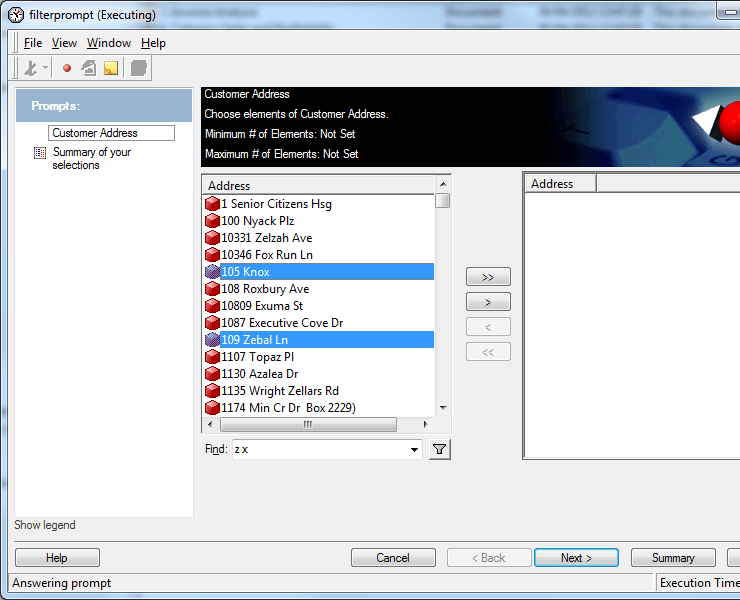
In this example, all listed addresses contains string 'z' OR string 'x' in any position of the description.
CASE 2: Filter all attributes that contains first the string 'Old' AND then 'Hwy':
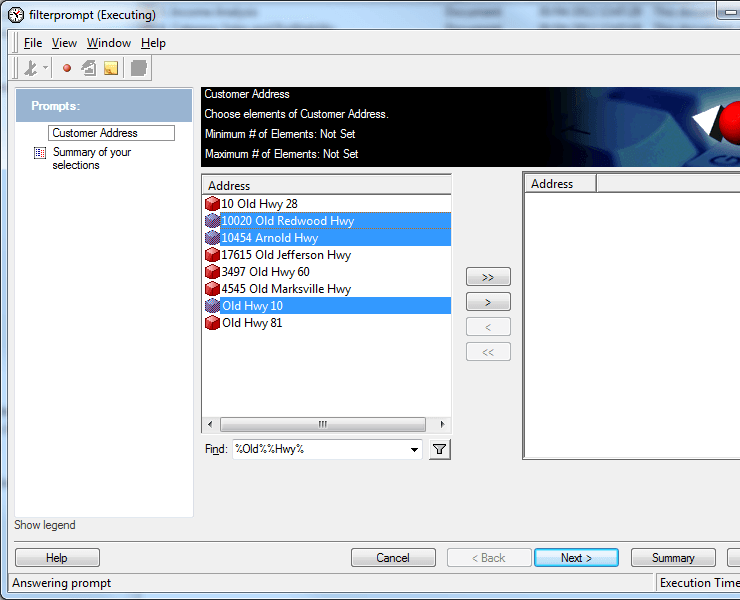
Observe that substring 'Old' and 'Hwy' can be part of other string and can start in any position. However, using %Hwy%%Old% will produce a different result.
In Tutorial, this filter will produce empty list as there is no address that have substring 'Hwy' before 'Old'.
CASE 3: Filter all attributes that contains the substring 'Old Hwy':
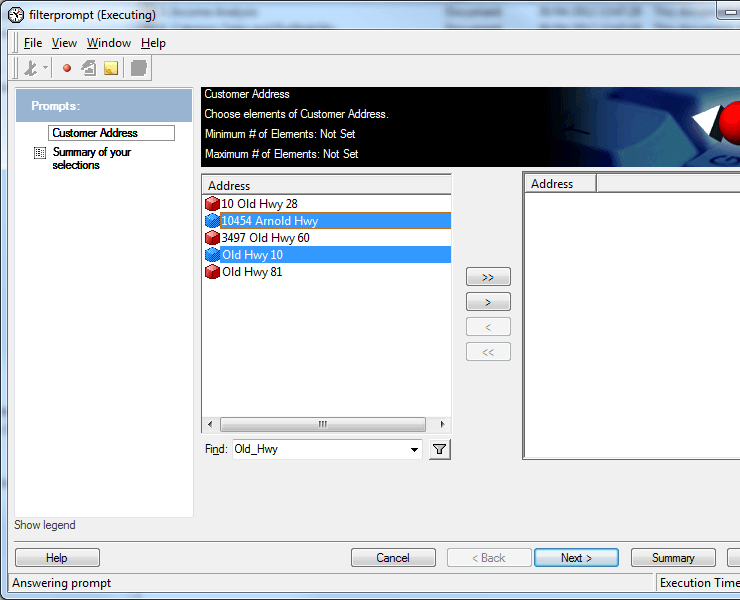
Special character '_' should be used to represent a single space. Cannot be duplicated for representing multiple space.
In this example if the filter were '_Old_Hwy' , the last two elements will not be shown as they do not begin with spaces.
NOTE:
Examples shown in Strategy Developer, but it apply also to the Web interface when using the find box in dynamic prompts.
The following Strategy Knowledge Base technical notes have more information on filter using find box:
KB38241: How to use the Find search to select objects when creating an attribute qualification filter definition in MicroStrategy Developer 9.4.x-10.x
