You can now project iPhone/iPad from your laptop or PC, using regular iPad USB cable and connect the iPad to the computer with the help of iTools.exe application.
You can download the application from the following locations :
https://www.itools4.com/
(Note: You can google search for the tool, if the above links don't work.)
Steps to project iPhone/iPad through Live Meeting.
Step 1: Download the free tool from the location provided
Step 2: After you download it extract the contents of the zip file to your windows desktop.
Step 3: Double click the iTools.exe file
Step 4: Connect the device ( iPhone/iPad ) to your computer.
Step 5: The contents of your device ( iPhone/iPad) will display in the task plane on the left.
Step 6: After the contents of the iPad load , click Desktop and then click Live Desktop tab .
Step 7 : Every action on your iPhone/iPad will be projected on your screen .
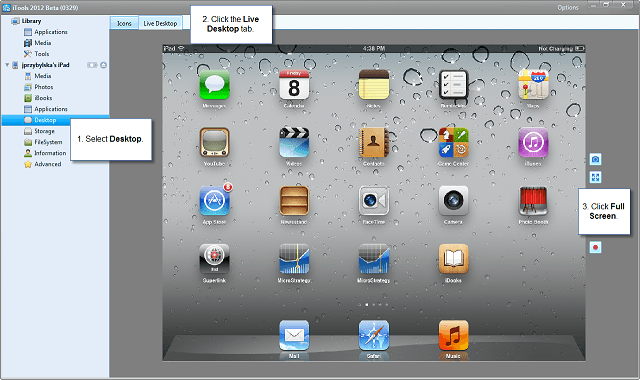
Note : To use iTools in latest iOS release and Apple devices, we need to have to download and install latest iTools release.
Third Party Software Installation Warning:
The third-party product(s) discussed in this technical note is manufactured by vendors independent of Strategy. Strategy makes no warranty, express, implied or otherwise, regarding this product, including its performance or reliability.
This technical note contains a link to a third party website that is not under the control of Strategy. When the user accesses a third party web site, the user does so at his or her own risk and acknowledges that Strategy is not responsible or liable for any content, advertising, products or other materials available from such third party sites. Mention of third party companies and web sites in this technical note is for informational purposes only and does not constitute an endorsement or recommendation.
