EducationSoftwareStrategy.com
StrategyCommunity

Knowledge Base

Product

Community

Knowledge Base

TopicsBrowse ArticlesDeveloper Zone

Product

Download SoftwareProduct DocumentationSecurity Hub

Education

Tutorial VideosSolution GalleryEducation courses

Community

GuidelinesGrandmastersEvents
x_social-icon_white.svglinkedin_social-icon_white.svg
Strategy logoCommunity

© Strategy Inc. All Rights Reserved.

LegalTerms of UsePrivacy Policy
  1. Home
  2. Topics

KB40376: How to apply Custom Banding only on Attributes in MicroStrategy 9.x


Stefan Zepeda

Salesforce Solutions Architect • Strategy


When using custom banding in reports, sometimes is necessary to not apply it over the Metric Columns. This feature is not able in the MicroStrategy 9.x

SUMMARY:
When using custom banding in reports, sometimes is necessary to not apply it over the Metric Columns. This feature is not able in the Strategy 9.x
 
SYMPTOM:
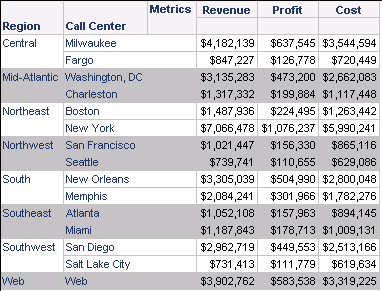
Currently in Strategy 9.x, Custom Banding is always applied on both Attributes and Metrics, as follow:  
 

ka02R000000kWzCQAU_0EM440000002DCf.png

WORKAROUND:
Follow the steps below to apply Custom Banding only on Attributes by using thresholds for specifing a unique color to all metric values:
1 – Click on the Threshold icon.
2 – Select the desired Metric.  
3 – Select Is Not Null as operator.

ka02R000000kWzCQAU_0EM440000002DCi.png

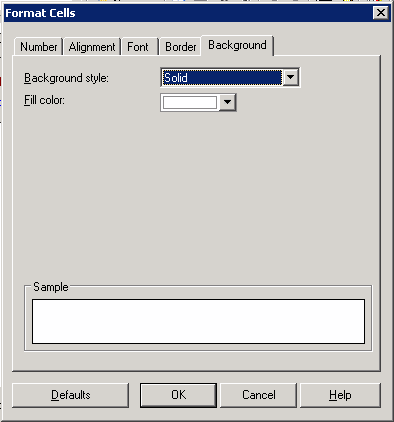
4 – Click on the cell to enable the Format Cells editor.
5 – Go to Background tab, set the Background style as Solid and choose one color.
ka02R000000kWzCQAU_0EM440000002DCh.gif

6 – Repeat the steps 2 to 5 in order to create one more Threshold qualification selecting the operator Is Null.
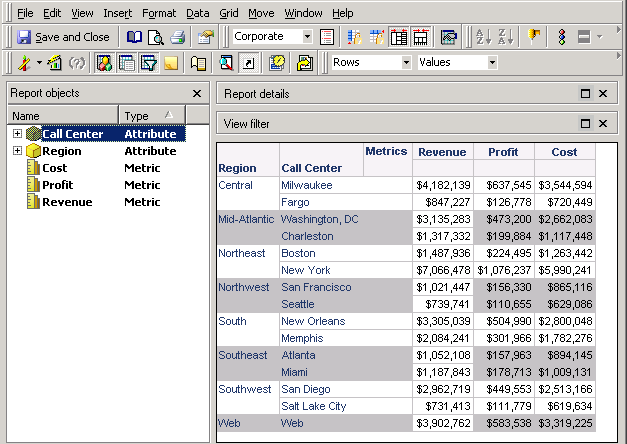
7 – Change the operator AND to OR according to image below.

8 – It will apply the same color to all metric values:
 

ka02R000000kWzCQAU_0EM440000002DCk.png

Comment

0 comments

Details

Knowledge Article

Published:

April 12, 2017

Last Updated:

April 12, 2017