SYMPTOM:
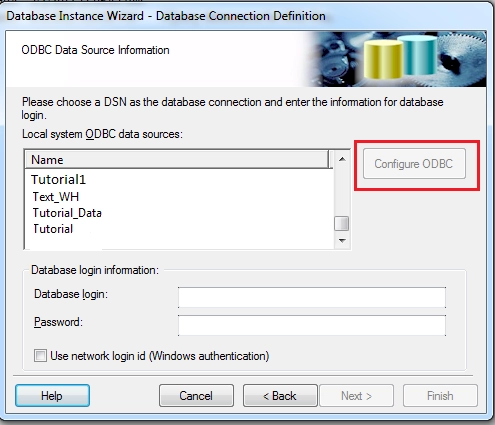
When creating a new database instance through the Database Instance Wizard, the "Configure ODBC" button is grayed out, as shown in the screenshot below:
STEPS TO REPRODUCE
1. Log into a project source
2. Go to Administration > Configuration Manager > Database Instances
3. Right mouse click on "Database Instances" and select "Database Instance Wizard"
4. Click Next in the Introduction window
5. In the Database Instance Definition window, choose a name for the new database instance and select the database type. Click Next: the Database Connection Definition window appears and the "Configure ODBC" button is disabled.
CAUSE:
This is working by design. The "Configure ODBC" button will only be enabled when connecting to a 2-tier project source or when the Intelligence Server is in the local machine.
ACTION:
Create the ODBC connection beforehand, using the Connectivity Wizard. Another solution would be to use a 2-tier connection or access the project source in 3-tier from the Intelligence Server machine, if possible.
KB40461
